Billing and wallet
Plans, the wallet, top-ups, paying for Pro from the wallet, and receipts.
Billing & wallet in the console holds your plan, your wallet and your invoices. Only team admins can manage it. Everyone else sees "Ask a team admin to manage billing." and whether pay-as-you-go is on.
Plans
| Plan | Price a month | Includes |
|---|---|---|
| Free | $0, no card | 5,000 emails a month, 200 a day, 1 domain, 1 contact book, 1 team member and 1 webhook. |
| Pro | $15 | 50,000 units a month. |
| Scale | $35 | 100,000 units a month. |
| Business | $75 | 300,000 units a month. |
Every paid plan has up to 50 domains, and no cap on contact books, team members or webhooks. A marketing email is 1 unit and a transactional email is 0.5 of a unit. See Plans and units for what a unit is and what happens at your limit.
The full prices, in your currency, are on the pricing page and under View pricing in the console. Pay by card in US dollars, or from your wallet in dollars, naira or shillings. Teams in Nigeria and Kenya pay a fixed price in naira or shillings, so it does not move with the exchange rate.
Teams that connect their Resend, SendGrid or Mailchimp account and migrate here can get their first month of Pro free, with no card. See A free month of Pro.
The wallet
The wallet is a prepaid balance. It pays for:
- SMS and one-time codes sent by SMS. See Send SMS.
- Your plan, if you choose. See Pay for your plan from your wallet.
Top-ups are prepaid and are not refundable.
Top up your wallet
Open Billing & wallet in Settings
Go to Billing & wallet. The Wallet card shows your balance and, when you send SMS, about how many days it lasts at your current pace.
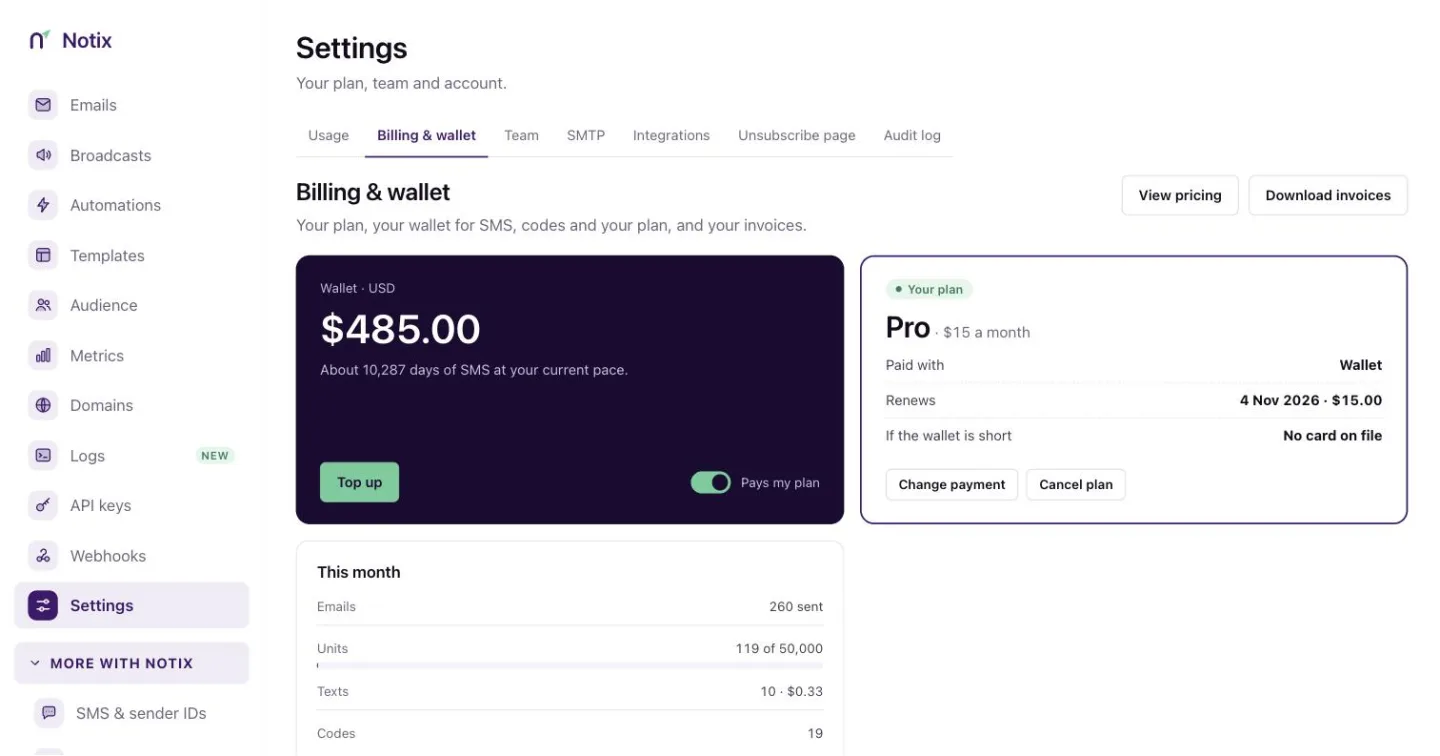
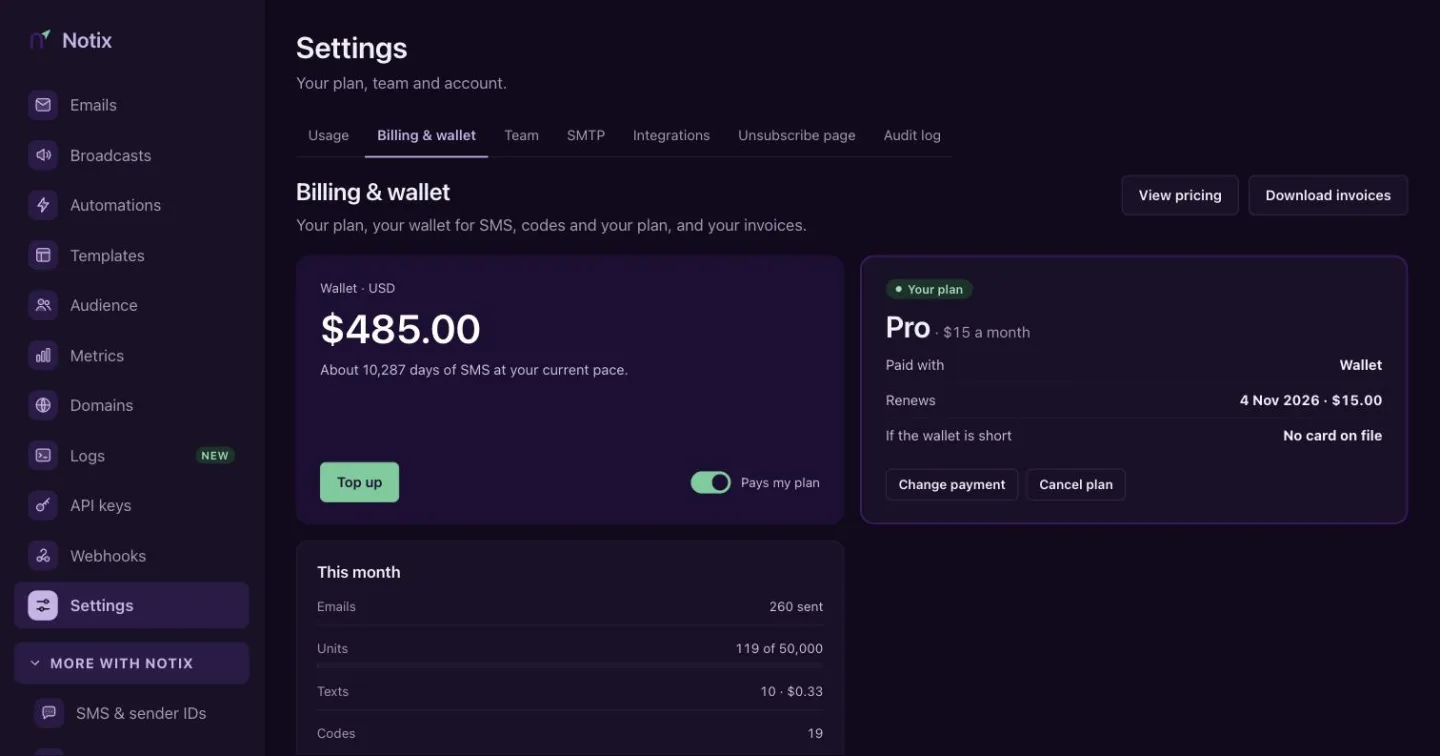
Billing & wallet: your balance, your plan, this month's usage and every invoice and top-up. Press Top up wallet
Pick one of the quick amounts or type another. A wallet in US dollars pays by card through Stripe. A wallet in naira or shillings pays by card, bank transfer or mobile money through HitchPay, which also asks for a billing phone number.
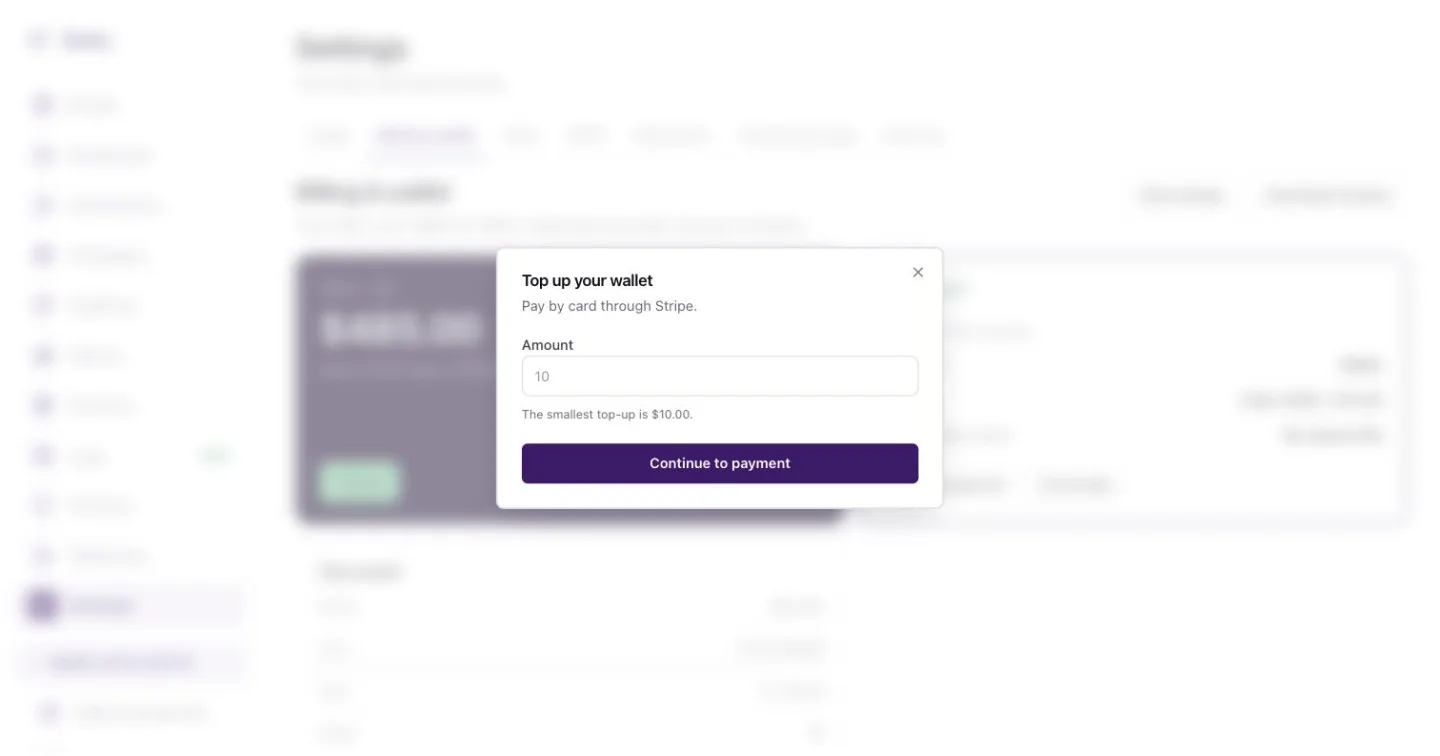
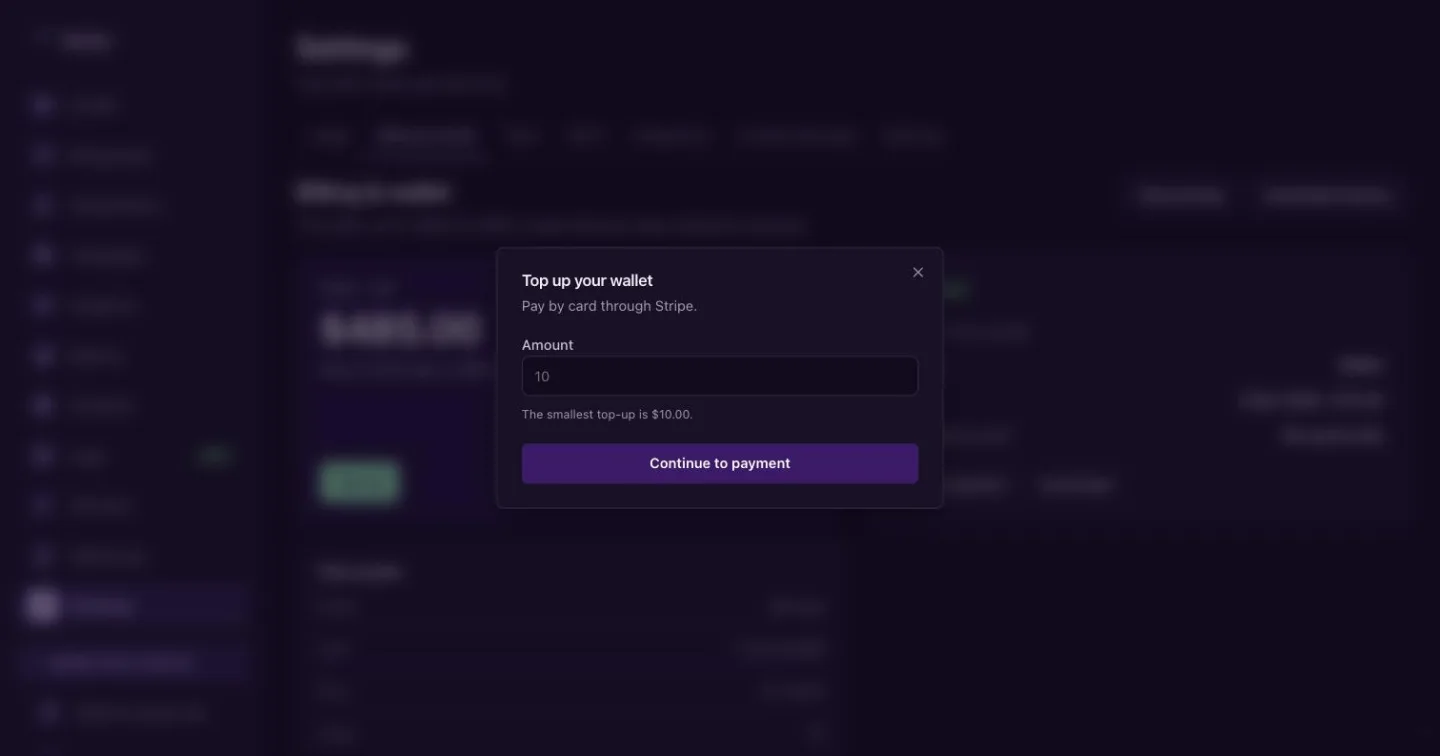
Top up your wallet: pick an amount, then pay. Pay
You go to the payment page, then back to Notix. A top-up you have paid is added on its own once the provider confirms it. Until then it shows under Top-ups you have not finished paying.
You can read the balance from code with Get the wallet balance, and every movement with List wallet transactions. Both need an API key made by a team admin (the owner always is one). A key a member made is refused, and so is a key whose maker is no longer an admin.
Upgrade to Pro
On Your plan, press Upgrade to Pro. The dialog offers two ways to pay:
- Pay from my wallet, when the wallet covers the whole price and Pays my plan is on. A payment is never split between the wallet and a card.
- Pay by card, through Stripe.
Nothing is charged until you press the button, and Notix never charges the same month twice.
Change plan
On a paid plan, press Change plan on Your plan. The dialog shows Free, Pro, Scale and Business side by side, with what each costs by card and from your wallet. Pro, Scale and Business can each be paid by card or from your wallet.
- Moving up starts at once. You pay a prorated charge for the rest of the billing month, and the bigger plan's units apply straight away.
- Moving down, or back to Free, waits for your next renewal. Until then you keep your current plan and its units. Keep your current plan to undo a move that is waiting.
Only a team admin can change the plan. See Plans and units.
Pay for your plan from your wallet
When the wallet pays, your plan renews from the wallet each month. If the wallet is short on the renewal day, Notix charges your saved card. With no card, you get 3 days to top up before the team goes back to Free. A banner on the page tells you while the renewal is waiting. Nothing is deleted when a team goes back to Free.
The Pays my plan switch on the Wallet card decides whether the wallet pays your plan. Turn it off to keep the wallet for SMS only.
On a month the wallet paid, Your plan shows Change payment and Cancel plan. If you cancel, your plan runs to the end of the month you paid for. Keep your plan to undo it.
Pay-as-you-go
When a paid plan has used all its units, sending stops until the units reset. Sign-in and verification codes keep going out, up to 500 a day on Pro (more on bigger plans). Pay-as-you-go lets sending carry on instead, at $1 per 1,000 marketing emails and $0.50 per 1,000 transactional emails, with no spending cap. It is off until a team admin turns it on, on the Pay-as-you-go card on this page.
See Pay-as-you-go for how it is billed and how to turn it on or off.
Invoices and receipts
Invoices and top-ups lists every invoice, top-up and wallet charge, newest first. Filter it with the chips at the top. Press a row's link to open its receipt, and Download invoices to get card invoices from Stripe.
A receipt shows what was paid, when and how, with its reference. Press Print or save as PDF to keep a copy.
From code, use List receipts, Get a receipt, List invoices and Get the plan. These need a full access or read only key made by a team admin.
Prices for SMS and other channels
Press View pricing to see package prices per channel in your team's billing currency, such as the price per text for each country.
Read the same list with Get prices, and this month's usage with Get usage.