API keys and permissions
Key permissions, domain limits, send limits, approvals and the audit log.
Every API key has a permission, can be held to one domain, and can carry its own limits. This page explains each setting, the key page, approvals and the audit log. To make your first key, see Create an API key.
Permissions
| Permission | What it reaches |
|---|---|
| Full access | Every endpoint: sending, contacts, domains, broadcasts and analytics. Only team admins can make one. |
| Send only | Sending an email or a batch, reading back an email it sent, one-time codes, the deliverability check and enrolling a contact in an automation. Everything else answers 403 SCOPE_DENIED. |
| Read only | Lists, lookups and stats. Send calls work only as a practice run with the header Notix-Dry-Run: true. Every write answers 403. |
| Live AI | Made on Connect your AI for one AI app and one verified domain. Its permission cannot be changed. |
Give a backend that only sends email a Send only key. If it leaks, it cannot read your contacts, delete a domain or cancel a scheduled broadcast.
A key can never do more than the person who made it. A member's keys can send email or read, but not reach admin-only endpoints.
Hold a key to one domain
Under Domain access, choose one verified domain instead of All Domains. The key then sends only from that domain, and reads only that domain's emails, analytics and received mail. It cannot add domains, send SMS or codes, or use webhooks. Those answer 403 DOMAIN_PINNED. Contacts, templates and segments belong to the whole team, so it still reaches them.
Open a key
Open API keys
Go to API keys. Keys and agents lists every key with its permission, domain and what it did today.
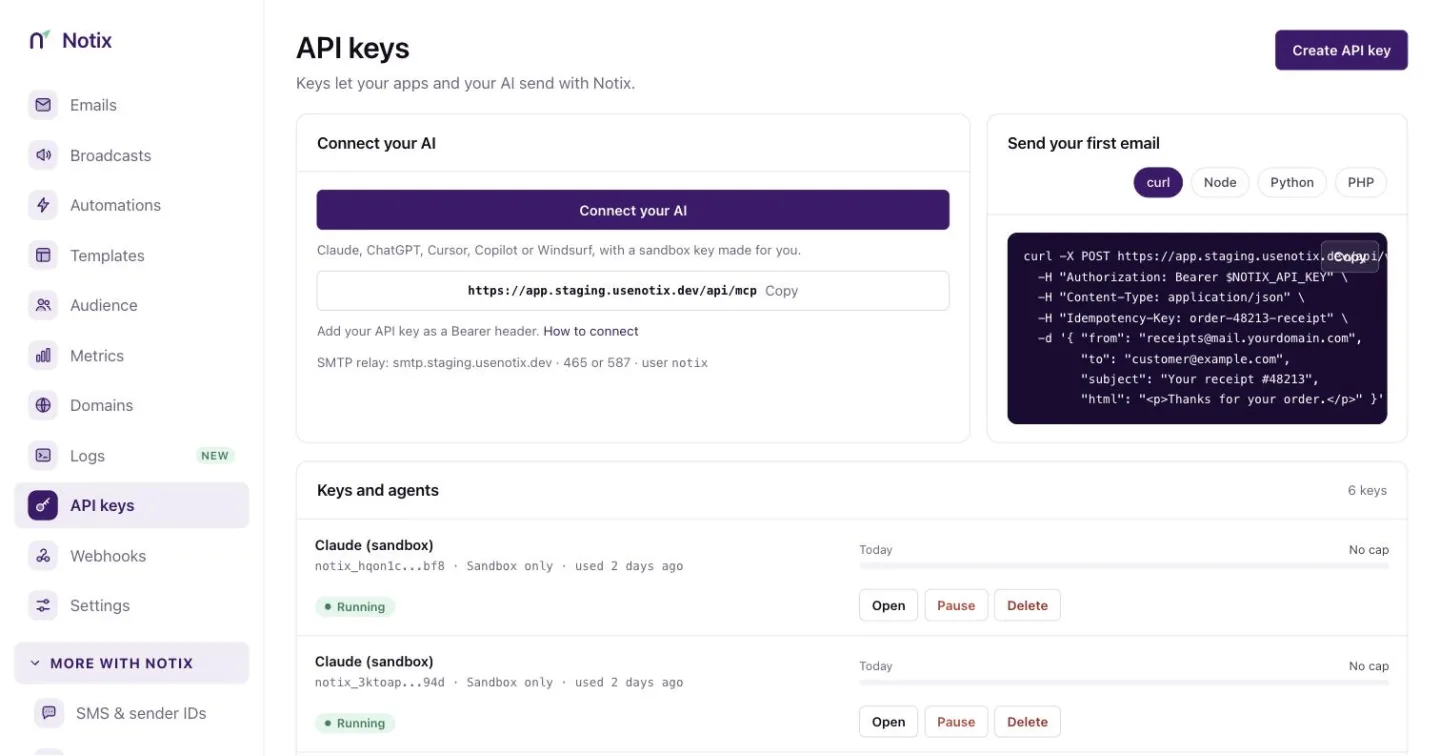
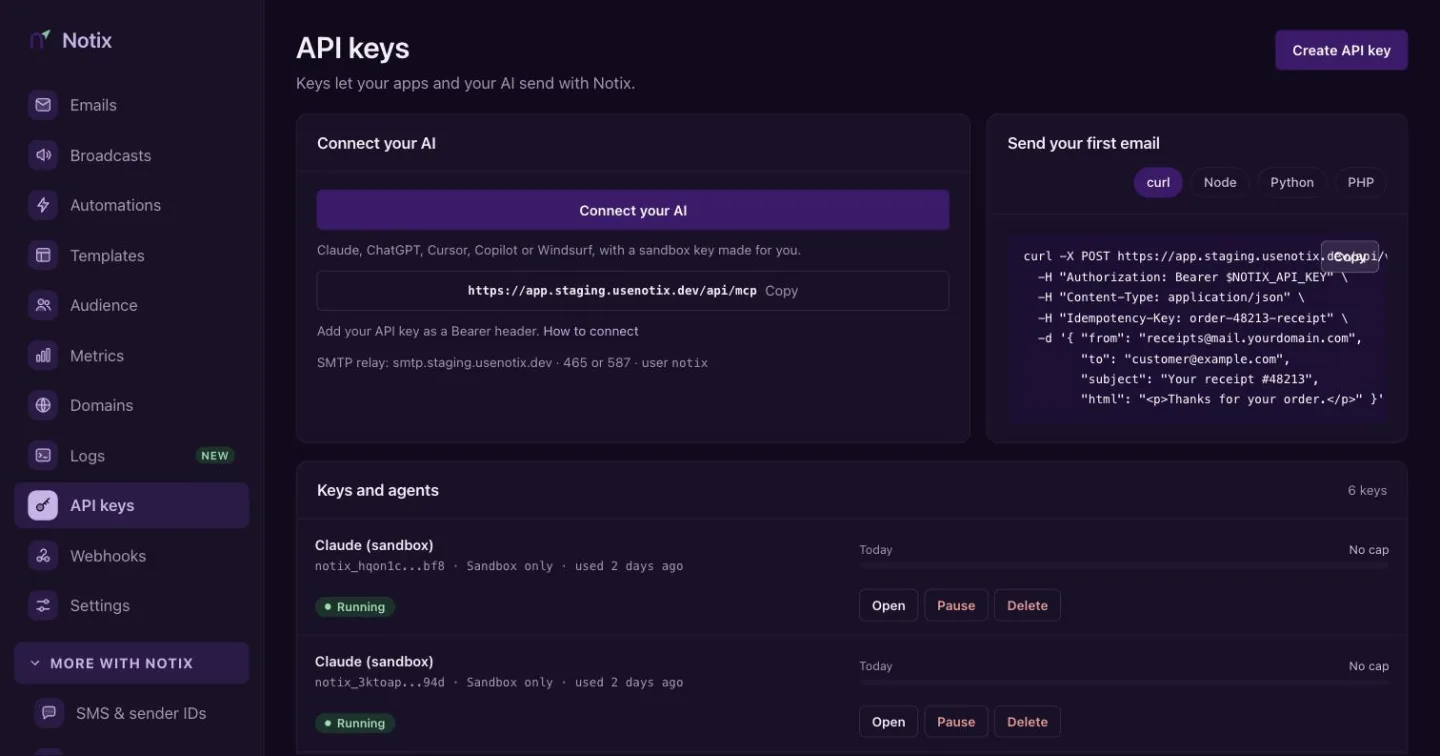
API keys: every key and agent, and what each did today. Press a key
Press a key's name. Its page shows who uses it, who made it and its last call, with Running or Paused at the top right. The tiles show emails today against its daily cap, SMS today, and the broadcast size that needs approval. What it did today lists each call.
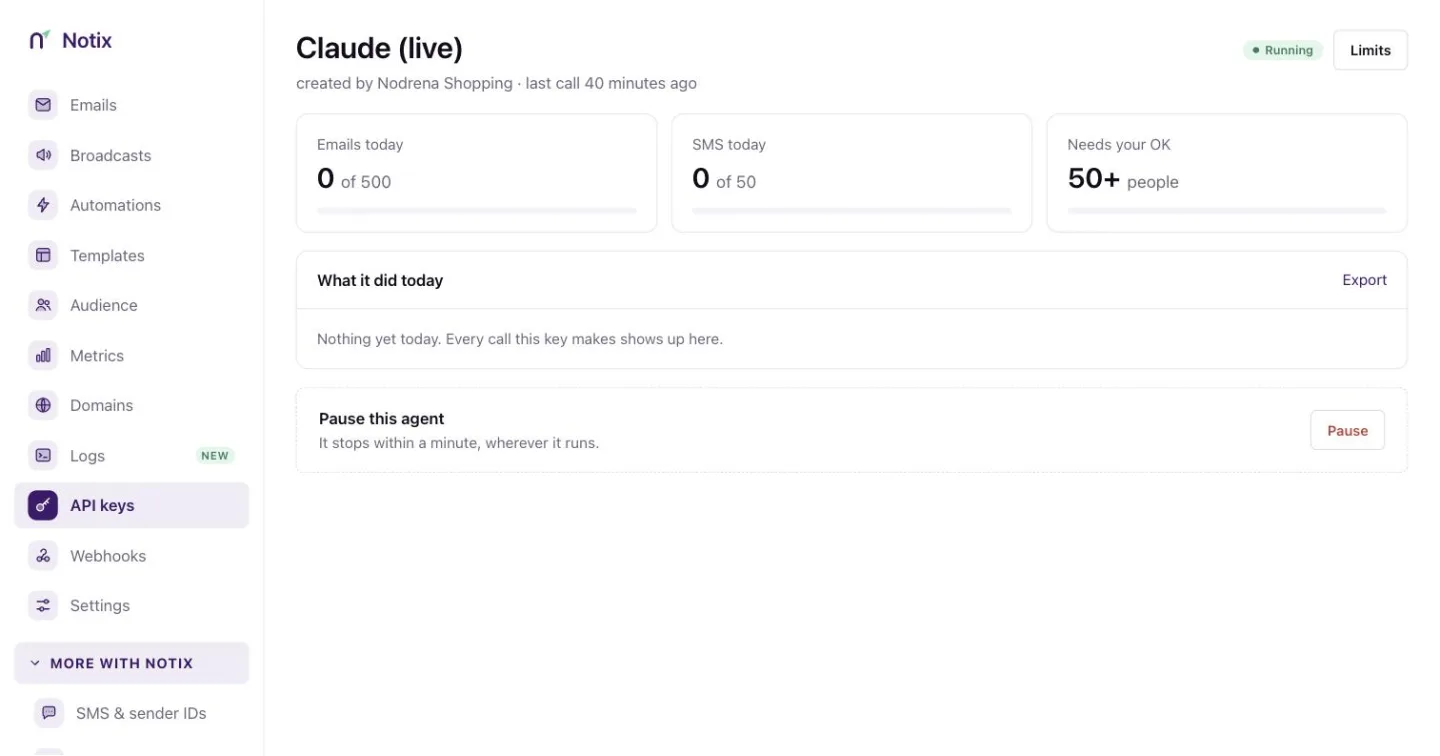
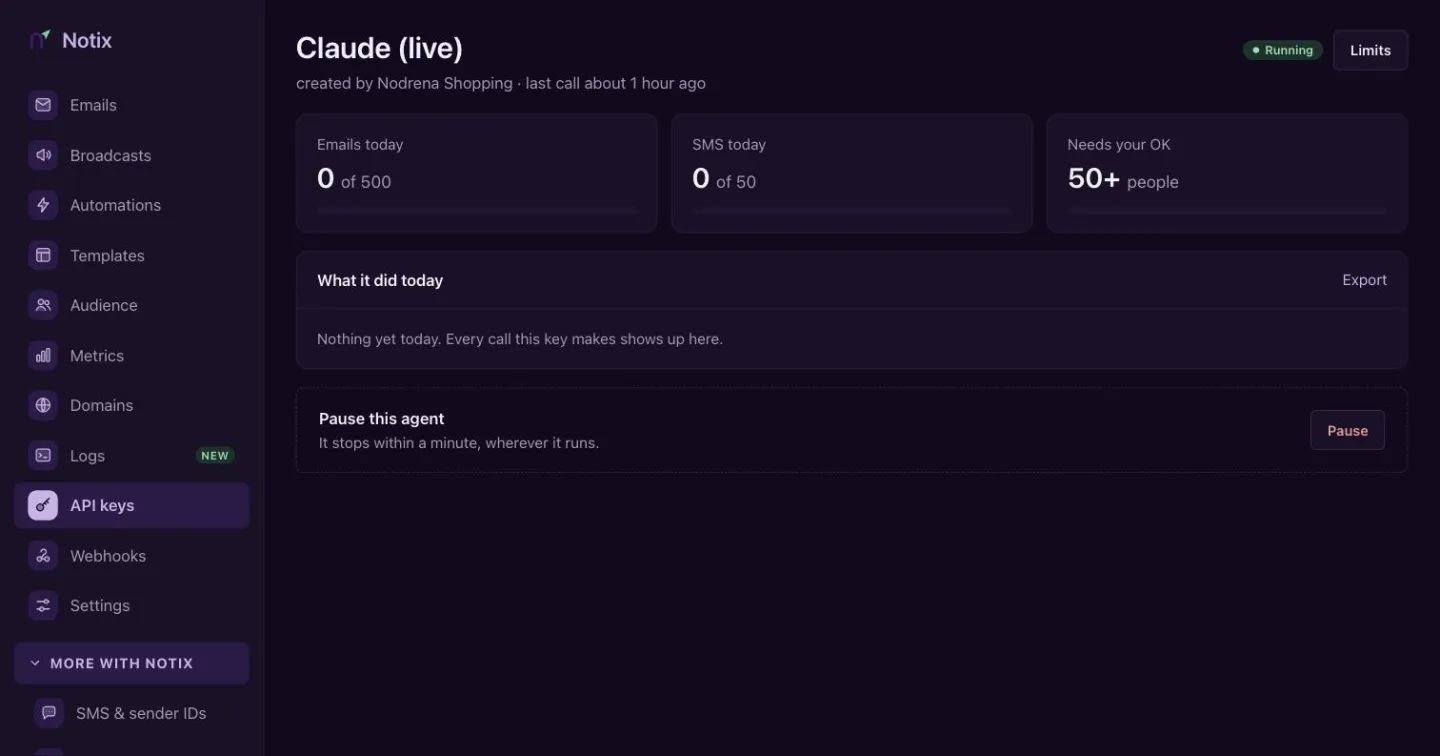
One key: usage against its limits, what it did today, and the pause box. Set its limits
Press Limits. A team admin can set any of these, or leave a field blank for no cap:
Limit What it counts Emails per day Recipients this key may send to each UTC day. Emails per month Recipients this key may send to each UTC month. Requests per minute API and MCP calls this key may make each minute. SMS per day Texts, one-time codes included, this key may send each UTC day. People reached per day People this key may add to automations or send opt-in emails to each day. Default 1,000, up to 10,000. Over a limit, a call answers 429
LIMIT_EXCEEDED. At 80% of a cap, the owner and admins get an email. Read a key's limits from code with Read this key's limits.
Broadcast approval
Also under Limits, Broadcast approval decides what happens when this key schedules a broadcast:
| Choice | What happens |
|---|---|
| Ask for approval above the threshold | A broadcast for more people than the threshold waits for a person to approve it. |
| Refuse broadcasts above the threshold | A broadcast for more people than the threshold is refused with 403. Send it from the console instead. |
| Drafts only: never schedule a broadcast | Every schedule answers 403. The key only saves drafts, and a person schedules them. |
| No approval | Broadcasts go out without approval. |
The threshold is a number of recipients. Every key starts with Ask for approval above the threshold at 50. Keys made before broadcast approval existed use the same default since 10 October 2026; choose No approval on a key to turn it off.
When a broadcast needs approval, the call answers 409 APPROVAL_REQUIRED and nothing is sent. Notix emails a 6-digit code and a link to the approval page to the key's owner and the team's admins. The code works for 15 minutes, and an approval expires after 24 hours.
Open the approval
Press the link in the email. The page Approve an agent's broadcast shows what the key asked to send: the broadcast, the sender, the subject, the recipients, the checks and a preview.
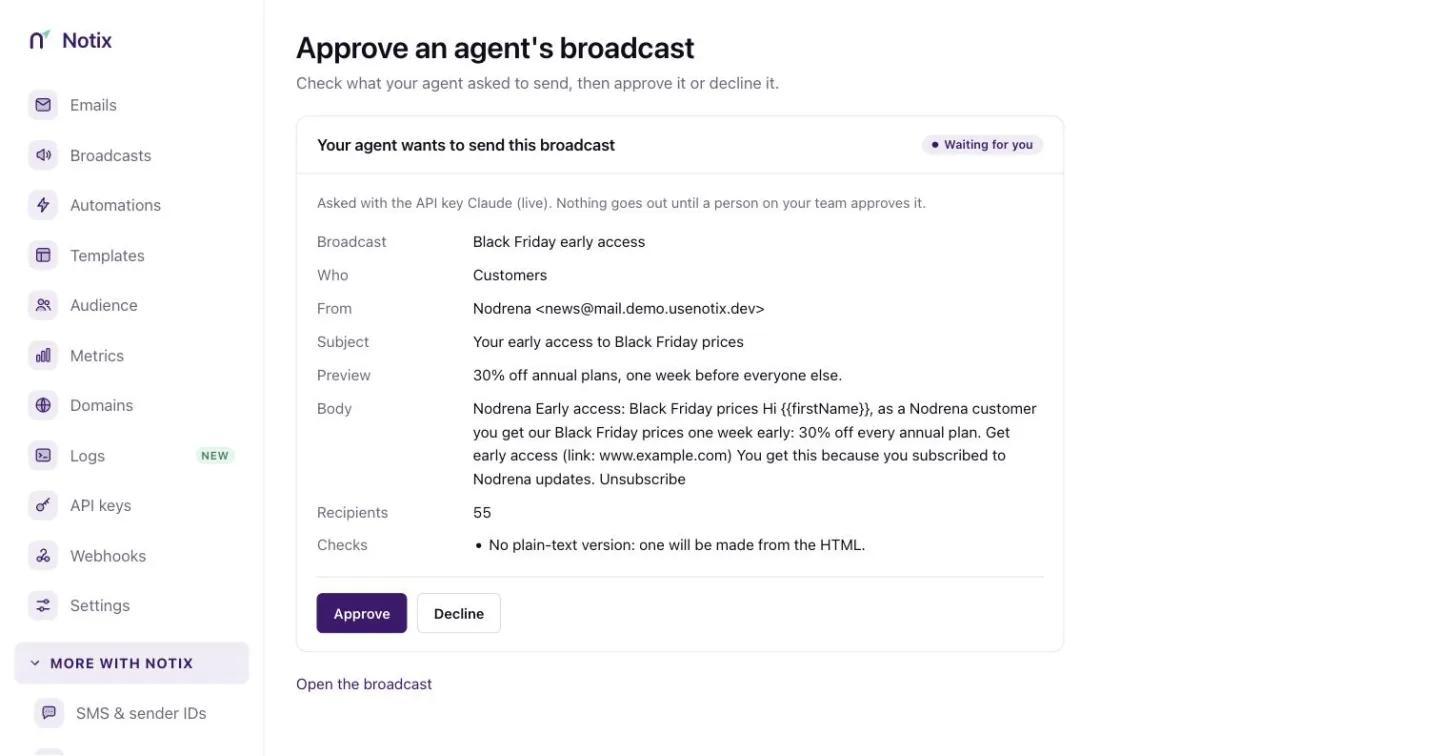
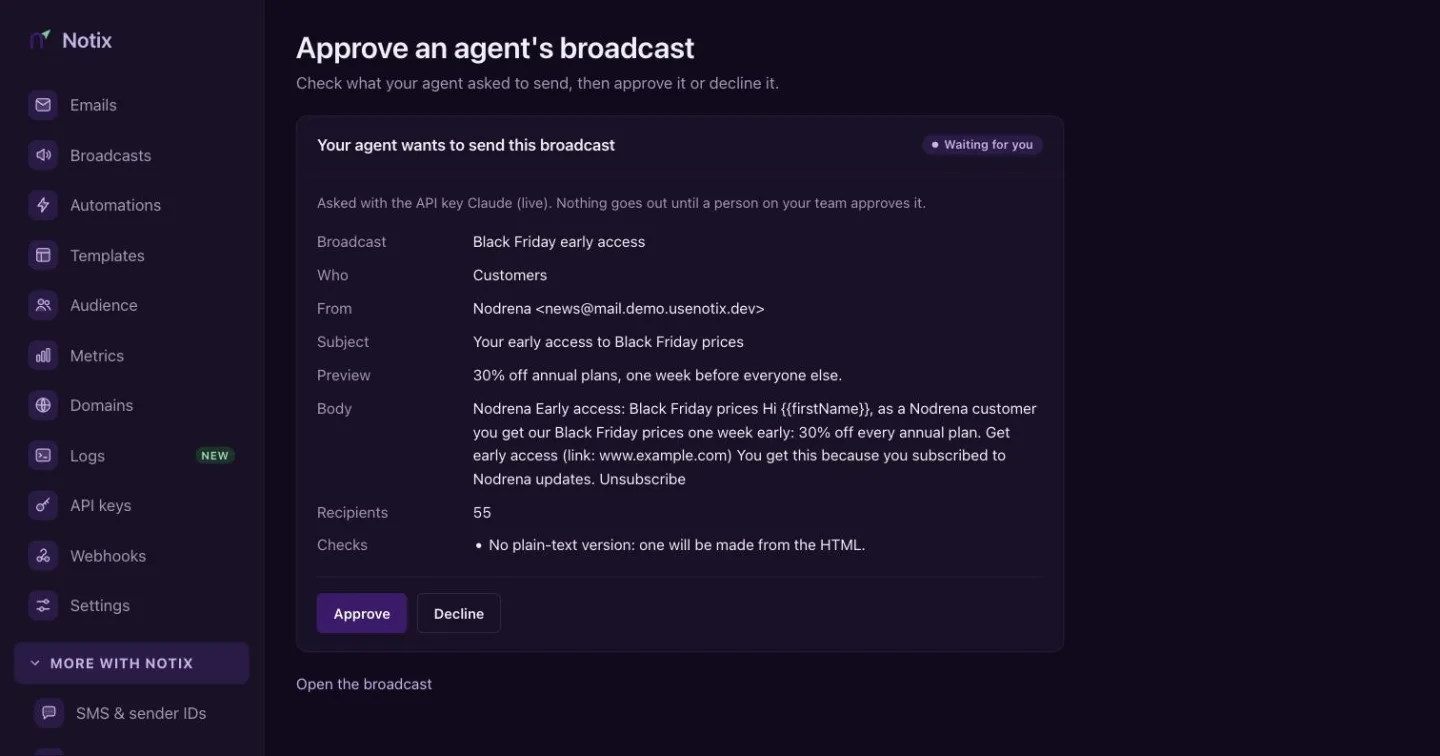
Approve an agent's broadcast: check it, then approve or decline. Approve or decline
Press Approve or Decline. A declined or expired request means the agent must ask again. A person can also read the code to the agent, which sends it with Approve a broadcast with the emailed code.
Pause a key
At the bottom of a key's page, press the button in Pause this agent. It stops within a minute, wherever it runs. Emails it queued are held and go out when it resumes. Any member can pause a key. Only an admin can resume it. A paused key answers 403 KEY_PAUSED.
The audit log
Open the Audit log tab in Settings to see What your agents did. It lists every change made with your API keys or by an AI agent, every AI tool call and every refusal. Notix stores which key, which tool and what happened, never the message itself. Entries are kept for 13 months.
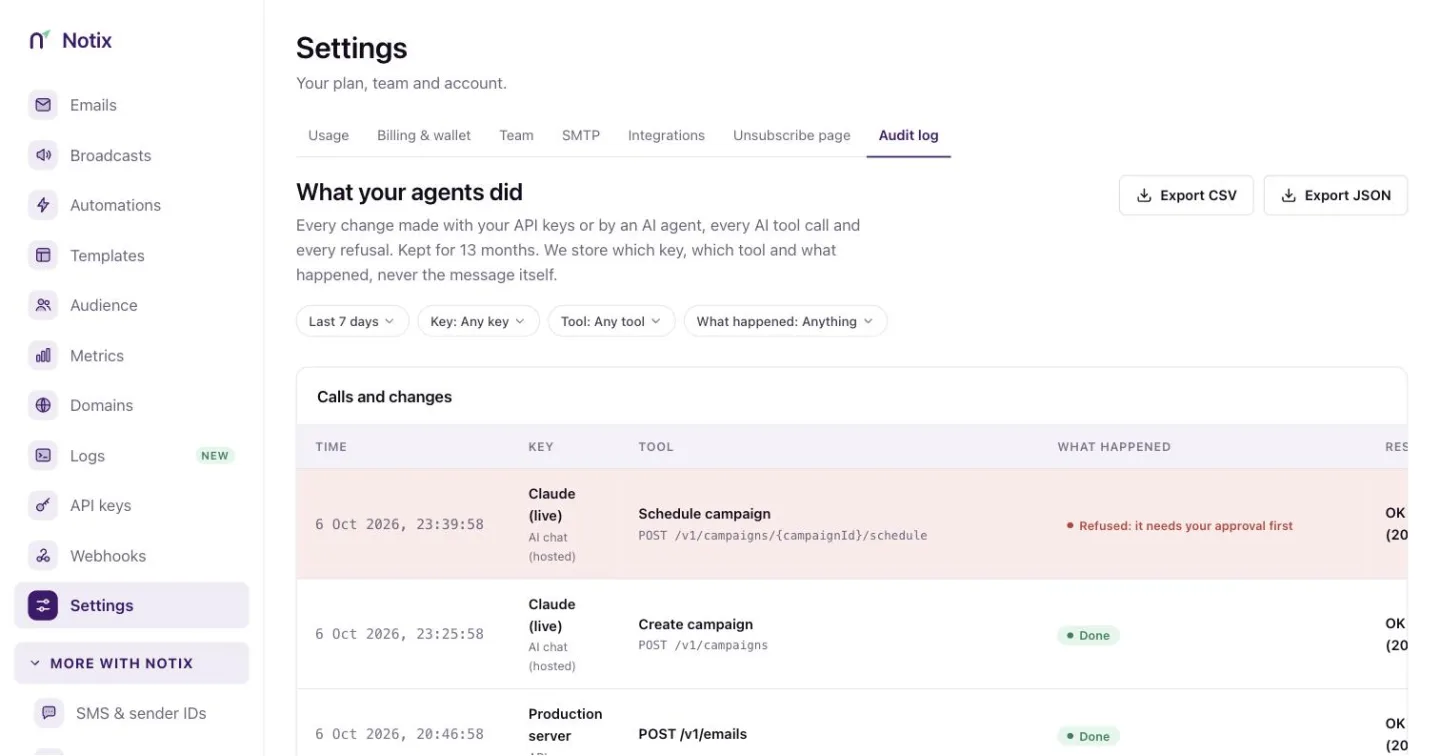
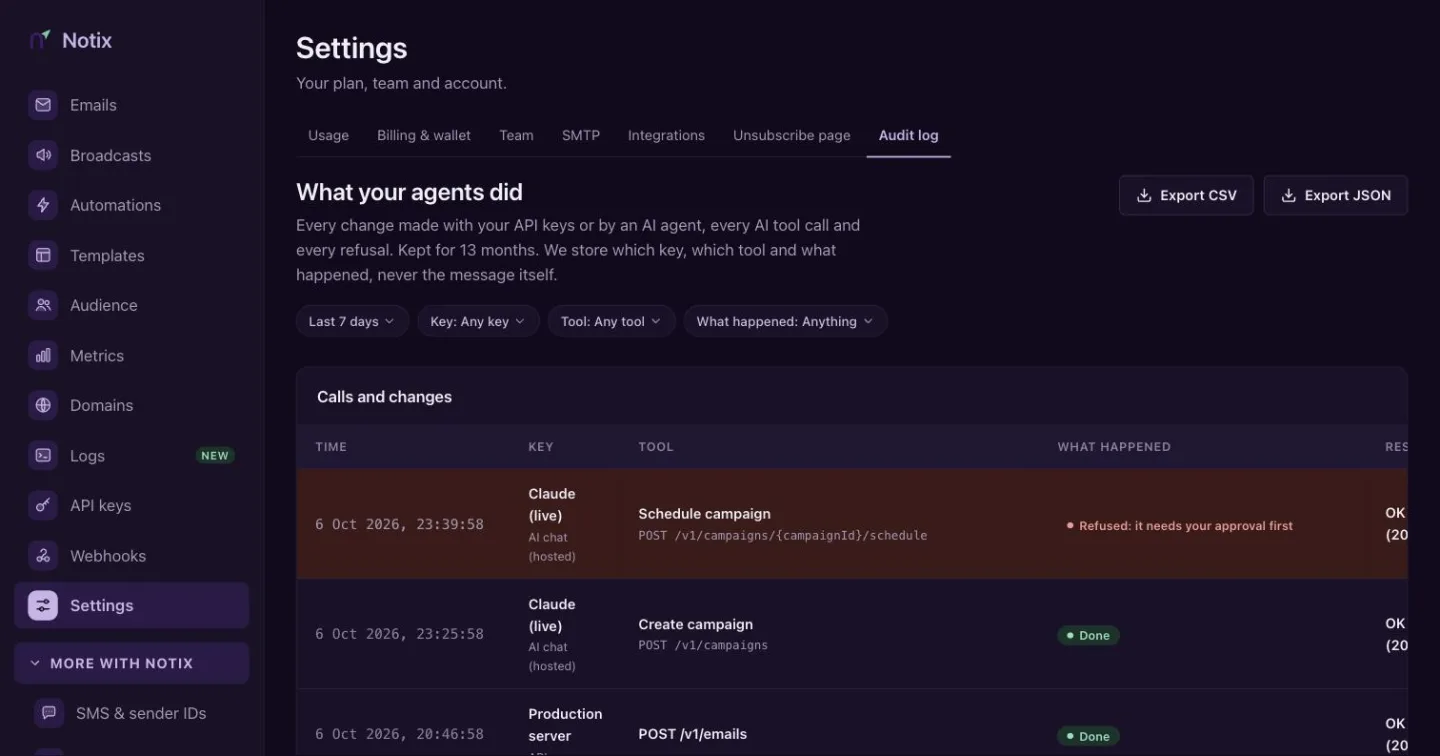
Filter by date range, key, tool and result, such as Refused, Practice runs or Needs your OK. A team admin can press Export to download the log as CSV or JSON. Read it from code with Read the audit log.
Check a key from code
Check an API key answers which team and key you are using and its permission. It is a quick way to test a new key.
curl https://app.usenotix.dev/api/v1/auth/check \
  -H "Authorization: Bearer $NOTIX_API_KEY"