Email logs
Find any email you sent, see its events and why it bounced.
Every email your team sends is listed on the Emails page, newest first. Open one to see each step it went through, and why it bounced if it did.
Find an email
Open Emails
Go to Emails, the first item in the menu. The strip at the top shows the last 7 days: sent, delivered, bounced and opened.
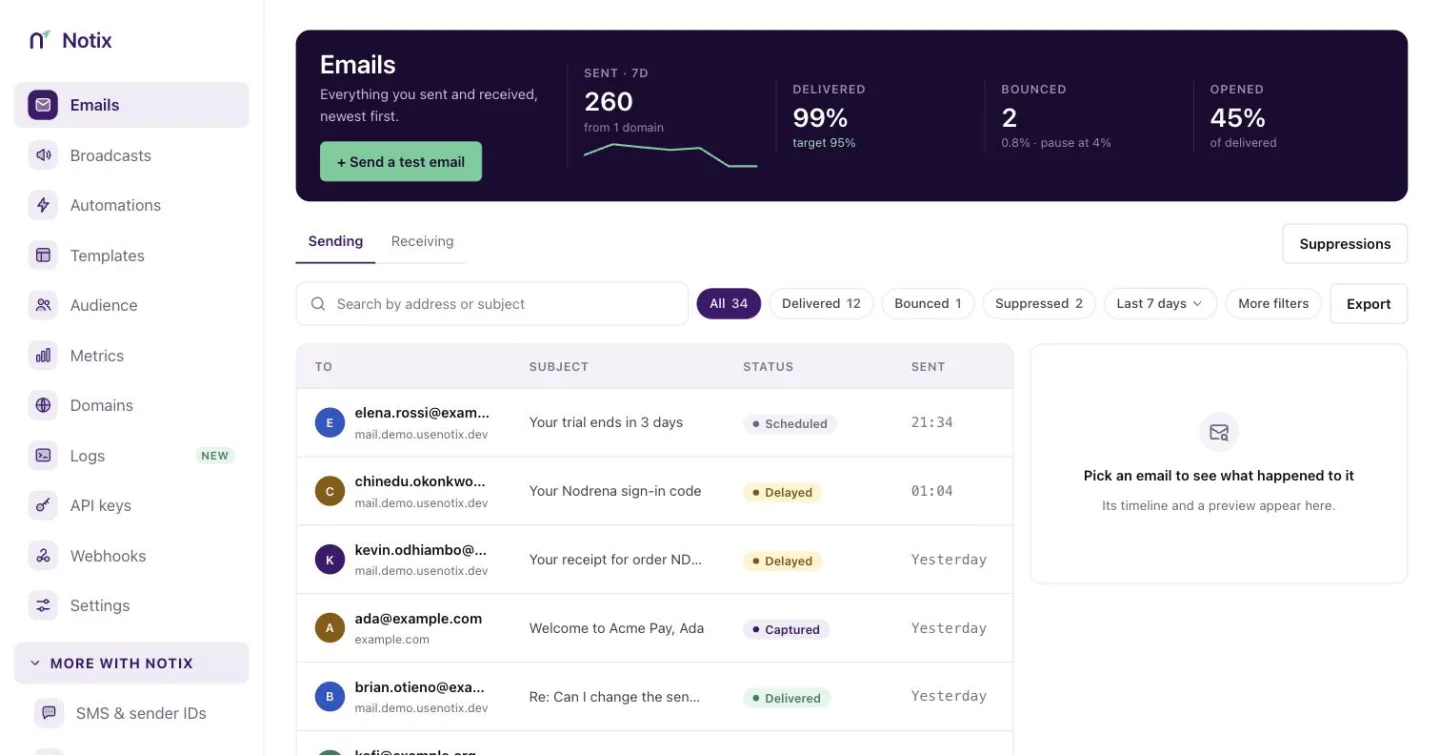
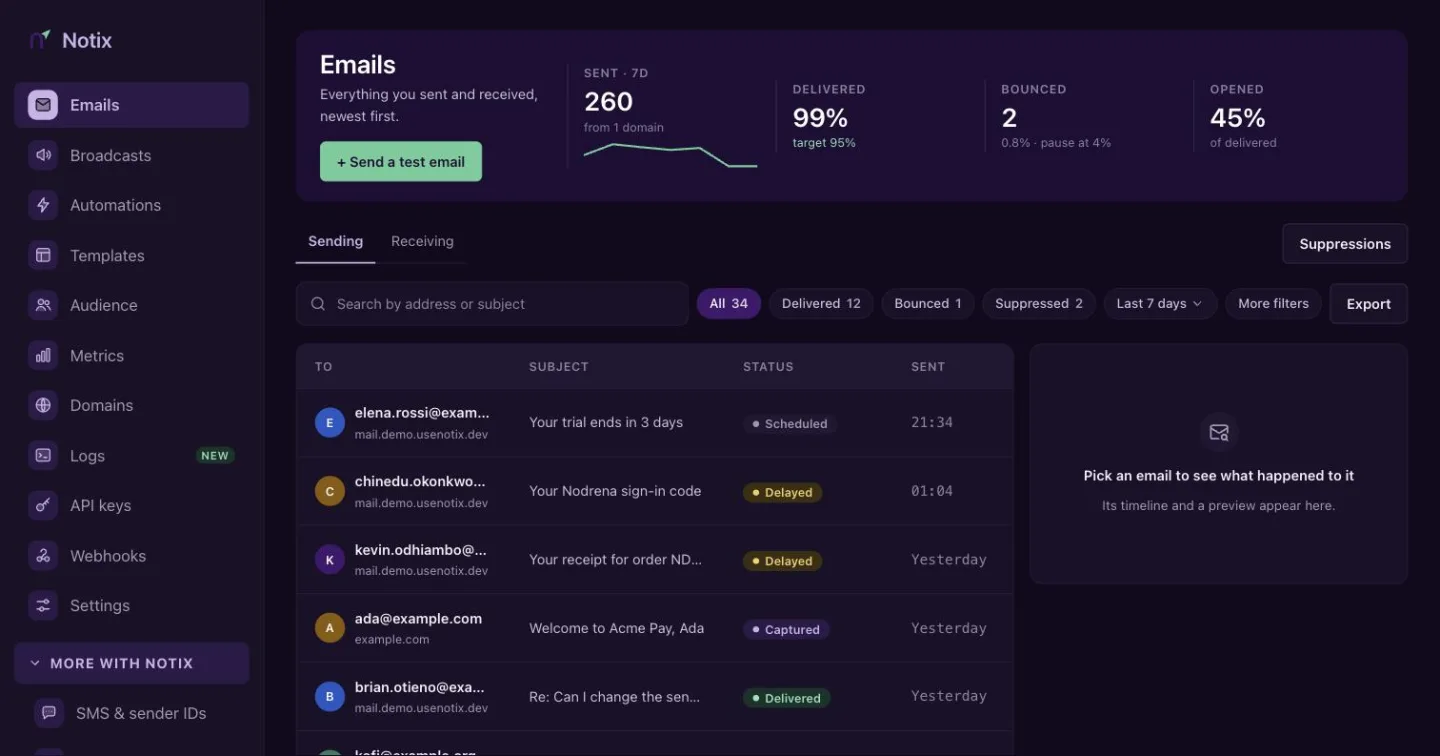
The Emails page. Bad statuses are tinted so they stand out. Search and filter
Type in Search by address or subject. Pick a time range, or open More filters to narrow by status, domain, kind or API key.
Open it
Click a row. On a wide screen the email's timeline and a preview open beside the list. Press Open full email to see everything.
Read an email
The full view shows who it was to and from, the subject, the domain and when it was sent. Below that is the timeline: every step, with the time it happened.
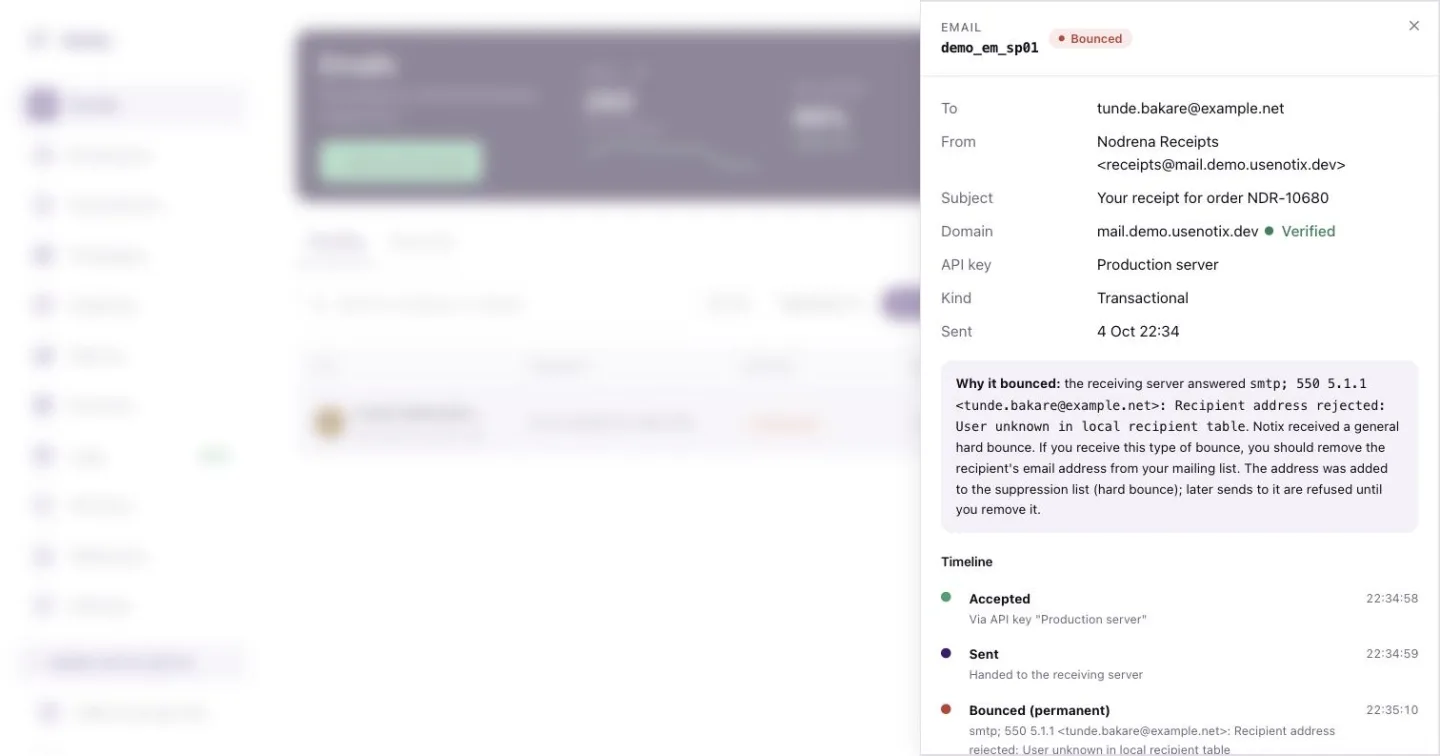
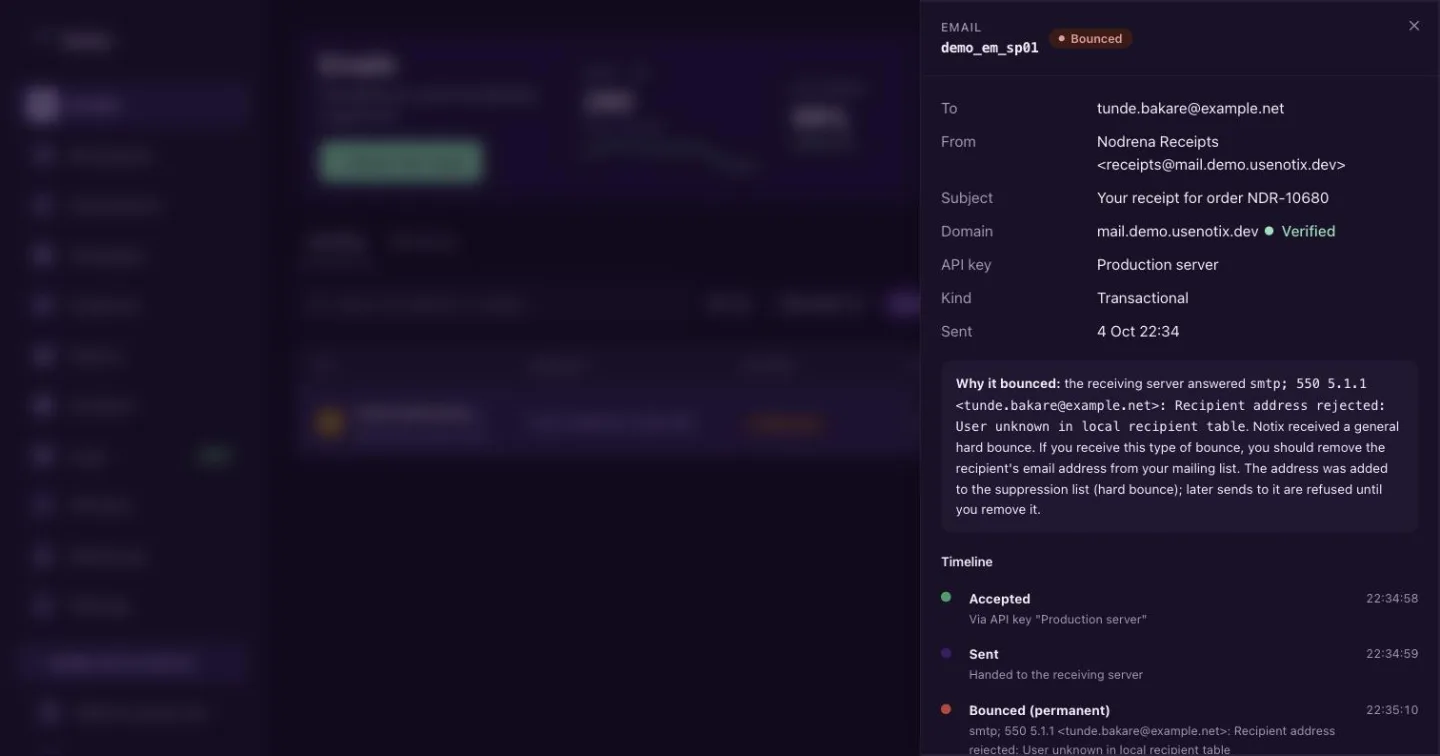
When an email did not arrive, a card says why:
- Why it bounced shows what the receiving server answered. If the address was added to your suppression list, it says so.
- Why it failed shows the error that stopped the send.
- Why it was suppressed names the address on your suppression list.
- What happened appears when the recipient reported the email as spam.
Press View rendered email to see the email as it was sent, or Copy JSON to copy the whole record.
What each status means
| Status | Meaning |
|---|---|
| Scheduled | Waiting for its scheduledAt time. |
| Queued | Accepted and waiting to go out. |
| Sent | Handed to the receiving mail server. |
| Delayed | The receiving server asked Notix to try again later. Notix keeps trying. |
| Delivered | The receiving server accepted it. |
| Opened | The recipient opened it. Needs open tracking. |
| Clicked | The recipient clicked a link. Needs click tracking. |
| Bounced | The receiving server refused it. |
| Complained | The recipient reported it as spam. |
| Rejected | Refused before sending. |
| Rendering failed | The template could not be filled in. |
| Suppressed | The recipient is on your suppression list, so nothing was sent. |
| Failed | The send could not be completed. |
| Cancelled | A scheduled email you cancelled. |
Export
Press Export on the Emails page to download the emails that match your current filters as a CSV file.
Read emails with the API
List emails returns your emails newest first, with each one's latestStatus. Filter with startDate, endDate and domainId, and page with page and limit (up to 50 a page).
curl "https://app.usenotix.dev/api/v1/emails?startDate=2026-10-01T00:00:00Z&limit=50" \
  -H "Authorization: Bearer $NOTIX_API_KEY"
Get an email returns one email with all its events:
curl https://app.usenotix.dev/api/v1/emails/cmg8x2k4b0001qz8v3hf7d2ab \
  -H "Authorization: Bearer $NOTIX_API_KEY"
import { Notix } from "notix-js";

const notix = new Notix(process.env.NOTIX_API_KEY);

const { data, error } = await notix.emails.get("cmg8x2k4b0001qz8v3hf7d2ab");
console.log(data?.emailEvents.map((event) => event.status));
from notix import Notix

notix = Notix()  # reads NOTIX_API_KEY

data, error = notix.emails.get("cmg8x2k4b0001qz8v3hf7d2ab")
use Notix\Notix;

$notix = new Notix(getenv('NOTIX_API_KEY'));

$email = $notix->emails->get('cmg8x2k4b0001qz8v3hf7d2ab');
A sending access key can read only the emails it sent itself.
Get told instead of asking
Polling for status is slow. A webhook tells your server the moment an email is delivered, bounces or is opened. See Webhooks.