Broadcasts
Write a broadcast, pick who gets it, review it and send it now or later.
A broadcast sends one email to a contact list, or to a segment of one. You, a teammate or your AI agent drafts it. Notix checks it before it goes, and you send it now or schedule it.
Every broadcast moves through two steps: you write it in the editor, then you check it on Review and send.
The Broadcasts page
Open Broadcasts. Every broadcast is one row in a table: its name, status, audience, recipients, opened, clicked and date. Filter by status or audience, search by name or subject, and press a row to open it.
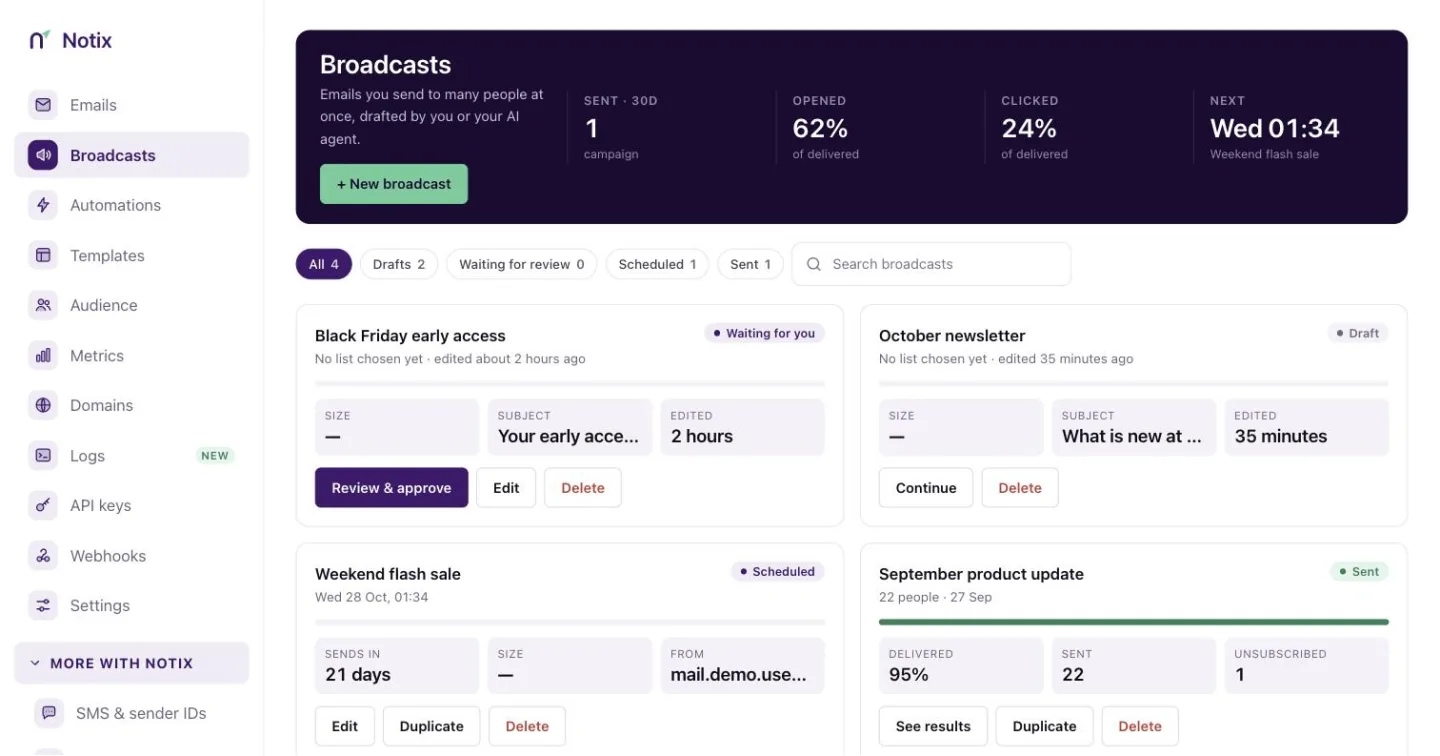
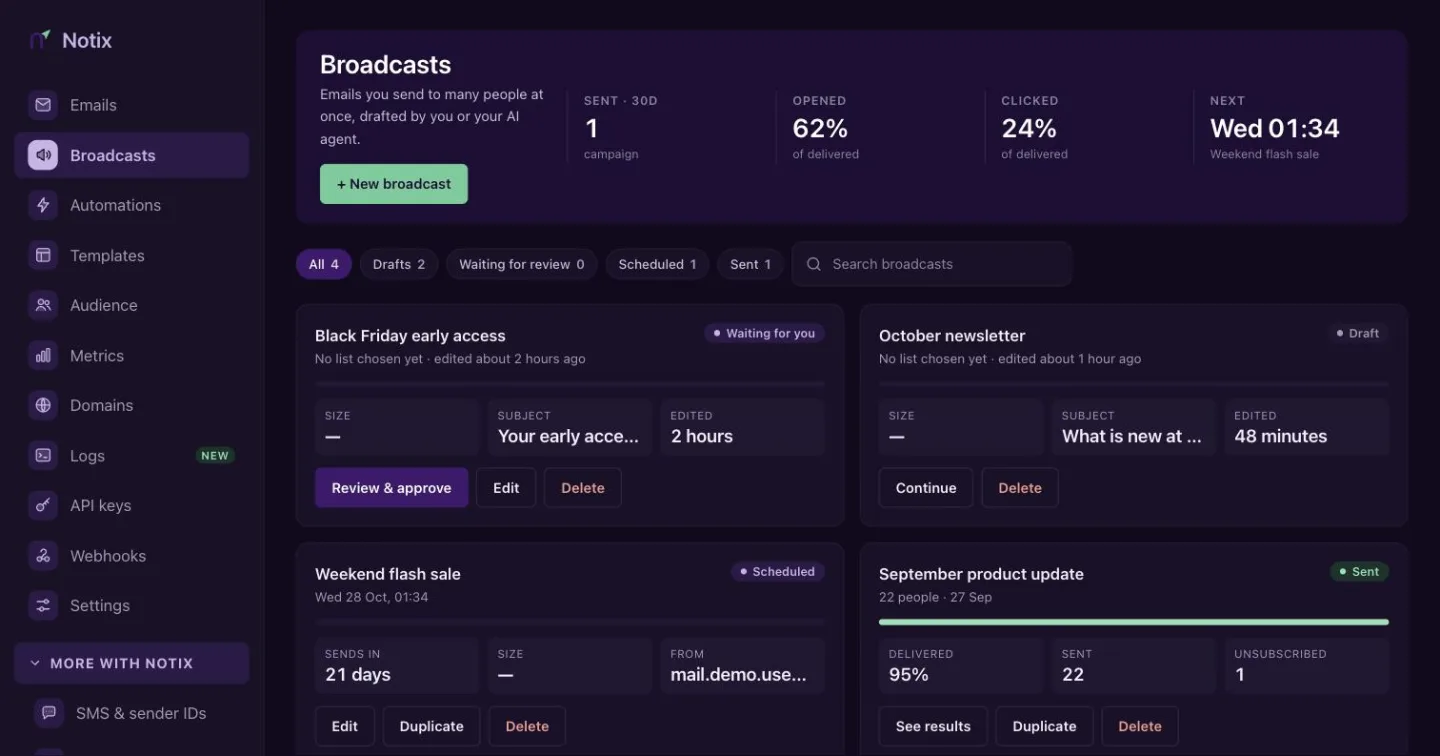
Statuses
| Status | What it means |
|---|---|
| Draft | Saved, not sent. You can change anything. |
| Waiting for review | Notix is checking it before it sends, or your AI agent asked you to approve it. |
| Scheduled | It sends at the time you picked. |
| Sending | Emails are going out now. |
| Sent | Every email has gone out. |
| Canceled | You stopped it after it started. It never sends again. |
| Failed | It finished, and every email it made ended as failed. Open it to see why. |
A broadcast your AI agent drafted for more people than its key allows shows Waiting for review. Open it to see the draft and approve it.
Act on several at once
Tick the boxes on the left, or the box in the header for the whole page. A bar shows how many you picked.
- Cancel schedule cancels the picked broadcasts that are scheduled. One that is sending or paused is skipped: cancel it from its own page, where it says what that means. The message says how many were skipped.
- Delete removes them for good. Type the phrase it shows, for example
DELETE 2 BROADCASTS, then press Delete for good. Only team admins can delete broadcasts.
Export the list
Press Export CSV to download the broadcasts that match your filters, up to 5,000 rows. The file has each broadcast's name, subject, sender, status, audience, recipients and results.
Create a broadcast
Press Create broadcast. Notix saves a new draft at once and opens the editor on one page, so nothing is lost if you leave. You can also press Use in broadcast in Template Studio to start from a template.
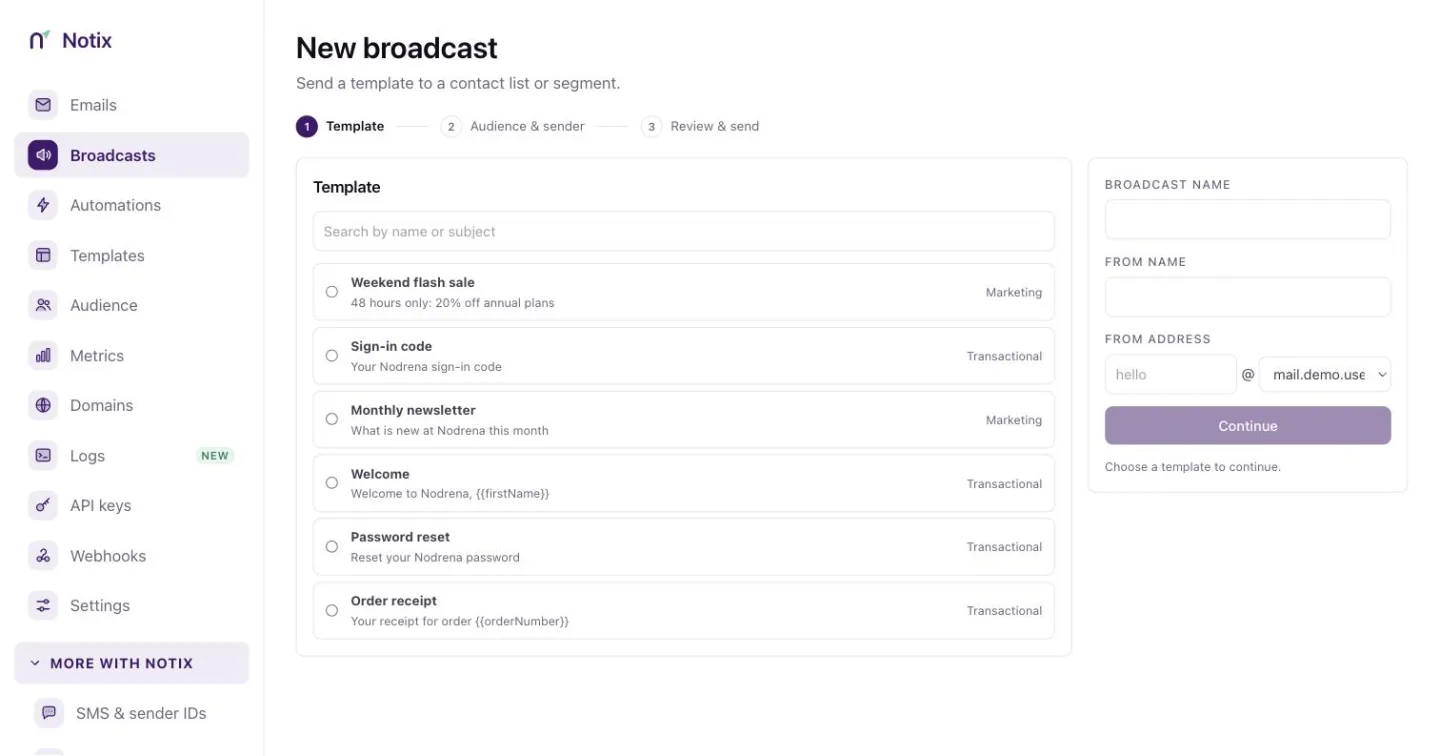
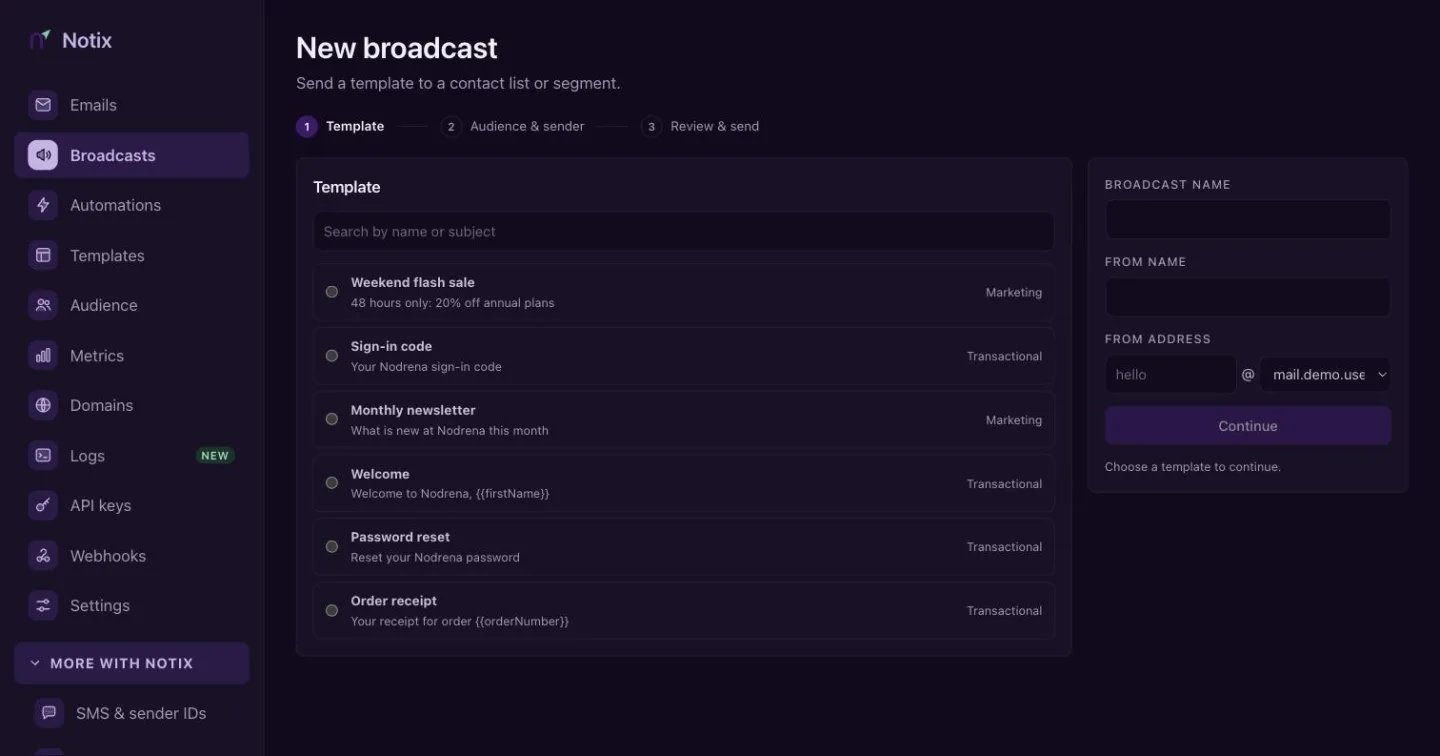
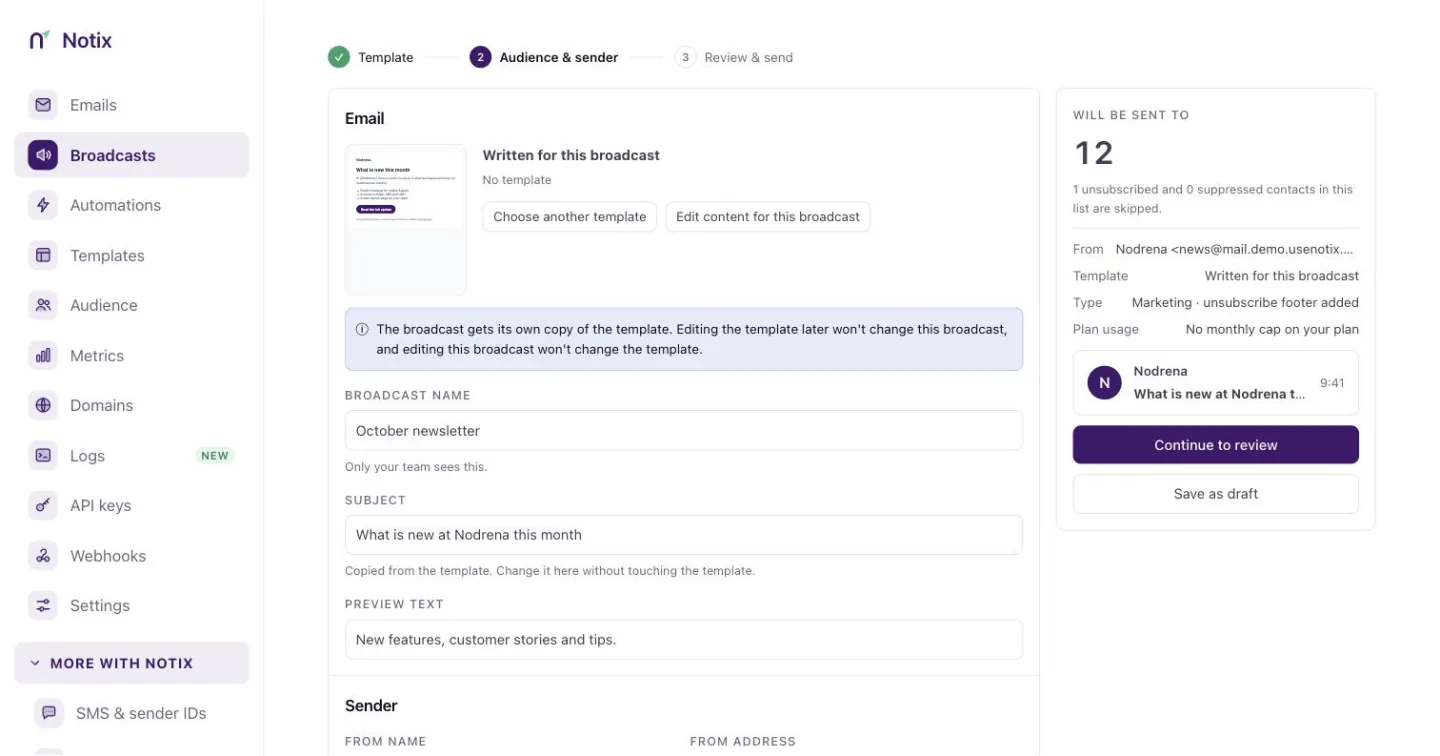
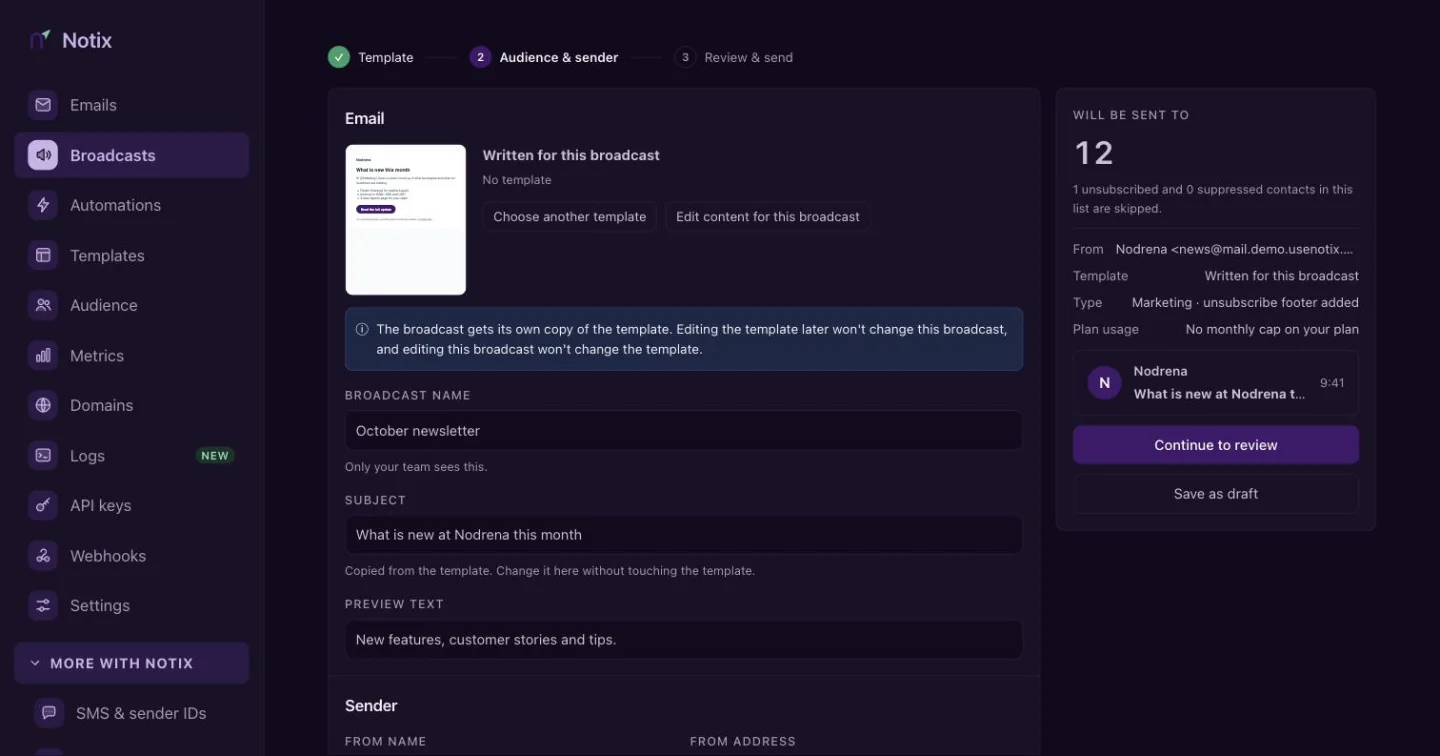
The from address must be on one of your verified domains. If you have none yet, add and verify a domain first.
Fill in the header
Set who it is from, then pick who gets it: a contact list, or one of its segments. Add a Subject and Preview text, the line inboxes show after the subject. Reply-To is where replies go. When only suggests a send time: Review and send opens on it, and nothing is scheduled until you press Schedule there. See Contacts and segments.
Write the email
A new broadcast offers three ways in: Pick a template, Upload HTML or paste, or Start writing. In the editor, type
/for blocks, or use Text, Image, Components and Variables above the email. HTML and Plain text under it show what will be sent. Page style sets the width, background and button colour. Your changes are saved as you go. The broadcast name at the top is only for your team.Send yourself a test
Press Test email. Type one or more addresses of people on your team, separated by commas. Only team members can get a test. Fill in test values for the variables the email uses, such as
firstName, to see how it reads.Review
Press Review to check it before it goes.
Review and send
The review screen checks everything before anything goes out. Fix anything marked, then send.
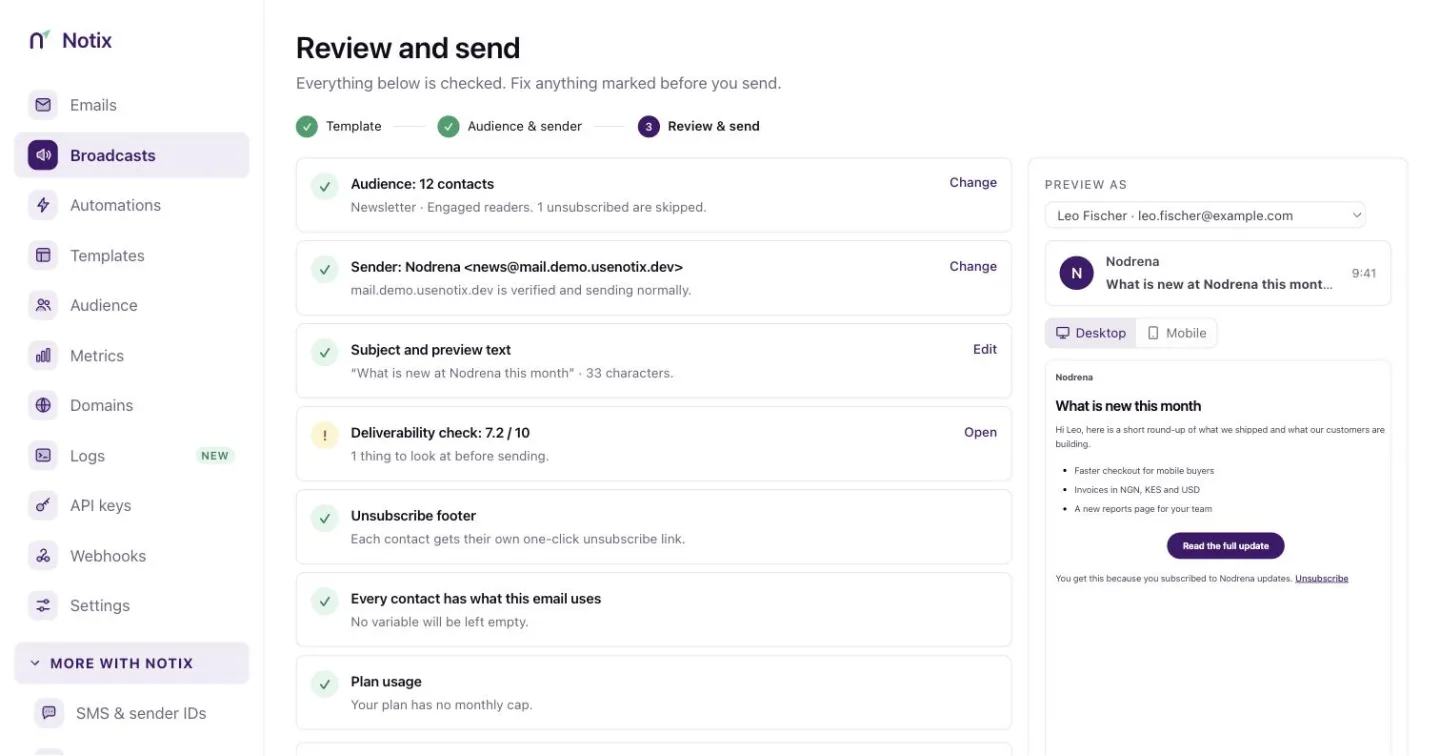
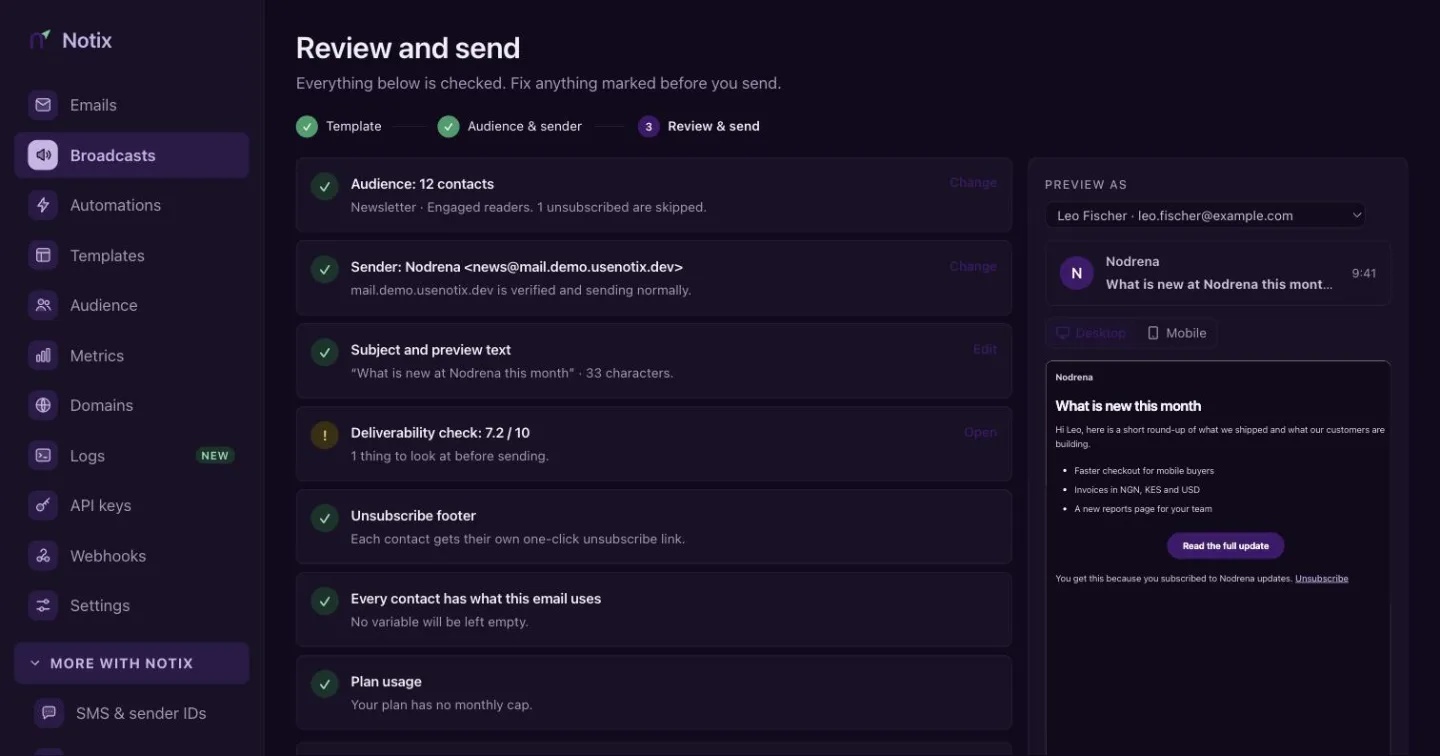
The checks are:
| Check | What it looks at |
|---|---|
| Audience | A contact list is chosen and can be counted. |
| Sender | The domain is verified and sending normally. |
| Subject and preview text | The email has a subject. |
| Deliverability | Links work, images have alt text and the spam score is low. |
| Unsubscribe footer | The email has an unsubscribe link. |
| Variables | Every contact has the values the email uses. |
| Plan usage | Your plan has room for this send. |
A Blocked check stops the send until you fix it. A Warning lets you send.
Preview it
Pick a contact under Preview as to see the email with their details filled in. Switch between Desktop and Mobile.
Send now or schedule
Choose Send now to start within a minute, or Schedule and pick a date and time. Confirm in the dialog.
While it sends, the screen shows progress: sent, delivered, opened and bounced. Press Pause sending to stop it for now, and resume it later.
Cancel a broadcast
Open the broadcast and press Cancel.
- A scheduled broadcast that has not started goes back to Draft. Nothing went out. Change it and schedule it again.
- A sending or paused broadcast, or a scheduled one that already started, becomes Canceled. Emails still waiting in the queue are dropped, so nobody else gets it. Emails already handed over for delivery still arrive. It cannot be resumed. Duplicate it to send a copy later. Only a team admin can cancel a broadcast that has started.
To stop for a while instead, pause it.
A team's first broadcast is held for a short review by Notix before it sends. It shows Waiting for review until then.
Read the report
Press See results on a sent broadcast, or Open broadcast report on the review screen.
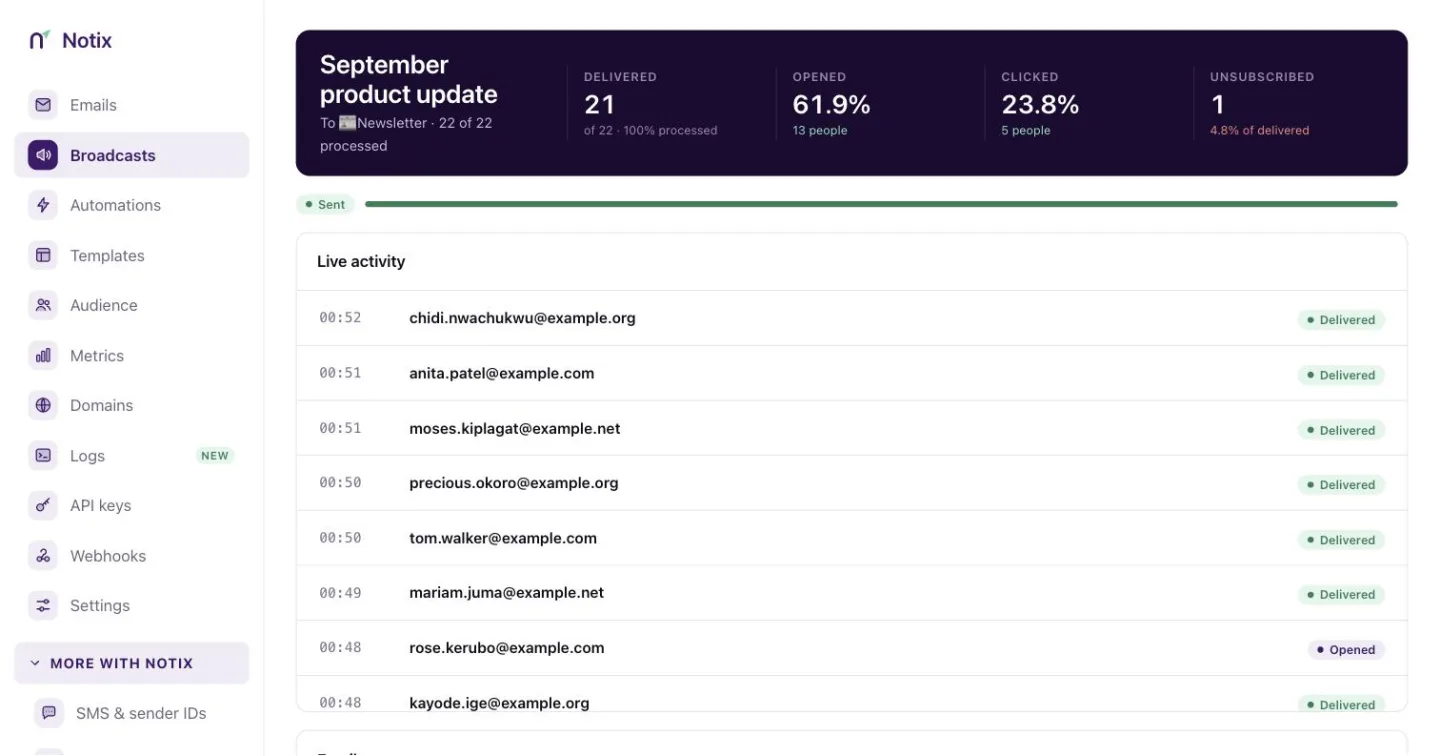
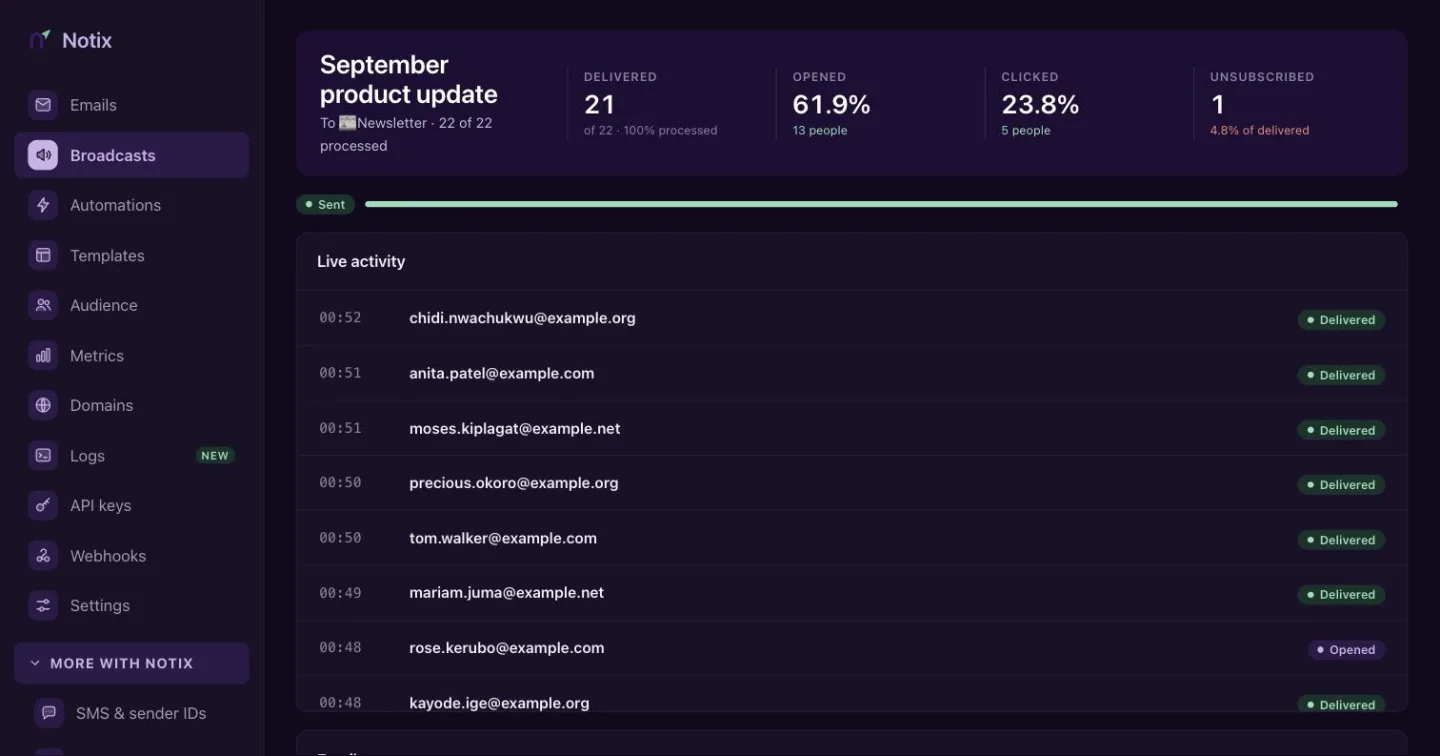
The report shows the share Delivered, Opened and Clicked, the number Unsubscribed, how many recipients have been processed, a Live activity feed, and the email with its subject and contact list.
It also shows:
- Each link in the email, with its clicks and how many people clicked it, most clicked first. Click tracking must be on for the domain.
- Who opened, clicked, bounced or unsubscribed. Pick one to see those people and when they did it.
- An export of everyone the broadcast emailed as CSV, with whether each person opened, clicked or unsubscribed.
Broadcasts from the API
Create a broadcast, then schedule it. Leave out scheduledAt to send now.
curl -X POST https://app.usenotix.dev/api/v1/broadcasts \
  -H "Authorization: Bearer $NOTIX_API_KEY" \
  -H "Content-Type: application/json" \
  -d '{
    "name": "October newsletter",
    "from": "Acme <news@acme.com>",
    "subject": "What we shipped in October",
    "contactBookId": "cb_123",
    "html": "<p>Hi {{firstName,fallback=there}}</p><p><a href=\"{{notix_unsubscribe_url}}\">Unsubscribe</a></p>"
  }'

curl -X POST https://app.usenotix.dev/api/v1/broadcasts/cmp_123/schedule \
  -H "Authorization: Bearer $NOTIX_API_KEY" \
  -H "Content-Type: application/json" \
  -d '{ "scheduledAt": "2026-11-03T09:00:00Z" }'
import { Notix } from "notix-js";

const notix = new Notix(process.env.NOTIX_API_KEY);

const { data: campaign } = await notix.broadcasts.create({
  name: "October newsletter",
  from: "Acme <news@acme.com>",
  subject: "What we shipped in October",
  contactBookId: "cb_123",
  html: '<p>Hi {{firstName,fallback=there}}</p><p><a href="{{notix_unsubscribe_url}}">Unsubscribe</a></p>',
});

await notix.broadcasts.schedule(campaign!.id, {
  scheduledAt: "2026-11-03T09:00:00Z",
});
from notix import Notix

client = Notix()  # reads NOTIX_API_KEY

campaign, err = client.campaigns.create({
    "name": "October newsletter",
    "from": "Acme <news@acme.com>",
    "subject": "What we shipped in October",
    "contactBookId": "cb_123",
    "html": '<p>Hi {{firstName,fallback=there}}</p><p><a href="{{notix_unsubscribe_url}}">Unsubscribe</a></p>',
})

client.campaigns.schedule(campaign["id"], {"scheduledAt": "2026-11-03T09:00:00Z"})
use Notix\Notix;

$notix = new Notix(getenv('NOTIX_API_KEY'));

$campaign = $notix->campaigns->create([
    'name' => 'October newsletter',
    'from' => 'Acme <news@acme.com>',
    'subject' => 'What we shipped in October',
    'contactBookId' => 'cb_123',
    'html' => '<p>Hi {{firstName,fallback=there}}</p><p><a href="{{notix_unsubscribe_url}}">Unsubscribe</a></p>',
]);

$notix->campaigns->schedule($campaign['id'], [
    'scheduledAt' => '2026-11-03T09:00:00Z',
]);
To start from a template, use Create a broadcast from a template. Review a broadcast before sending runs the same checks as the review screen. A broadcast made with a raw HTML body can only be changed through the API: the console shows its body read only.
Approval for API keys
An API key can carry an approval policy, set by a team admin. With the default policy, a key that schedules a broadcast for more than 50 people gets 409 APPROVAL_REQUIRED, and a 6-digit code is emailed to the key's owner and the team's admins. Pass that code to Approve a broadcast with the emailed code. See API keys and permissions.
Cancel, links and activity
Everything on the Broadcasts screens works from the API too:
| What | Endpoint |
|---|---|
| Cancel | POST /v1/broadcasts/{id}/cancel |
| Clicks per link | GET /v1/broadcasts/{id}/links |
| Who opened, clicked, bounced or unsubscribed | GET /v1/broadcasts/{id}/activity?event=clicked |
| Everyone it emailed, as CSV | GET /v1/broadcasts/{id}/activity/export |
| The list, as CSV | GET /v1/broadcasts/export |
| Filter the list | GET /v1/broadcasts?status=CANCELED&contactBookId=cb_123 |
curl -X POST https://app.usenotix.dev/api/v1/broadcasts/cmp_123/cancel \
  -H "Authorization: Bearer $NOTIX_API_KEY"
The answer's status is DRAFT for a broadcast that was scheduled and had not started, and CANCELED for one that had. The two exports answer with the CSV file. Add format=json to get { filename, csv, rows, truncated } instead. The links, the activity and the people export show your contacts and their addresses, so they need a full access key that is not limited to one domain; other keys get 403. status=PENDING_REVIEW also lists drafts your AI agent is waiting for you to approve, as the dashboard does.
Your AI agent can do the same through MCP: cancel_campaign, get_campaign_links, list_campaign_activity, export_campaign_activity and export_campaigns. A Live AI key can only cancel the broadcasts it created.
The Broadcasts reference lists every endpoint, including pause, resume, cancel, copy, preview, recipients, links, activity and the report. The campaign.started and campaign.completed webhook events tell your server when a send begins and ends.