Connect your AI
Give Claude, ChatGPT or Cursor a key, and set the limits it works within.
Give Claude, ChatGPT or your coding tool access to Notix. Your AI sends real email from your own verified domain, within limits you set.
Your AI talks to Notix through MCP, the protocol AI apps use for tools. Notix hosts the MCP server at https://app.usenotix.dev/api/mcp. You give the app that address and a key, and the app gets only the tools the key may use.
Before you start
- A verified domain. If you have none yet, the page shows Add my domain. Follow Add and verify a domain.
- A team admin to make the key.
Connect in three steps
Choose your AI app
Open Connect your AI and pick Claude, ChatGPT, Cursor, Copilot (VS Code) or Windsurf.
Set up your key
Choose the domain under Send from. Only this domain can be used. Tick the box to confirm this key sends real emails, then create the key. It is filled into every command and config on the page.
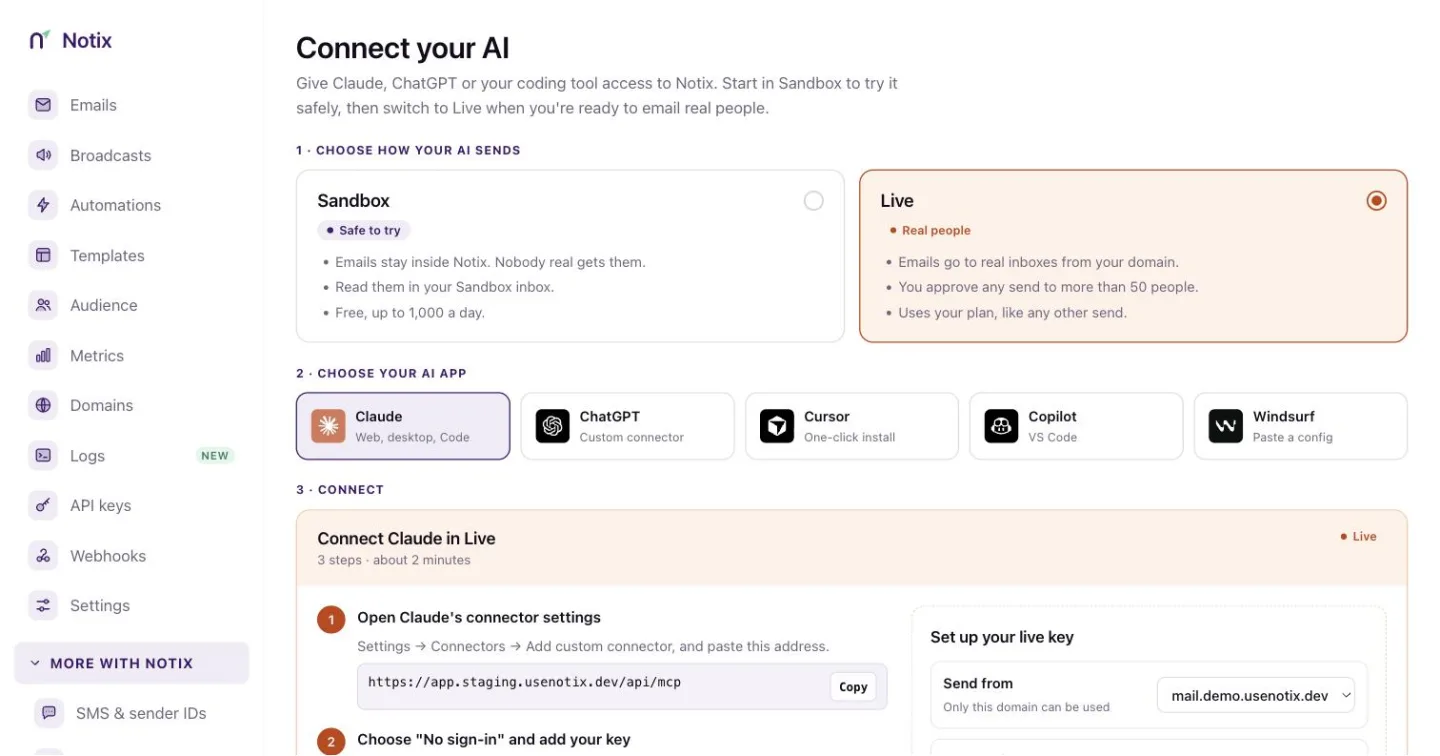
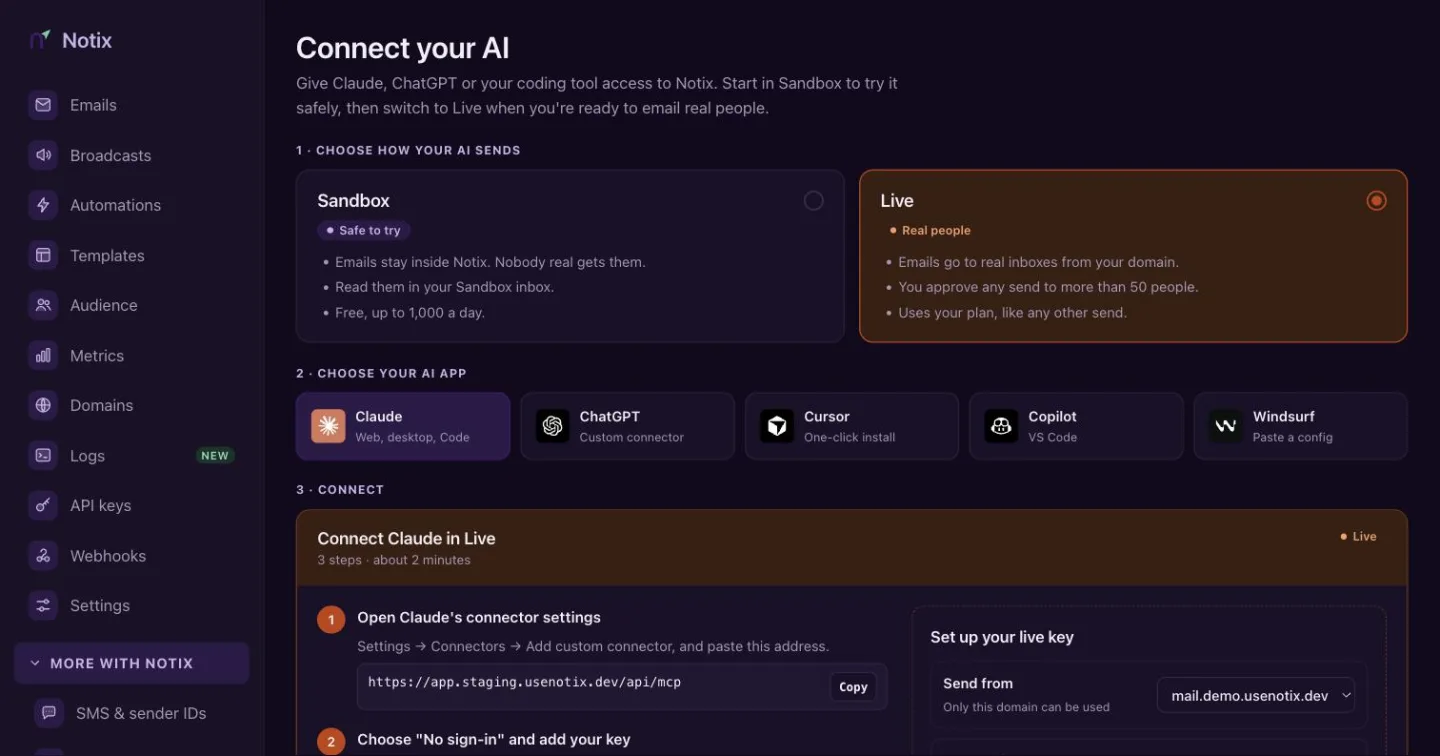
Set up your key: the domain it sends from, and the limits it works within. Connect
Follow the steps for your app.
- Claude and ChatGPT: open the app's connector settings and paste the connector address and the
Authorizationheader. - Cursor and VS Code: press Add to Cursor or Add to VS Code. The one-click install carries your key.
- Windsurf: paste the config block into Cascade → MCP servers → View raw config, and save.
Then ask your AI to Email me a test from your domain before anything bigger. To check a send without sending it, ask for a dry run (
dry_run: true).- Claude and ChatGPT: open the app's connector settings and paste the connector address and the
Commands for Claude Code
The page shows the full set-up command for each app under Show command. For Claude Code with the hosted server:
claude mcp add --transport http --scope user notix https://app.usenotix.dev/api/mcp \
  --header "Authorization: Bearer <your Notix API key>"
Or run the server on your own computer with the notix-mcp package:
claude mcp add --transport stdio --scope user --env NOTIX_API_KEY=<your Notix API key> notix -- npx -y notix-mcp
The hosted address is the supported path for live keys.
Set the limits
Each key has two limits you can change later from Your AI connections:
- Ask me first: you approve any send to more than this many people. It starts at 50.
- Daily limit: the key stops for the day after this many emails. It starts at 500.
What a live key can't do
A Live AI key cannot delete anything, change a template, change or cancel a broadcast it did not create, resume a broadcast or an automation, send SMS or codes, read inbound mail, use webhooks, or change domains, billing, your team or API keys. Those calls answer 403 SCOPE_DENIED. A broadcast it schedules for more people than its Ask me first number waits for a person's approval.
Every call an AI makes is in the audit log in Settings. To stop an agent at once, open the key and press Pause this key.
Read more
- AI agents: everything for building with an agent.
- AI agents and untrusted email: how replies reach your agent as data, never as orders.
- API keys and permissions: approvals, limits and the audit log.