Automations
Build automations that branch: emails, waits, events, If / else, contact updates and segments. Then follow each run.
An automation sends emails by itself when something happens. Someone joins a list, your app says a payment failed, a trial is about to end. Each person walks the automation on their own clock, and it can take a different path for each person: wait for them to pay, then thank them or remind them.
Notix sends every email with the same unsubscribe link, limits and checks as a broadcast.
The Automations page
Open Automations. The strip at the top shows how many people are in a run now, the runs, emails and completed runs of the last 30 days. Below it are two tabs: Automations and Events.
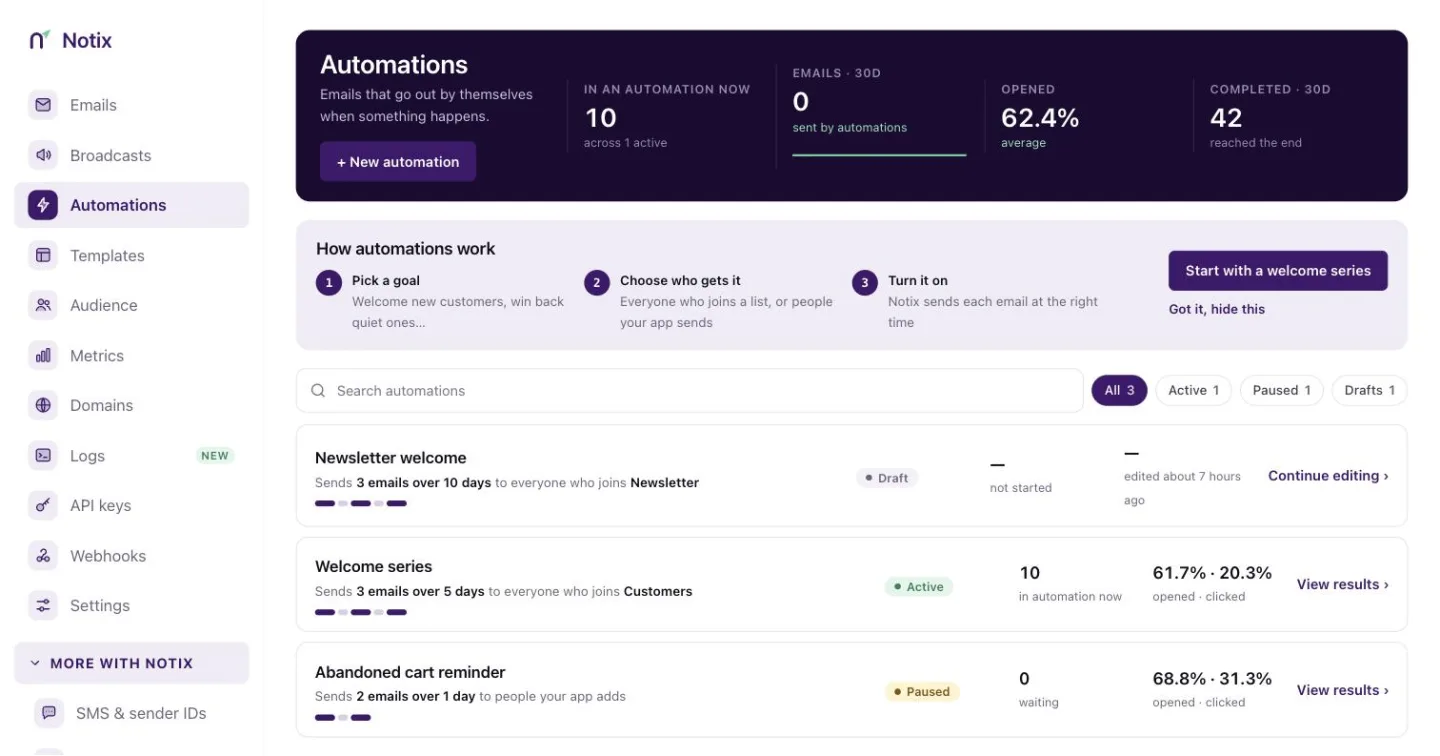
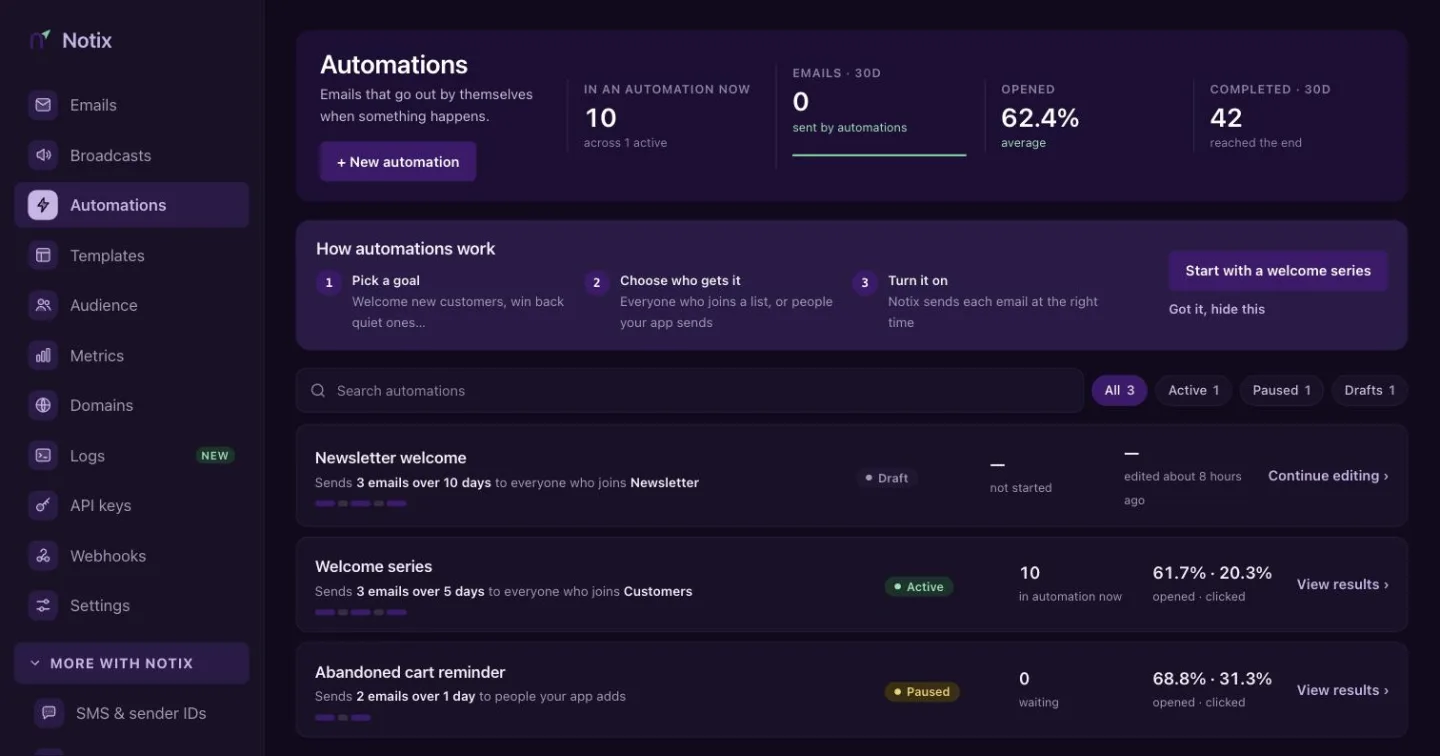
The table lists each automation's Name, Status, what starts it, its Runs, how many people Opened its emails, and when it was Created. Filter by Enabled, Disabled or Draining, and search by name.
| Status | What it means |
|---|---|
| Enabled | It is on. New people start it. |
| Disabled | A draft, a paused automation, or one that was stopped and has finished. |
| Draining | It was stopped. Nobody new starts it, and the people already in it finish their path. |
| In review | Notix holds it until it approves your team's sending. |
What starts an automation
| Trigger | When it starts |
|---|---|
| Someone joins a contact list | Whenever a person is added to the list, by import, form, API or by hand. People already on the list do not start it. |
| When my app sends an event | Your app sends an event such as payment.failed for one person. See Events. |
| My app adds people by API | Your app starts each person with one call, with no event name. |
An event automation needs a contact list too. When your app sends an email address Notix has not seen, the person becomes a contact in that list.
Create an automation
Press Create automation
On the Automations page, press + Create automation.
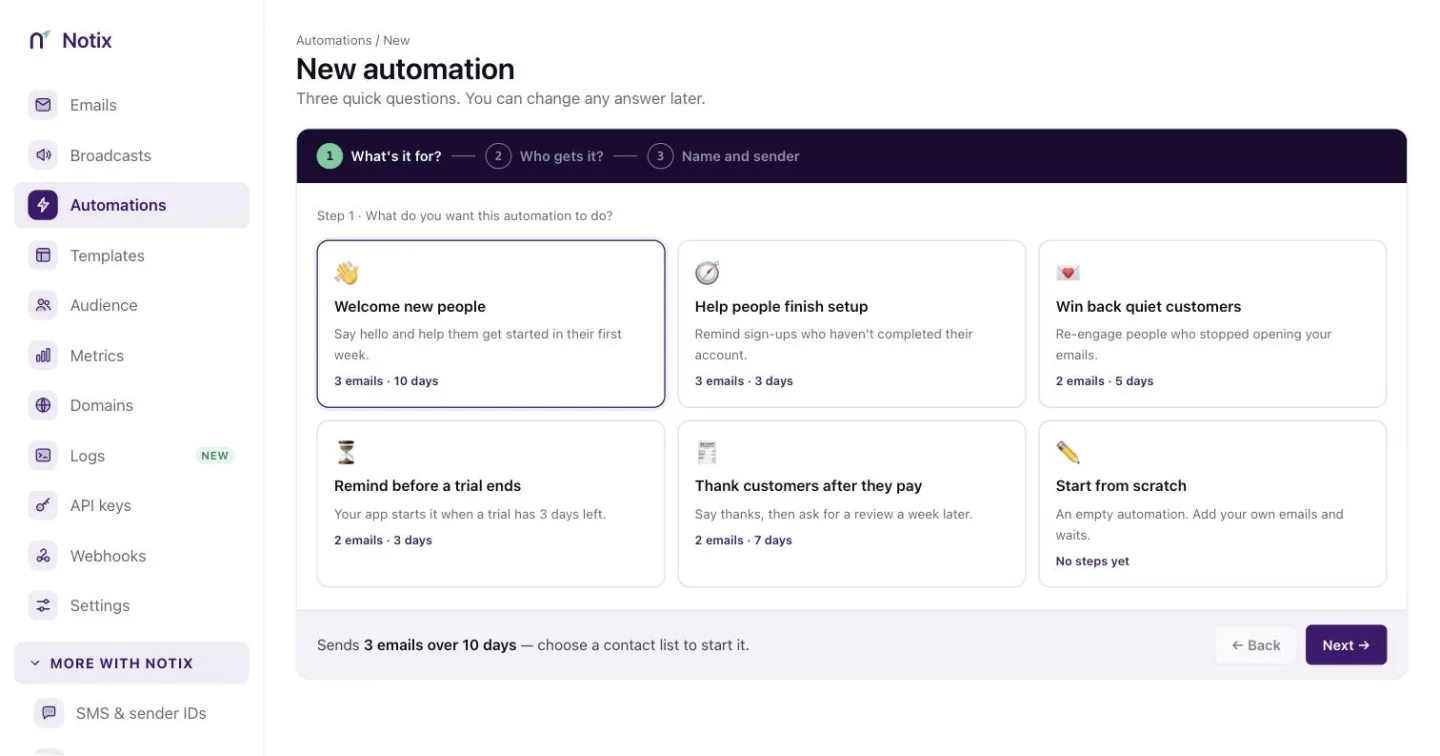
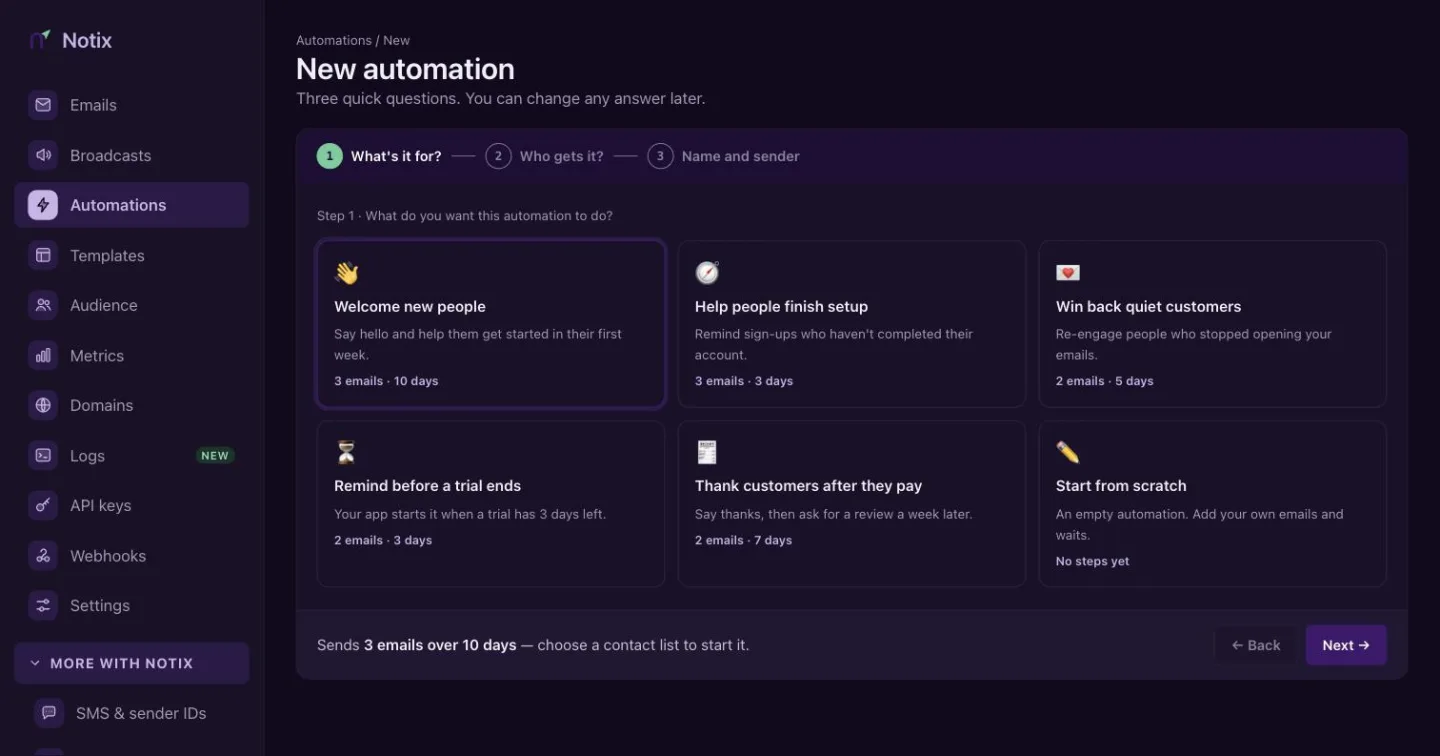
Create automation: what it is for, what starts it, then its name and sender. What's it for?
Pick a goal. Each one starts with sensible steps you can change:
Goal What it does Welcome new people A short series when someone joins a list. Help people finish setup Nudges until they do the next thing. Rescue a failed payment Emails, waits for the payment, then follows up. Remind before a trial ends Two reminders before the last day. Win back quiet customers When someone stops opening or buying. Start from scratch An empty canvas with just a trigger. What starts it?
Choose a list, an event, or My app adds people by API. For an event, pick it from your events and choose who it is for. The page shows the call your app makes.
Name and sender
Give it a name and the address the emails come from. It must be on a verified domain. Press Continue.
Build it
The builder shows the automation as a map. The trigger is at the top. Each step leads to the next, and some steps lead two ways. Drag the canvas to move around, and use −, + and the fit button to zoom. Press a step to change it in the panel on the right. Changes save on their own.
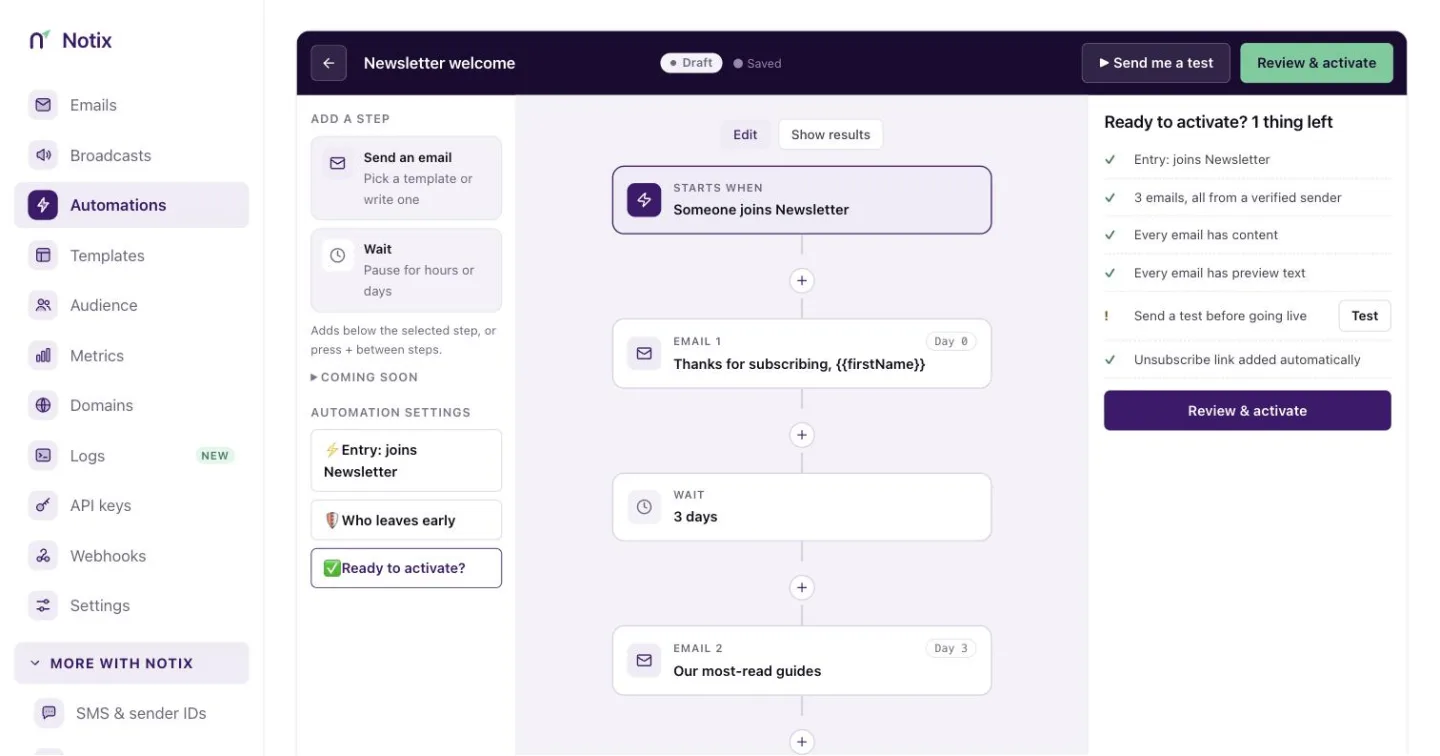
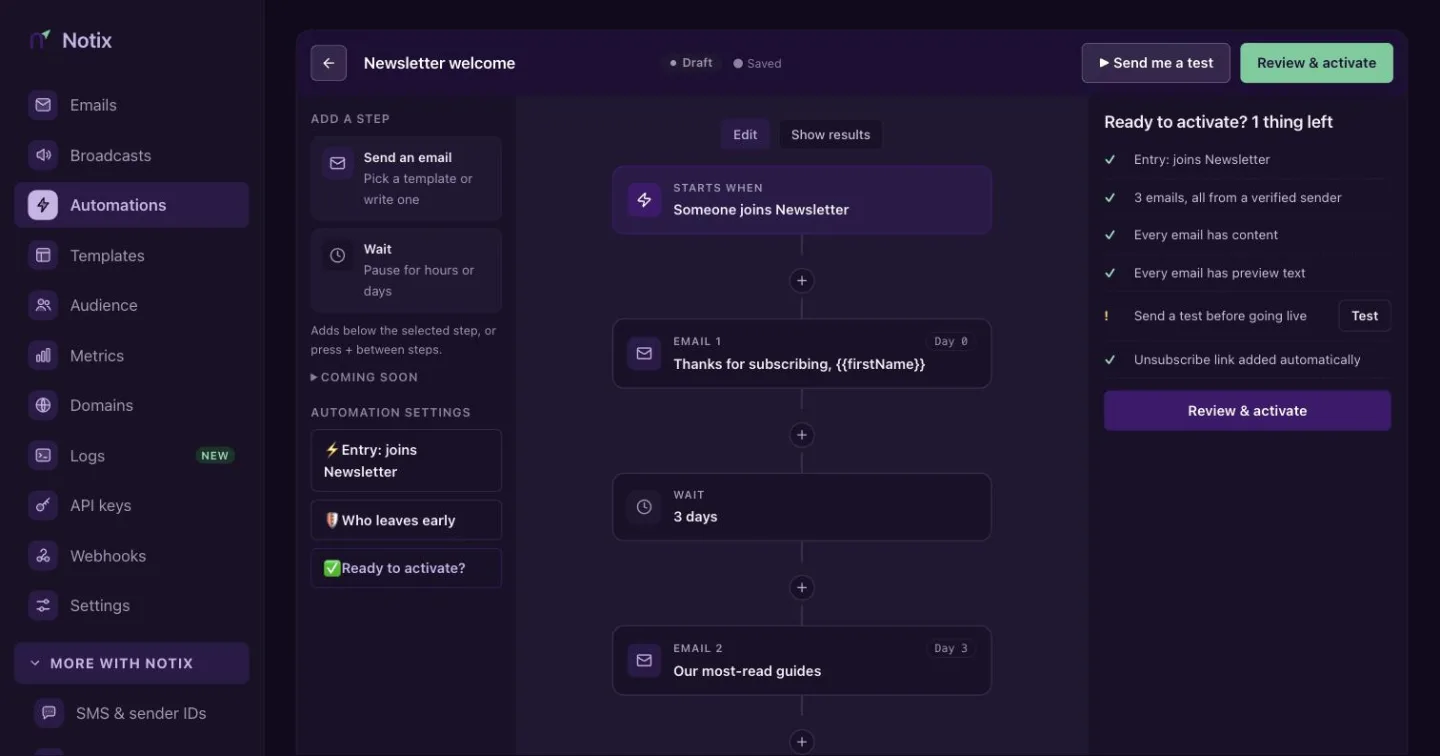
Steps
| Step | What it does | Paths out |
|---|---|---|
| Send email | Sends one email from a template. | One |
| Delay | Waits, up to 30 days. | One |
| Wait for event | Waits for your app to send an event, up to 30 days. | It happened and Time ran out |
| If / else | Checks a rule. | Yes and No |
| Update contact | Changes the first name, last name or a property, or unsubscribes the person. | One |
| Add to segment | Puts the person in a segment, whatever its rules say. | One |
A path with nothing after it ends the run there. Paths can never loop back to an earlier step, so every path ends. Send SMS is coming soon.
Fill the template's blanks
A template can have blanks, like {{amount}}. On a Send email step, choose where each blank comes from:
- the event that started the run, like
event.amount, - the contact, like
contact.first_name, - an event a Wait for event step received, like
wait_events.payment.succeeded.amount, - or a fixed text.
You can also write {{event.amount}} straight into the email. Set a Reply-to address on the step if replies should go somewhere else.
Rules
An If / else step, and the optional filter on a Wait for event step, compare a value with another. Match All of these (AND) or Any of these (OR).
| Compare | Means |
|---|---|
| equals, does not equal | The same, or not. Text ignores capitals; "15" equals 15. |
| greater than, greater or equal, less than, less or equal | For numbers and dates. |
| contains, starts with, ends with | For text. |
| exists, is empty | Whether there is a value at all. |
On a Wait for event filter, event.* on the left reads the event that just arrived, and event.* on the right reads the event that started the run. So you can wait for order.paid for the same order_id.
Send yourself a test
Press ▶ Send me a test. Every email arrives in your own inbox now, with waits skipped and "[Test]" in the subject. Tests do not count toward your plan.
Review and start
Press Review & start. Notix checks:
- what starts it, and how many of that event arrived in the last 30 days,
- Every path ends,
- Every blank is filled: each blank has somewhere to come from,
- the sender: a verified domain that is not paused,
- deliverability, and the unsubscribe link Notix adds to every email,
- your plan's usage at today's pace.
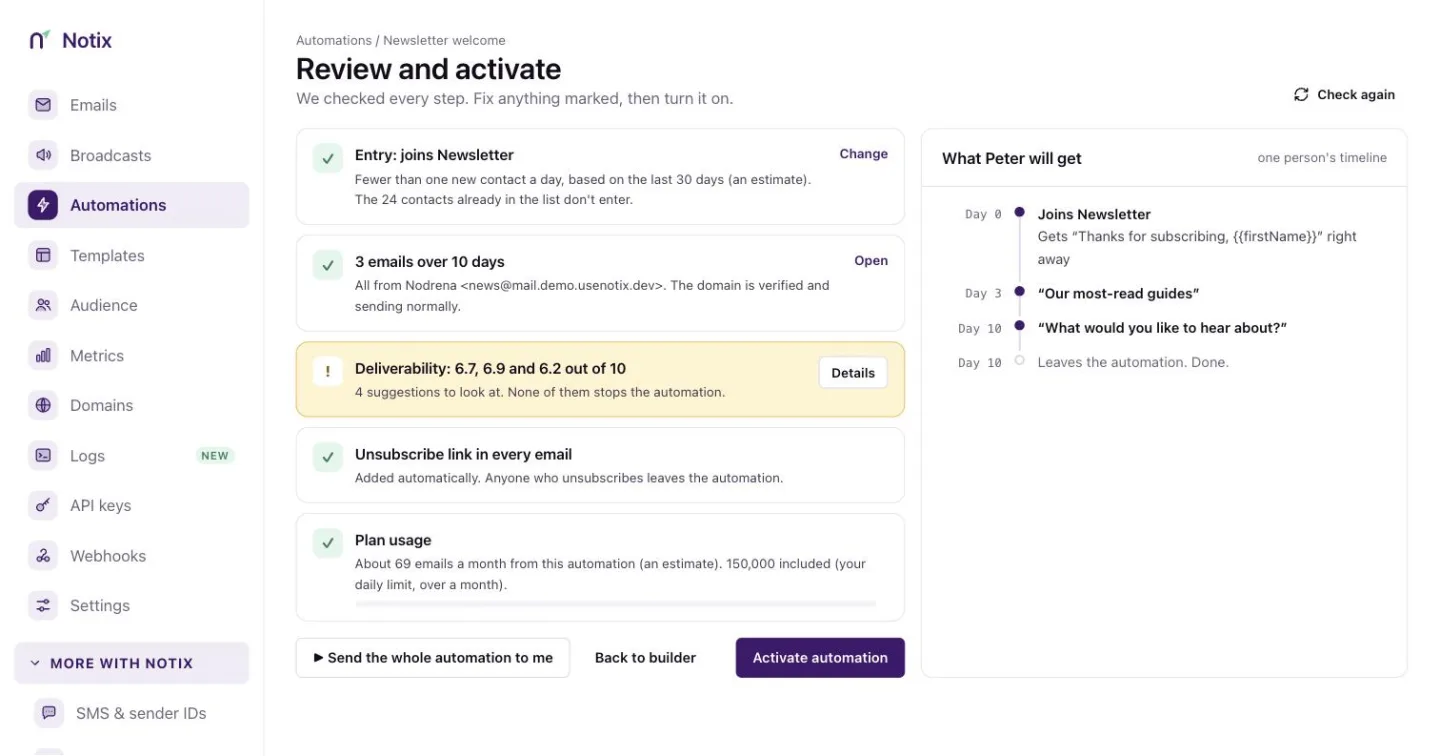
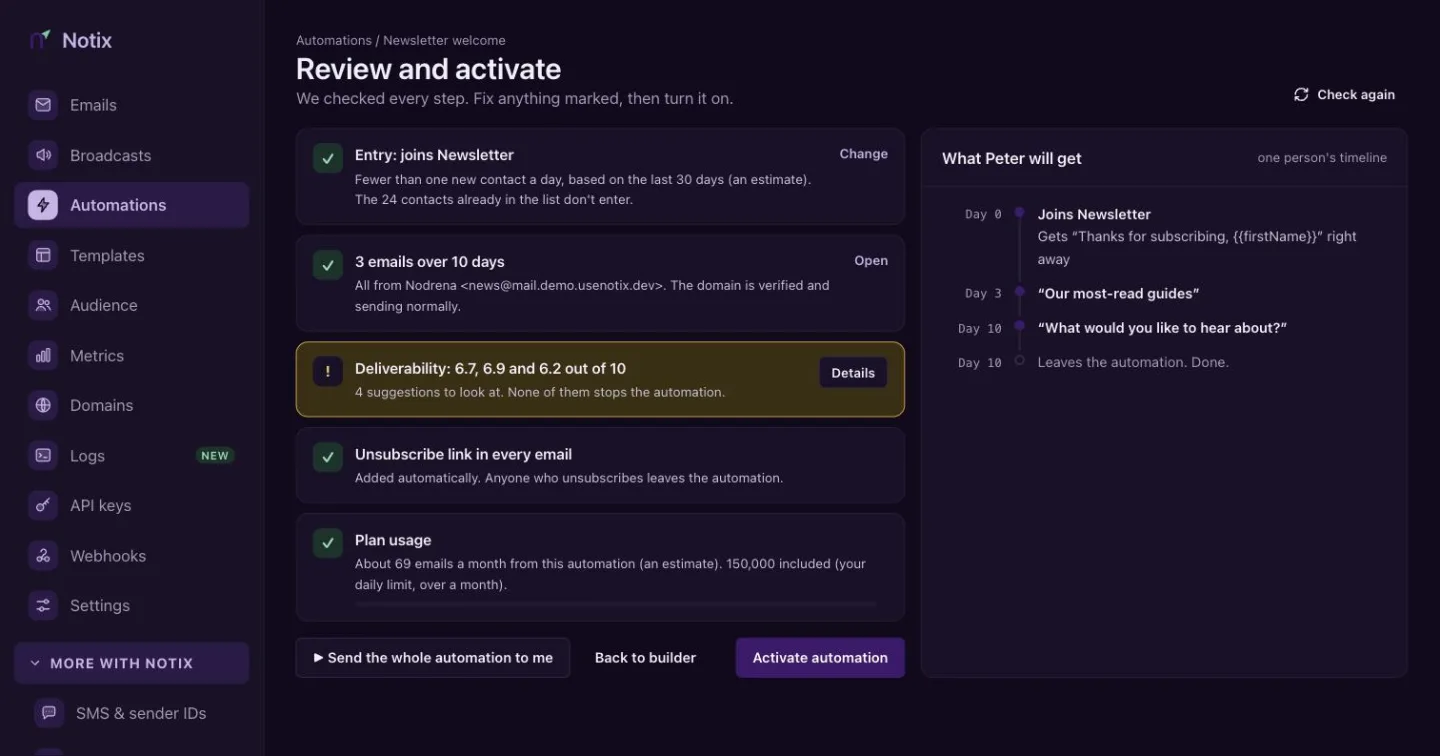
On the right, What they will get walks one person through the automation, without sending anything. Send the whole automation to me sends every email to you as a test. Then press Start automation.
A team Notix has not reviewed yet gets its automation held for review. It sends nothing until Notix approves it.
Change or stop an automation
Once started (enabled, paused or draining), an automation is read-only in the dashboard. Press Copy, change the copy, start it, then stop the old one. People already in the old one finish their path.
Exactly what a started automation still lets you change:
| Change | Started automation |
|---|---|
| Its name | Yes. |
| What starts it, its event, or the list new people join | Never. Copy it instead. |
| Its paths (steps added, removed or moved between branches) | Never. Copy it instead. |
| The steps of an automation with no branches, through the API | Yes, the way automations always worked: Notix checks every email again before saving, keeps each person on the step they are on, and refuses to remove a step someone is on or has passed. |
| Anything, while Notix holds it for review | No. |
Press Stop to stop it for new people. It shows Draining while the people in it finish, then Disabled. A draining automation offers Archive now, which makes the people still in it leave straight away. A paused automation, or one held for review, stops at once and the people in it leave.
People leave any automation early when they unsubscribe, when an email to them bounces, or when they mark one as spam. Notix also holds emails, instead of failing them, while your domain is warming up, while its DNS is not finished, or while a sending limit is reached.
Runs
Open an automation and press Runs. Each run is one person's way through the automation, newest first. Filter by status and date.
| Status | Means |
|---|---|
| Running | Still in it, waiting or about to take the next step. |
| Completed | Reached the end of a path. |
| Failed | An email could not be sent, it bounced, or it was marked as spam. |
| Cancelled | Left early: unsubscribed, or the automation was stopped. |
| Over plan limit | Waiting because a sending limit is reached. It goes on when the limit resets. |
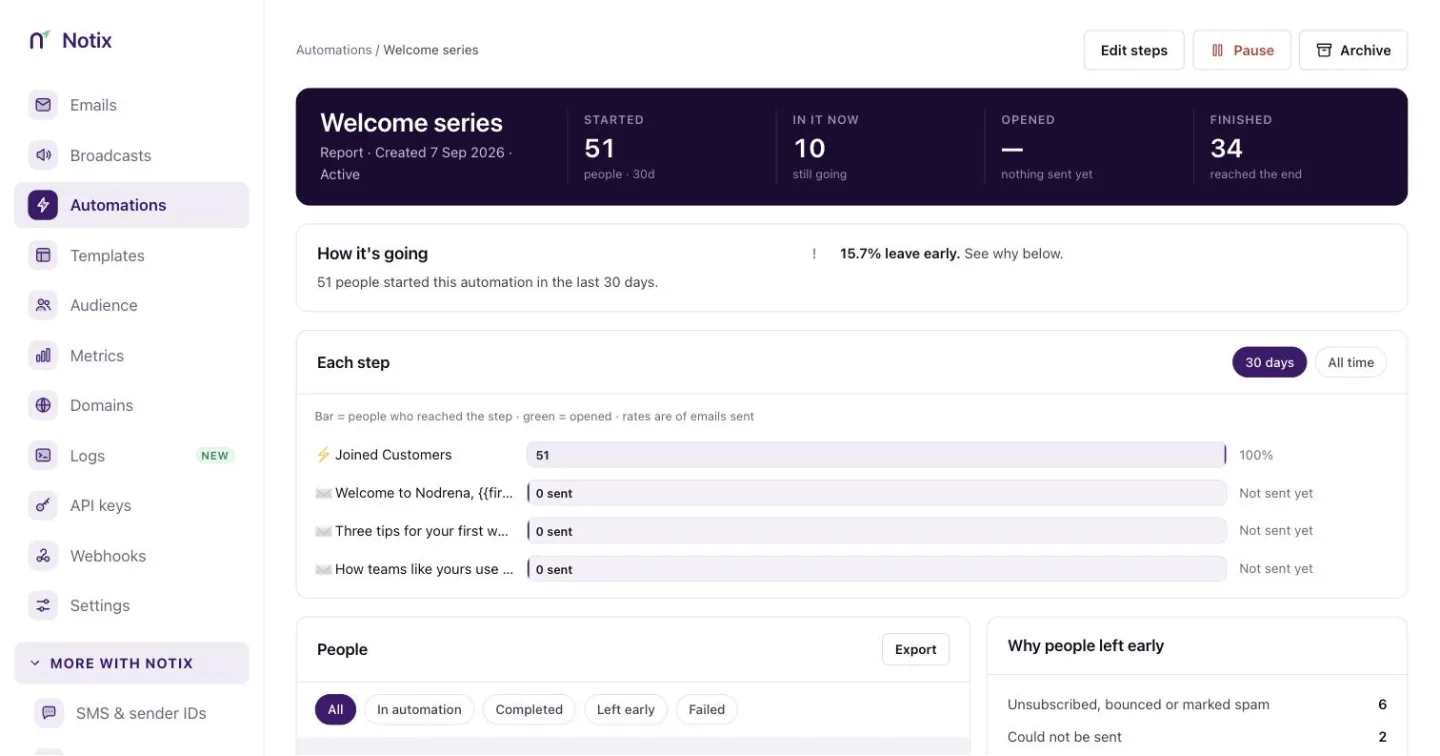
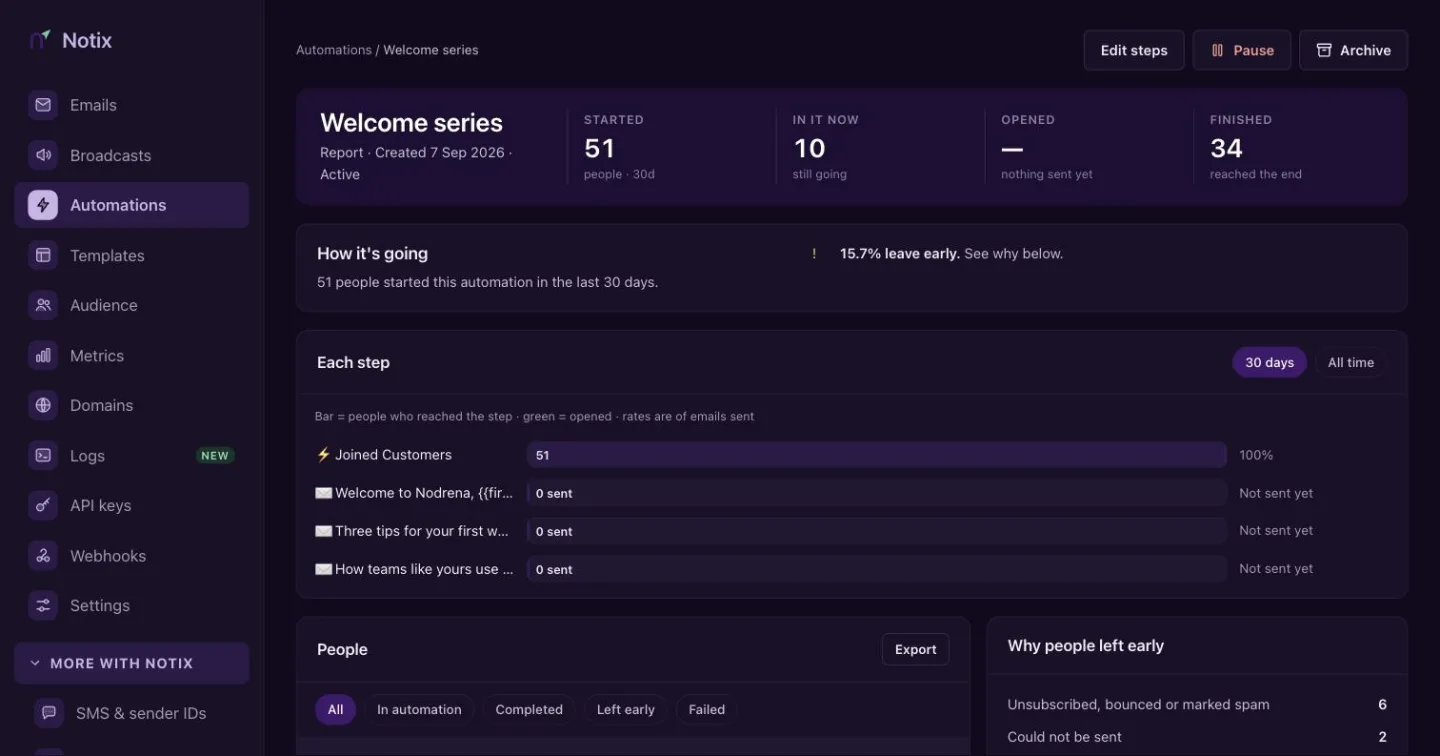
Press a run to see its timeline: every step it took, when, and what happened. Steps it did not take are shown as skipped.
Metrics
Press Metrics to see the last 7, 14 or 30 days: runs per day by outcome, emails sent per day with the share delivered, and each step's figures. Reached is how many people got to the step, Went on is how they left it (for example "268 paid · 139 timed out"), and Opened is for email steps.
How Notix differs from Resend
If you are migrating from Resend, your automations work the same way, with these differences:
- There is no Delete contact step. Use Update contact to mark people instead.
- An automation can unsubscribe someone, but never subscribes anyone again.
- A person is in at most one run of an automation at a time, and starts the same automation at most once an hour. If the event arrives again while they are in it, or within the hour, they are not started again.
- An email address Notix has not seen becomes a contact only in the automation's own list, and never when the address is suppressed or the list uses double opt-in.
- A team's events a day are capped by plan: 10,000 on Free, 200,000 on Pro.
Copying your Resend automations and events in the Migration Center is coming soon. Until then, import an automation written in Resend's shape with the API: it is saved switched off, with a note for each step Notix left out.
Automations from the API
Send an event from your app to start the automations that listen for it:
curl -X POST https://app.usenotix.dev/api/v1/events \
  -H "Authorization: Bearer $NOTIX_API_KEY" \
  -H "Content-Type: application/json" \
  -d '{ "event": "payment.failed", "email": "ada@example.com", "payload": { "amount": 15, "plan": "pro" } }'
const response = await fetch("https://app.usenotix.dev/api/v1/events", {
  method: "POST",
  headers: {
    Authorization: `Bearer ${process.env.NOTIX_API_KEY}`,
    "Content-Type": "application/json",
  },
  body: JSON.stringify({ event: "payment.failed", email: "ada@example.com", payload: { amount: 15, plan: "pro" } }),
});
Or enrol a person in an automation your app starts, by email or by contact id:
curl -X POST https://app.usenotix.dev/api/v1/automations/jrn_123/enroll \
  -H "Authorization: Bearer $NOTIX_API_KEY" \
  -H "Content-Type: application/json" \
  -d '{ "email": "ada@example.com" }'
import { Notix } from "notix-js";

const notix = new Notix(process.env.NOTIX_API_KEY);

await notix.automations.enroll("jrn_123", {
  email: "ada@example.com",
});
from notix import Notix

client = Notix()  # reads NOTIX_API_KEY

client.journeys.enroll("jrn_123", {"email": "ada@example.com"})
use Notix\Notix;

$notix = new Notix(getenv('NOTIX_API_KEY'));

$notix->journeys->enroll('jrn_123', ['email' => 'ada@example.com']);
A person holds at most one run of an automation your app enrols them in, so enrolling them again answers 409. Pass an Idempotency-Key header to make a retry safe for 24 hours. Enrol up to 100 contacts adds many at once.
You can also build an automation in code, branches included: create an automation with its steps and connections, check it and activate it. Read one run and the metrics, stop or copy an automation, or import one written in Resend's shape. The Automations reference lists every endpoint.
The journey.enrolled, journey.completed and journey.exited webhook events follow each person through an automation.