Create an API key
Make an API key in the console, pick its permission and keep it safe on your server.
Every API call and every AI app needs a key. Make one in the console, give it the smallest permission that does the job, and keep it on your server.
Open API keys
Go to API keys in the console. The page lists your keys, when each was last used, and what your AI agents did.
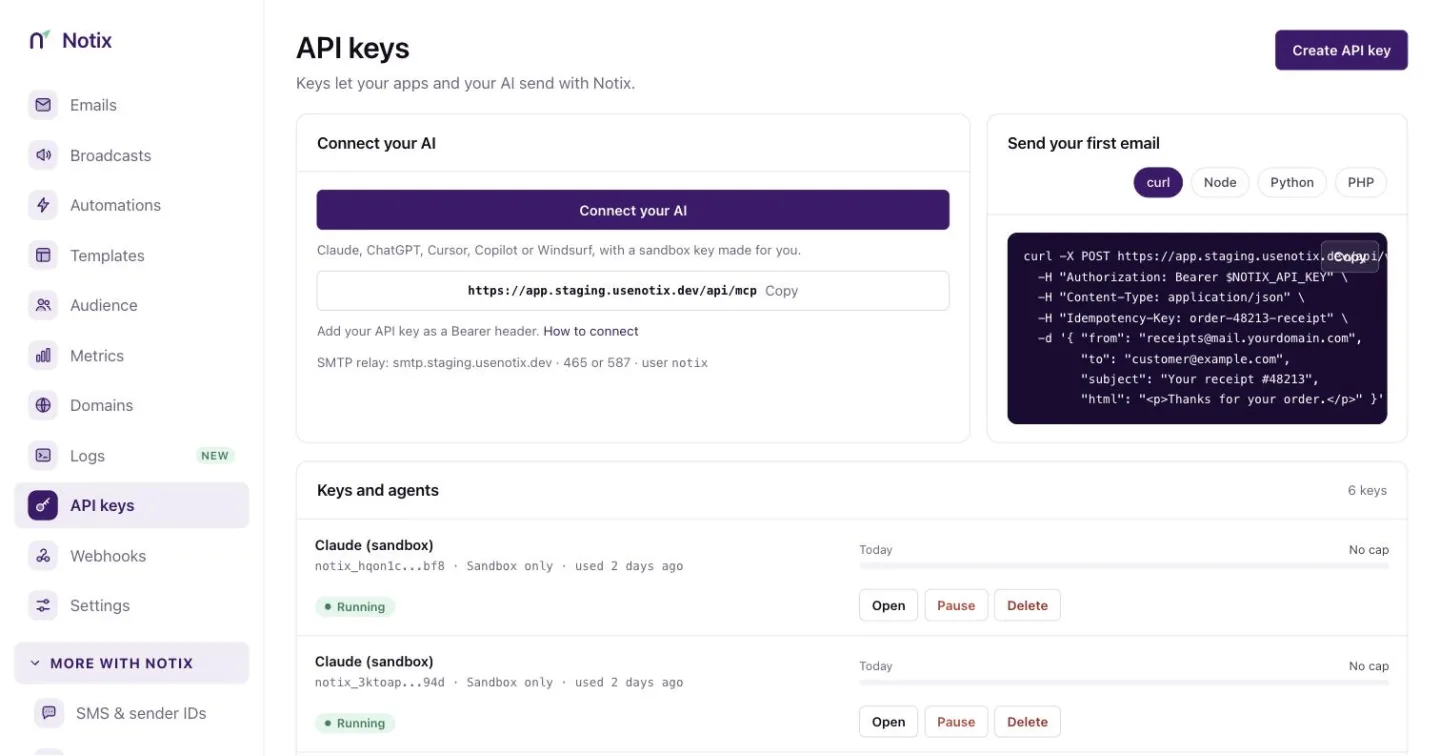
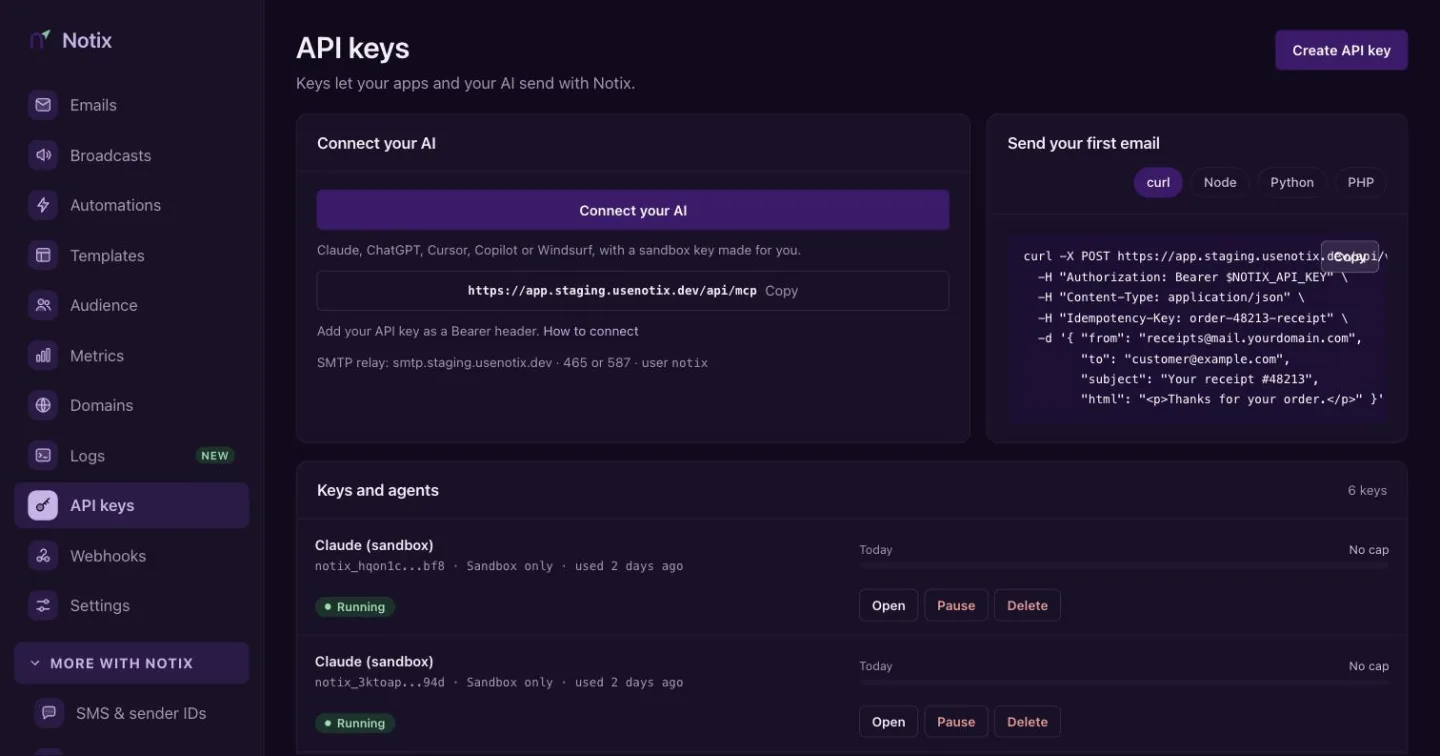
API keys: your keys, their permission, and when each was last used. Create the key
Press Create API key. In Create a new API key, fill in:
- API key name: something you will recognise later, like
checkout-service. - Permission: what the key may do. See the table below.
- Domain access: All Domains, or one verified domain the key is limited to.
Press Create.
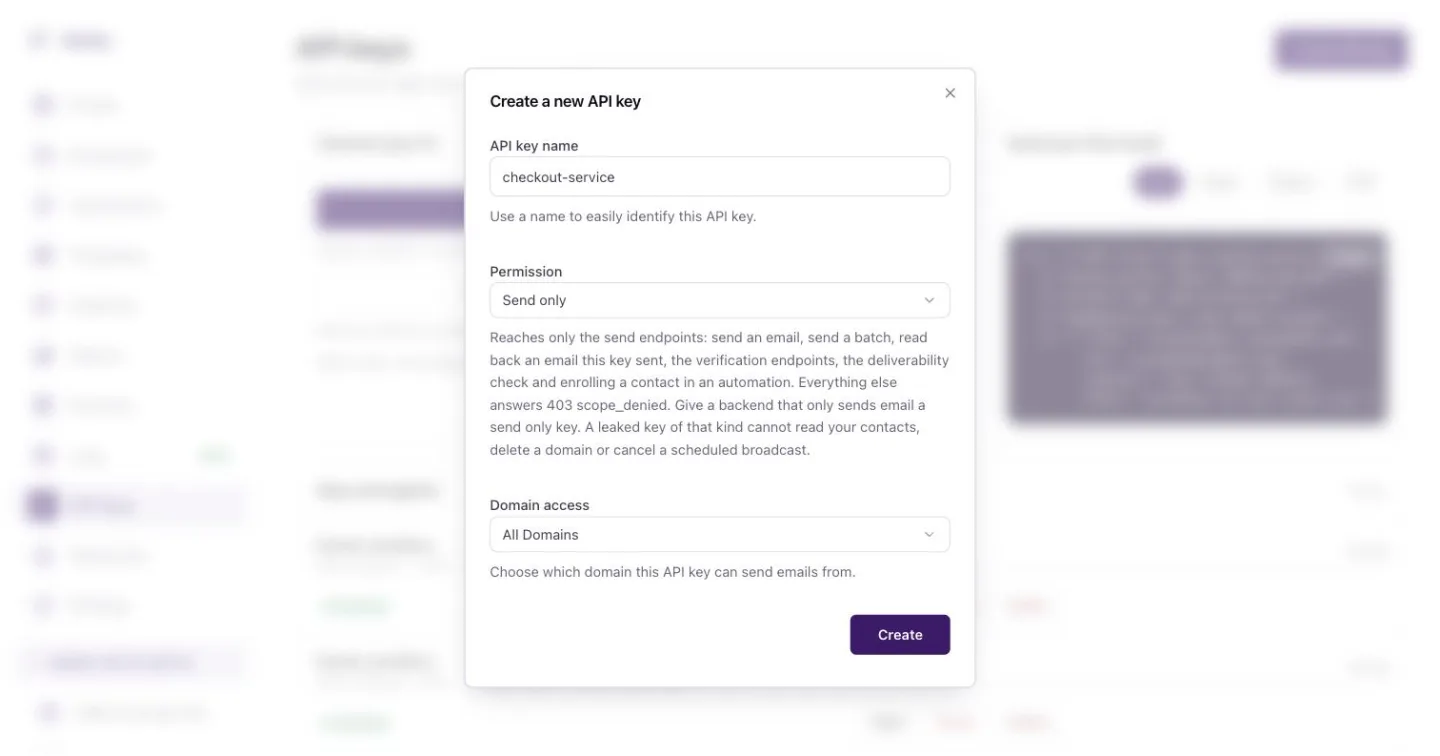
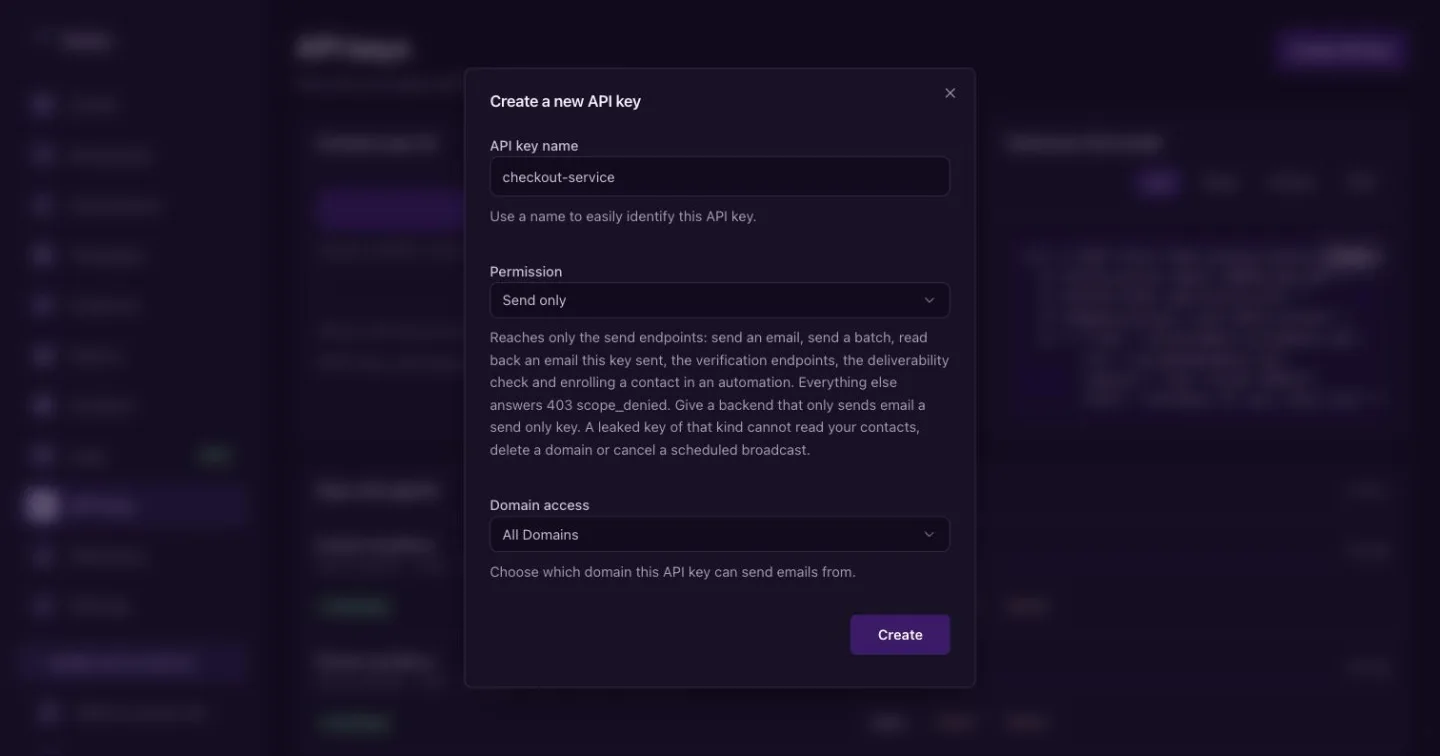
Pick a name, a permission and the domains the key may send from. - API key name: something you will recognise later, like
Copy it now
The Copy API key dialog shows the key once. Copy it and store it in your server's environment as
NOTIX_API_KEY. Notix keeps only a salted hash, so nobody can show it to you again. If you lose it, make a new one and delete the old one.export NOTIX_API_KEY="notix_..."Check it works
Call Check an API key. It answers with the team, the key id and its permission.
curl https://app.usenotix.dev/api/v1/auth/check \
  -H "Authorization: Bearer $NOTIX_API_KEY"
Permissions
| Permission | What it reaches |
|---|---|
| Full access | Every endpoint: sending, contacts, domains, broadcasts and analytics. Only team admins can make one. |
| Send only | The send endpoints: send an email, send a batch, read back an email this key sent, codes, the deliverability check and enrolling a contact in an automation. |
| Read only | Lists, lookups and stats. It cannot send or change anything. |
A call outside the key's permission answers 403 SCOPE_DENIED. Give a backend that only sends email a Send only key. If it leaks, it cannot read your contacts or delete a domain.
Keys for AI apps are made on Connect your AI instead. Those are Live AI keys.
Keep keys safe
- Keep keys in server environment variables or a secret manager.
- Never ship a key in a web page, a mobile app or a public repository.
- Use one key per service, so you can pause or delete one without touching the rest.
- Anyone on the team can pause a key from its page, and it stops at once. Only a team admin can resume it.
Rotate, expire and lock a key
A team admin manages these on the key's page.
- Rotate key makes a new key with the same permission, domain, limits and IP list. The old key keeps working for the time you pick (24 hours unless you change it), then every call with it is refused. Pick Stop the old key now if it may have leaked. Anything the old key already queued still goes out.
- Set an expiry date stops the key at the end of the day you pick. Change or remove the date at any time.
- IP allowlist locks the key to your servers. Add single addresses (
102.89.34.17) or ranges (102.89.34.0/24, IPv6 too). Calls from any other address answer 403. Private and local addresses (10.x, 172.16-31.x, 192.168.x, 100.64-127.x, 127.x, 169.254.x, and IPv6 fc00::/7, fe80::/10 and ::1) are refused: add the public address your servers call from. A key with a list does not work over SMTP: the relay's login check answers 403 "IP-locked keys can't be used over SMTP", so use a key without a list there.
A key that has expired or passed its rotation answers 401. Read this key's limits shows the key's own end date and IP list under lifetime, so a service can warn before its key stops.
Limits, approvals and the audit log are covered in API keys and permissions.