Templates and library
Start from the starter library, edit in Template Studio, and send a template from the API or a broadcast.
Templates are saved emails you write once and send many times, from the API or as a broadcast. Each template has a name, a subject, a line of preview text, a type and a body.
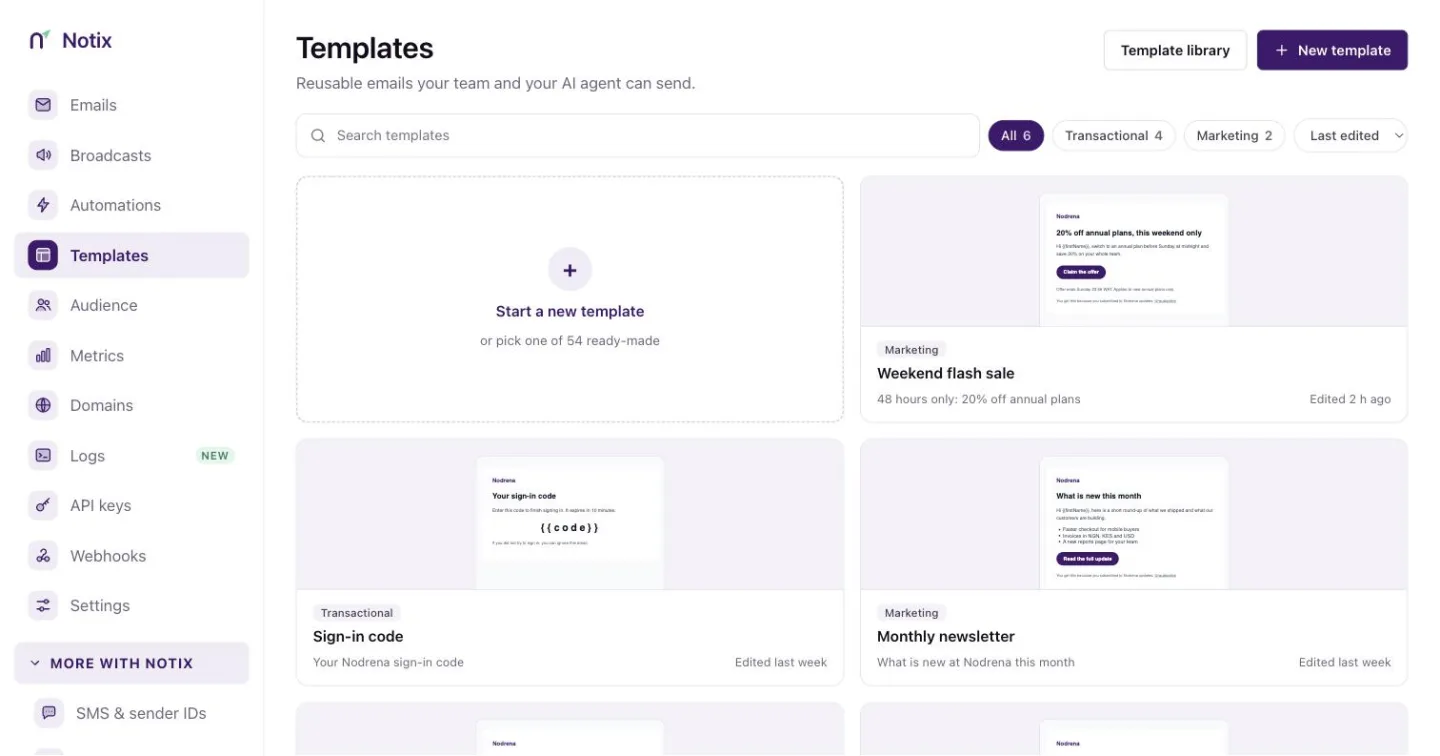
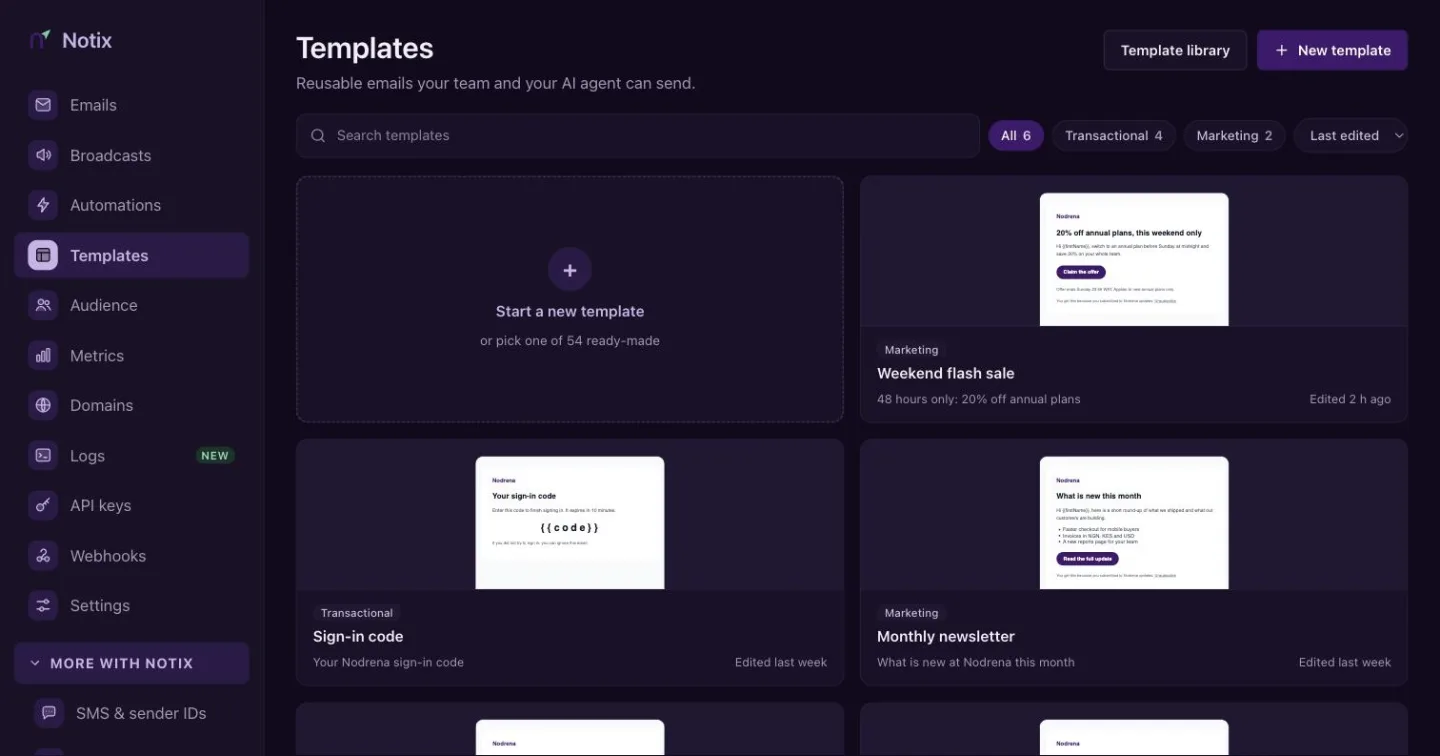
The Templates page
Open Templates to see every template your team has. Search by name, filter by type, and sort by Last edited or Name A–Z. Each card opens the template in Template Studio, with Duplicate and Delete beside it. Only admins can delete.
Start from the library
The starter library has 54 emails across 14 industries, from order confirmations and sign-in codes to newsletters and event invitations. Every one is free on every plan.
Open the library
On the Templates page, press Template library. You can also press New template, then Browse all 54 in the library.
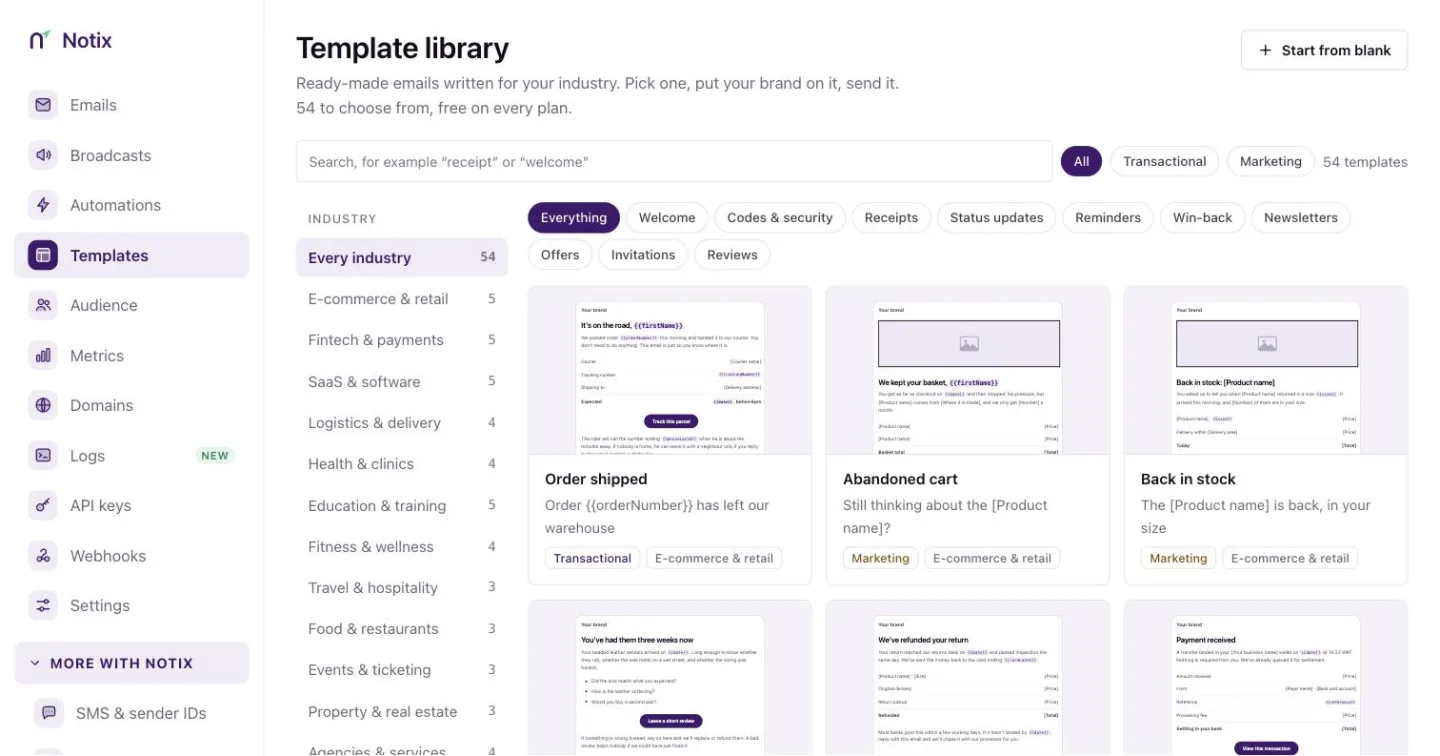
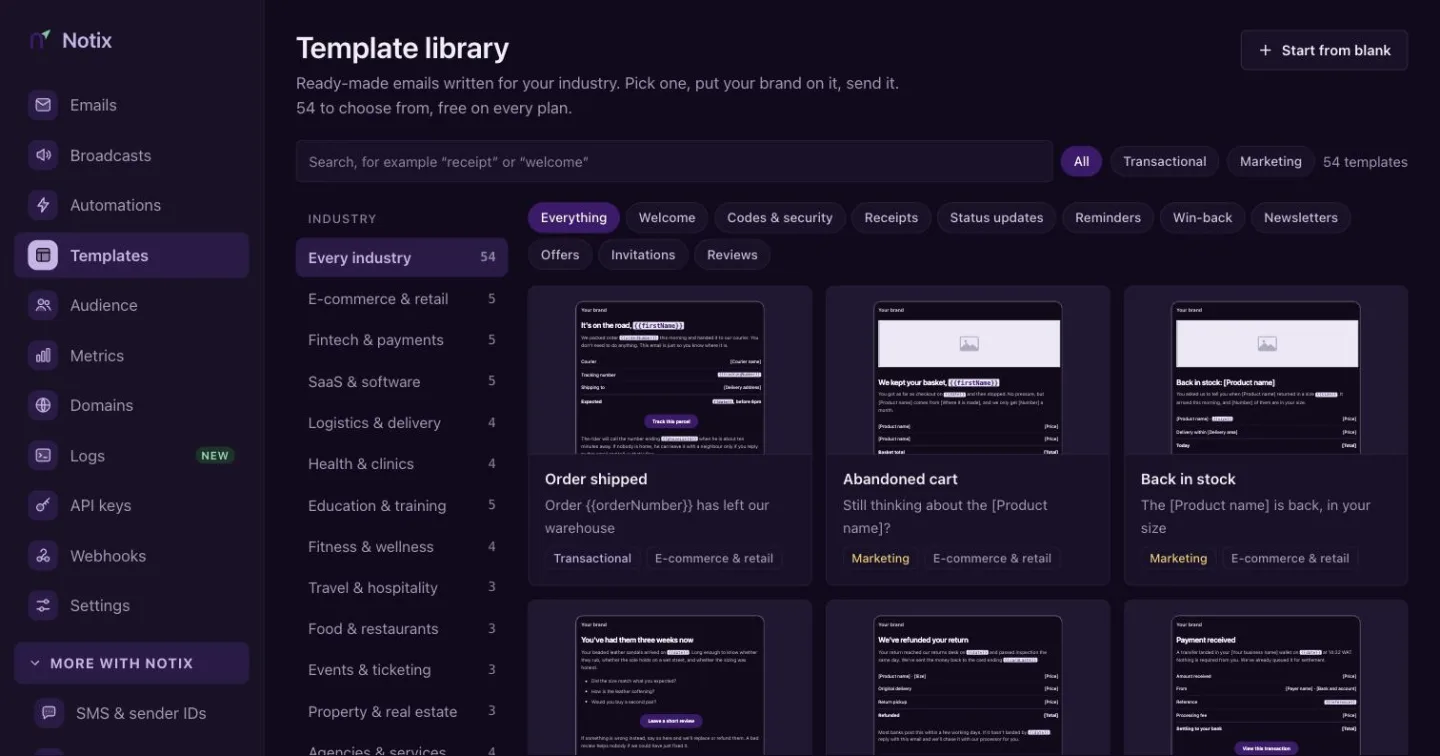
The library. Filter by industry or by what the email is for, or search for words like receipt or welcome. Preview an email
Press a card to preview it. Switch between Desktop and Mobile to see how it reads on a phone.
Use it
Press Use this template. Notix copies the email into your own templates, with your brand colour on the buttons and your logo at the top.
The copy is yours. Editing it never changes the library, and later changes to the library never change your copy.
Start a new template
Press New template
On the Templates page, press New template.
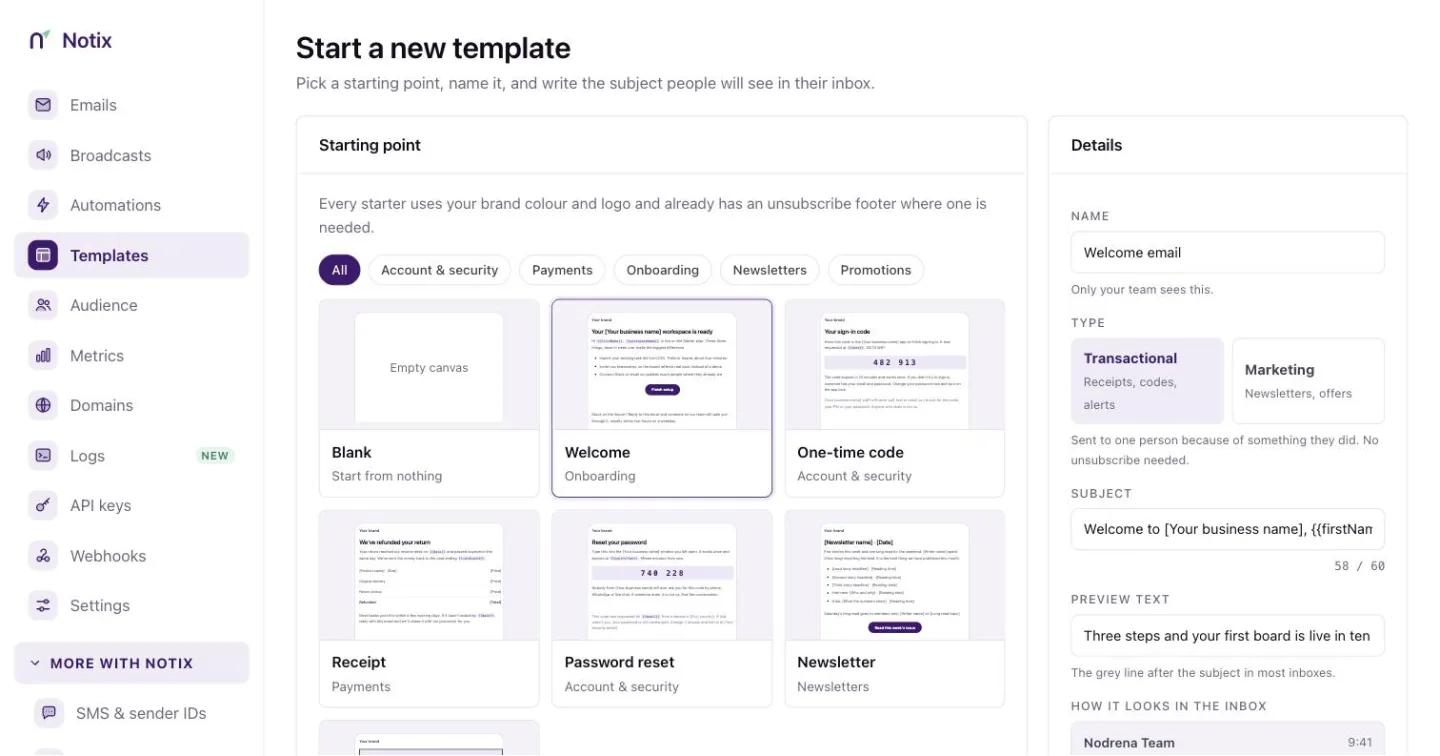
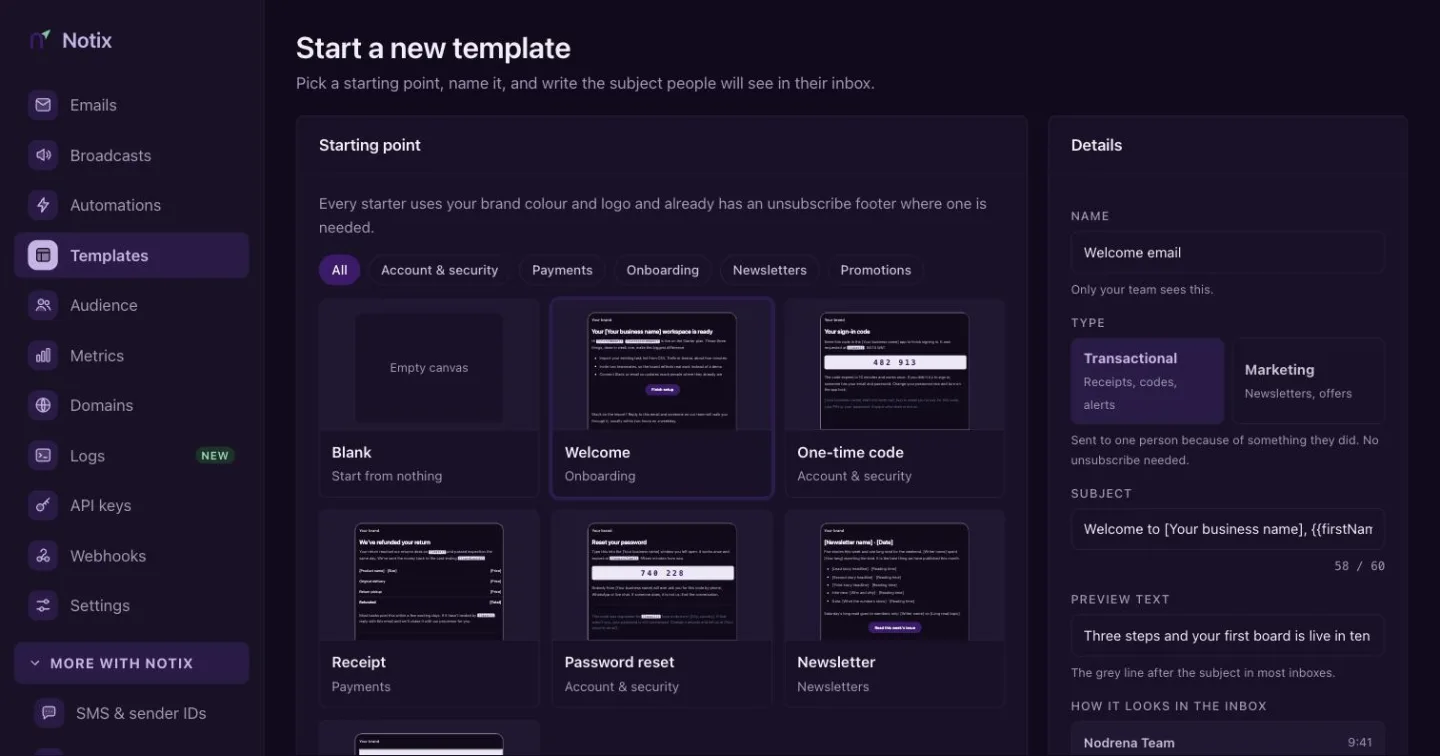
New template: pick a starting point, fill in the details, then open the editor. Pick a starting point
Choose a starter, or an empty canvas. Every starter uses your brand colour and logo, and already has an unsubscribe footer where one is needed. To copy one of your own templates instead, press Duplicate one of my templates.
Fill in the details
In the Details panel, give the template a name, a type, a subject and a line of preview text. The panel shows how it will look in an inbox.
Open the editor
Press Create and open editor.
Transactional or marketing
Every template has a type:
- Transactional: sent to one person because of something they did, such as a receipt or a password reset. No unsubscribe link is needed.
- Marketing: sent to many people, such as a newsletter. Notix adds the unsubscribe footer, and a broadcast will not send without one.
You can change the type in the editor's Email tab. Switching to Marketing adds the unsubscribe footer if the email does not have one.
Edit in Template Studio
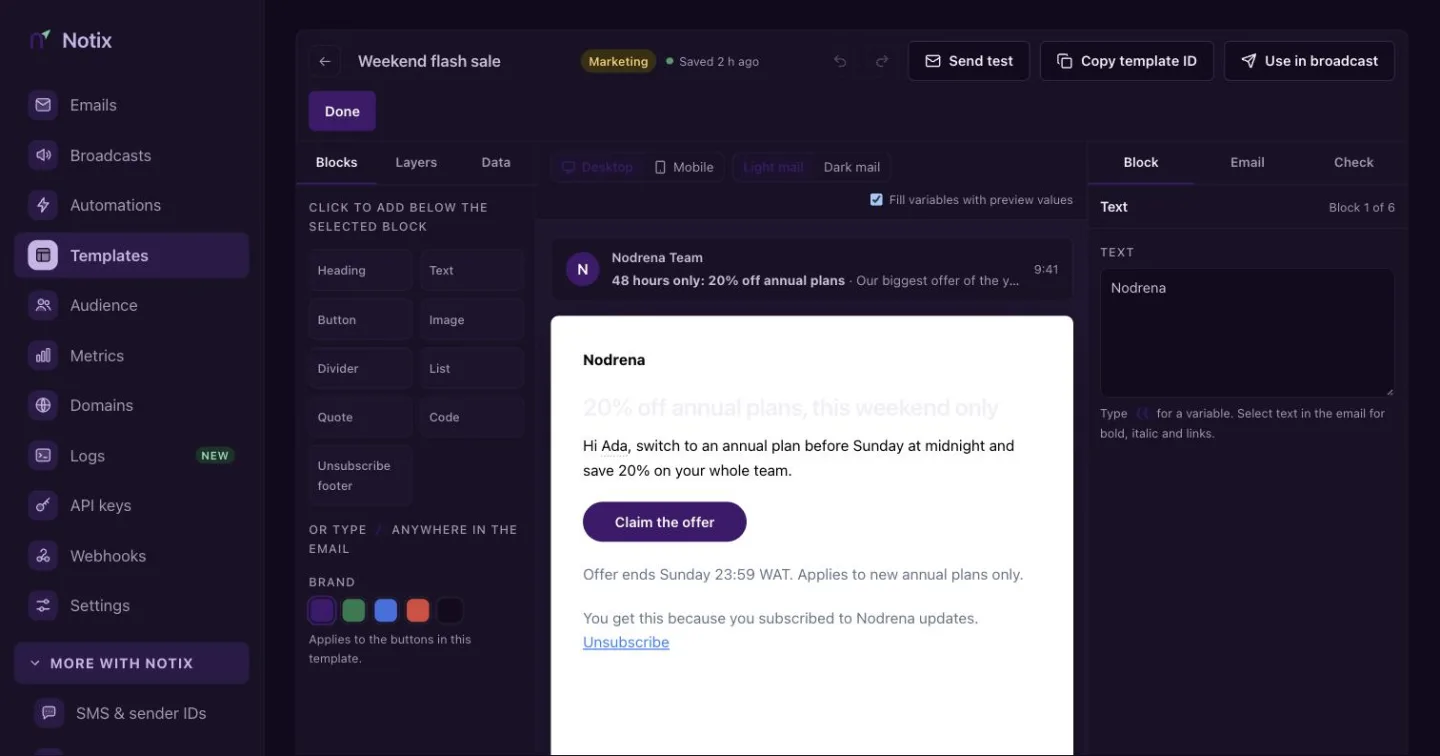
Template Studio shows the email as it will arrive, with its subject and preview text in an inbox row above it. Every change saves as you make it, and the top bar shows when it last saved.
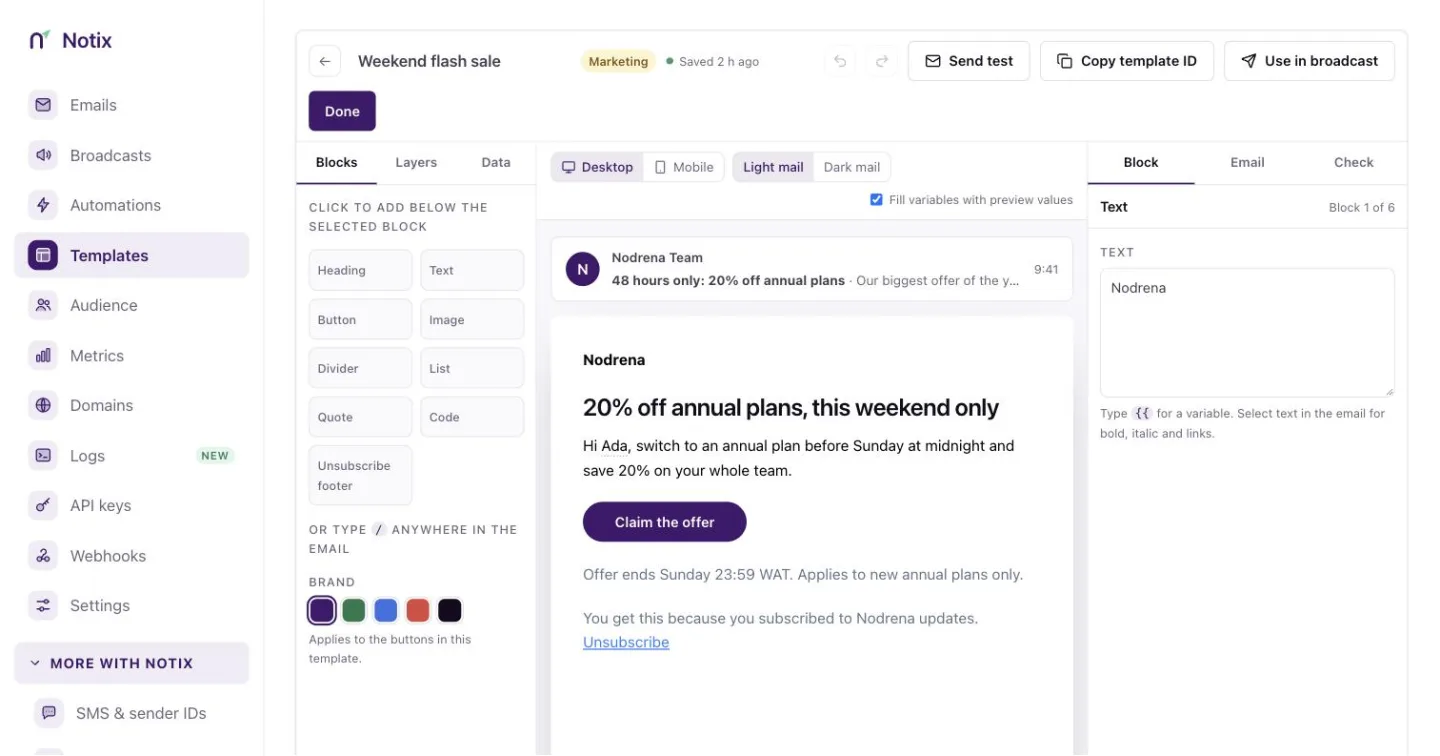
The left side has three tools:
- Blocks adds headings, text, buttons, images, dividers, lists, quotes, code and the unsubscribe footer below the selected block. You can also type
/anywhere in the email. - Layers lists every block, so you can select one or move it up and down.
- Data lists the variables the email uses, with the values the preview shows. Preview values stay in your browser. Real sends use the data you pass.
The right side has three tabs:
- Block changes the selected block: a button's label, link, alignment, colour, corners and size, an image's alt text and link, a list's items, or a details table's rows and total.
- Email sets the subject, preview text, type, content width and background.
- Check runs the deliverability check. It warns when a button still links to
{{actionUrl}}, when the email asks the reader for a password, PIN, code or card detail, and when starter text is still in place.
The top bar has Send test, Copy template ID, Use in broadcast for marketing templates, and Done.
Variables
Type {{ in the email to insert a variable such as {{firstName}} or {{orderNumber}}. Library emails also link their main button to {{actionUrl}}, so one template can send each person to their own page.
When you send, pass the values in variables. A link that is exactly one variable, such as {{actionUrl}}, is only filled with an https, http, mailto or tel address.
curl -X POST https://app.usenotix.dev/api/v1/emails \
  -H "Authorization: Bearer $NOTIX_API_KEY" \
  -H "Content-Type: application/json" \
  -d '{
    "from": "Acme <hello@acme.com>",
    "to": "ada@example.com",
    "templateId": "tpl_8d2kq1",
    "variables": {
      "firstName": "Ada",
      "orderNumber": "A-91",
      "actionUrl": "https://acme.com/orders/A-91"
    }
  }'
import { Notix } from "notix-js";

const notix = new Notix(process.env.NOTIX_API_KEY);

await notix.emails.send({
  from: "Acme <hello@acme.com>",
  to: "ada@example.com",
  templateId: "tpl_8d2kq1",
  variables: {
    firstName: "Ada",
    orderNumber: "A-91",
    actionUrl: "https://acme.com/orders/A-91",
  },
});
A send may pass up to 200 variables, each up to 10,000 characters. A batch may pass up to 2,000,000 characters of variables in total. A subject longer than 998 characters once filled is cut there.
Copy a template's ID with Copy template ID in the editor's top bar. See Send an email for every field.
Templates from the API
You can do the same from code. List the starter library, then use a starter library template to copy one into your templates:
curl -X POST https://app.usenotix.dev/api/v1/templates/from-library \
  -H "Authorization: Bearer $NOTIX_API_KEY" \
  -H "Content-Type: application/json" \
  -d '{ "libraryId": "ecom-shipped", "name": "Order shipped" }'
const { data: template } = await notix.templates.createFromLibrary({
  libraryId: "ecom-shipped",
  name: "Order shipped",
});
The Templates API also lists, creates, updates, duplicates and deletes templates. See the Templates reference.
Send a template as a broadcast
In Template Studio, press Use in broadcast. The broadcast gets its own copy of the template. Editing the template later will not change the broadcast, and editing the broadcast will not change the template. A transactional template gains the unsubscribe footer in the broadcast's copy.
Then pick a contact list or segment and a verified sender, and press Continue to review. The Broadcasts guide walks through the rest. See Personalisation for contact variables.