Double opt-in
Confirm new subscribers before they get a broadcast.
Double opt-in asks new contacts to confirm their email address before they become subscribed. When it is on for a contact book, each new contact gets a confirmation email with a link. They are subscribed only after they press it.
Why use it:
- Every address on your list is real and belongs to the person who signed up.
- Fewer bounces and spam complaints, so better delivery for everyone on the list.
- A clear record of consent, which privacy laws such as GDPR expect.
How it works
- A contact is added. When a contact is added to a book with double opt-in on, in the console, through the API or by CSV import, it is created as Pending instead of subscribed.
- A confirmation email goes out. The contact gets an email with their own confirmation link, signed with HMAC-SHA256 and valid for 7 days.
- The contact confirms. They press the link and confirm on the confirmation page.
- The contact is subscribed. Their status changes from Pending to Subscribed, and they now get your emails.
Turn on double opt-in
Open the contact book
Open Contacts and choose a contact book.
Turn on the switch
Below the contacts table, turn on the Double opt-in switch. The line beside it changes to "New contacts get a confirmation email before they join this list."
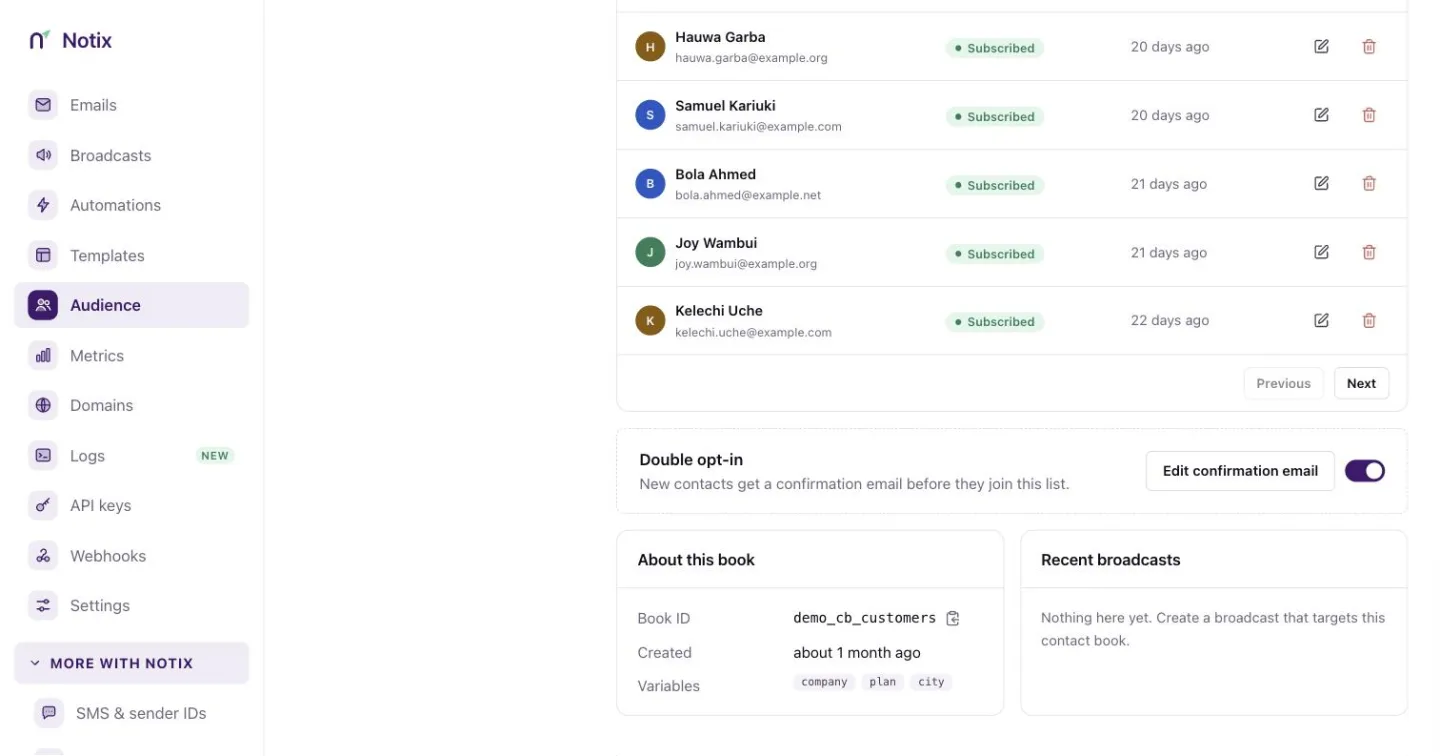
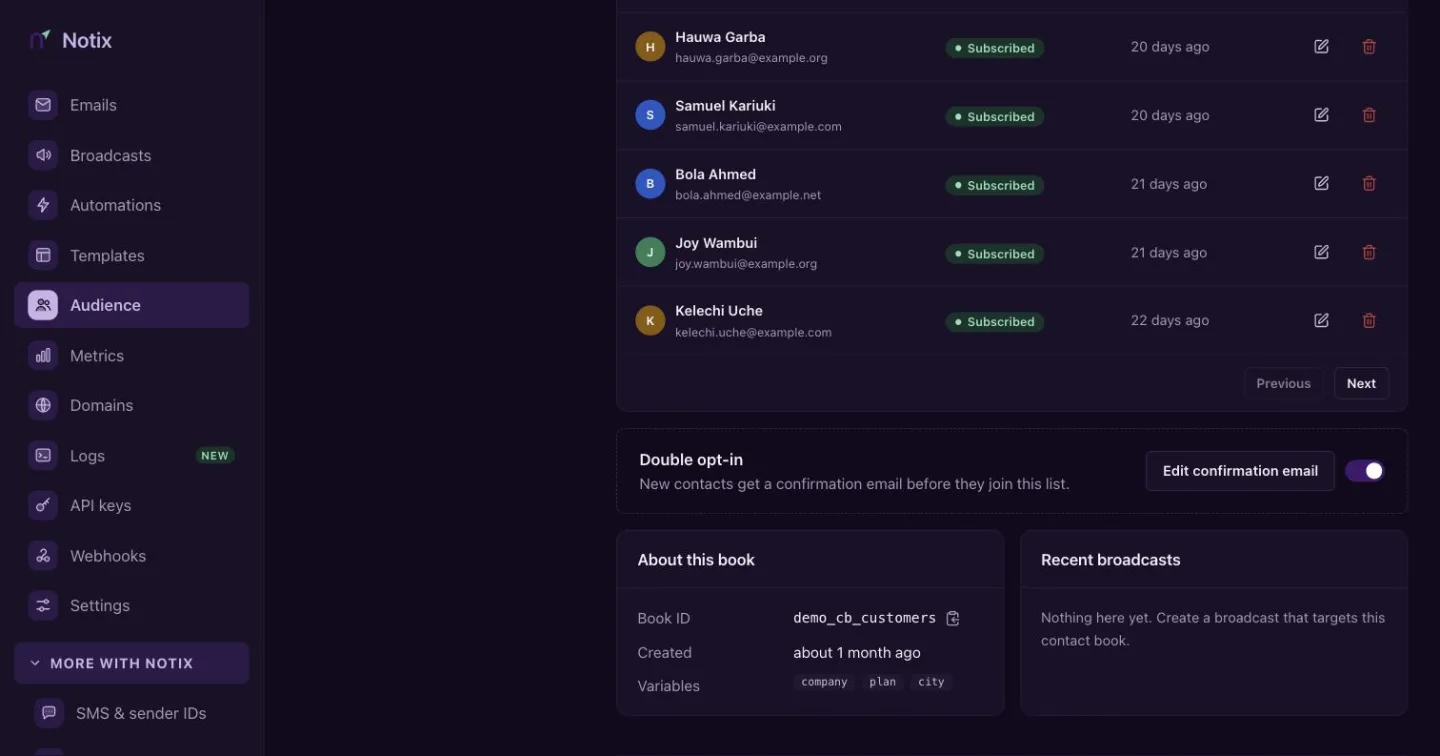
The Double opt-in switch, with Edit confirmation email beside it. Edit the confirmation email
Press Edit confirmation email. Change the subject, the from address and the body. Changes save on their own.
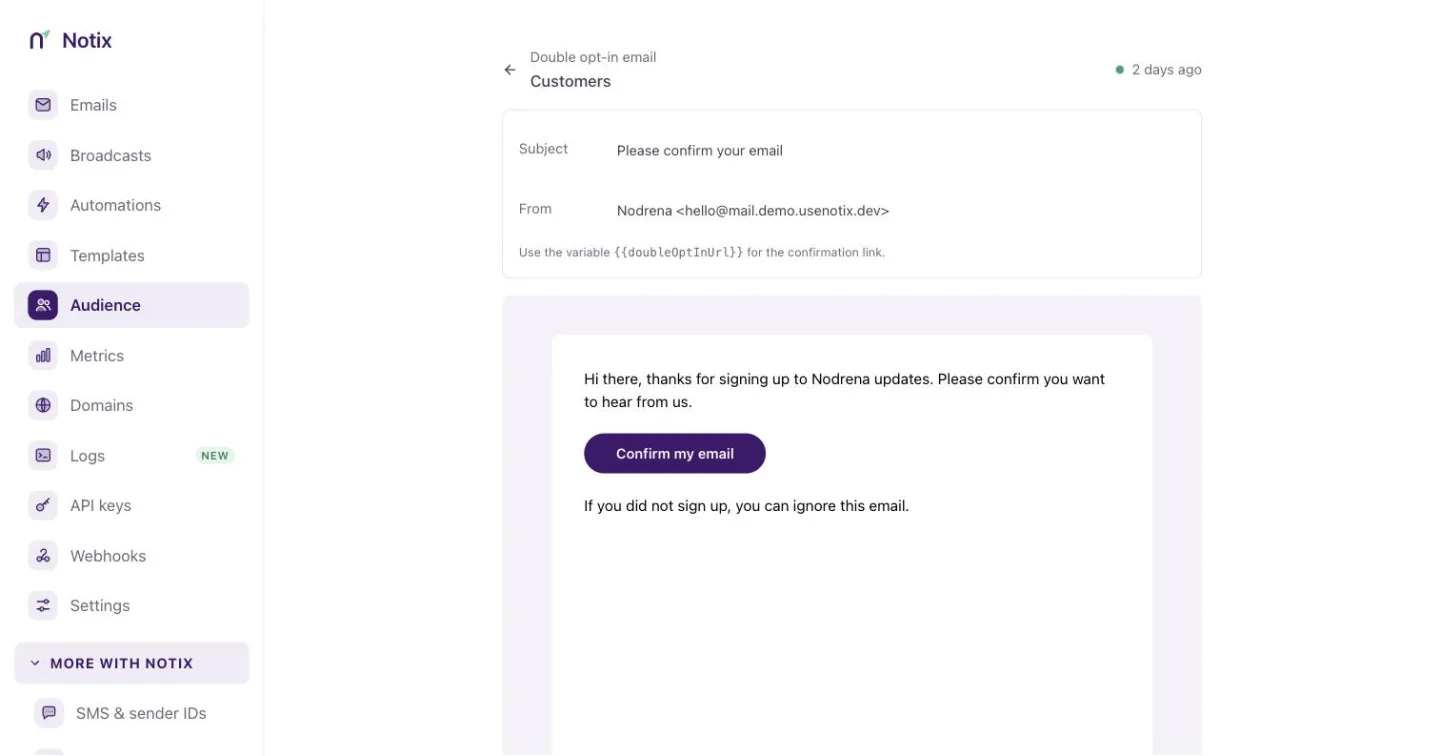
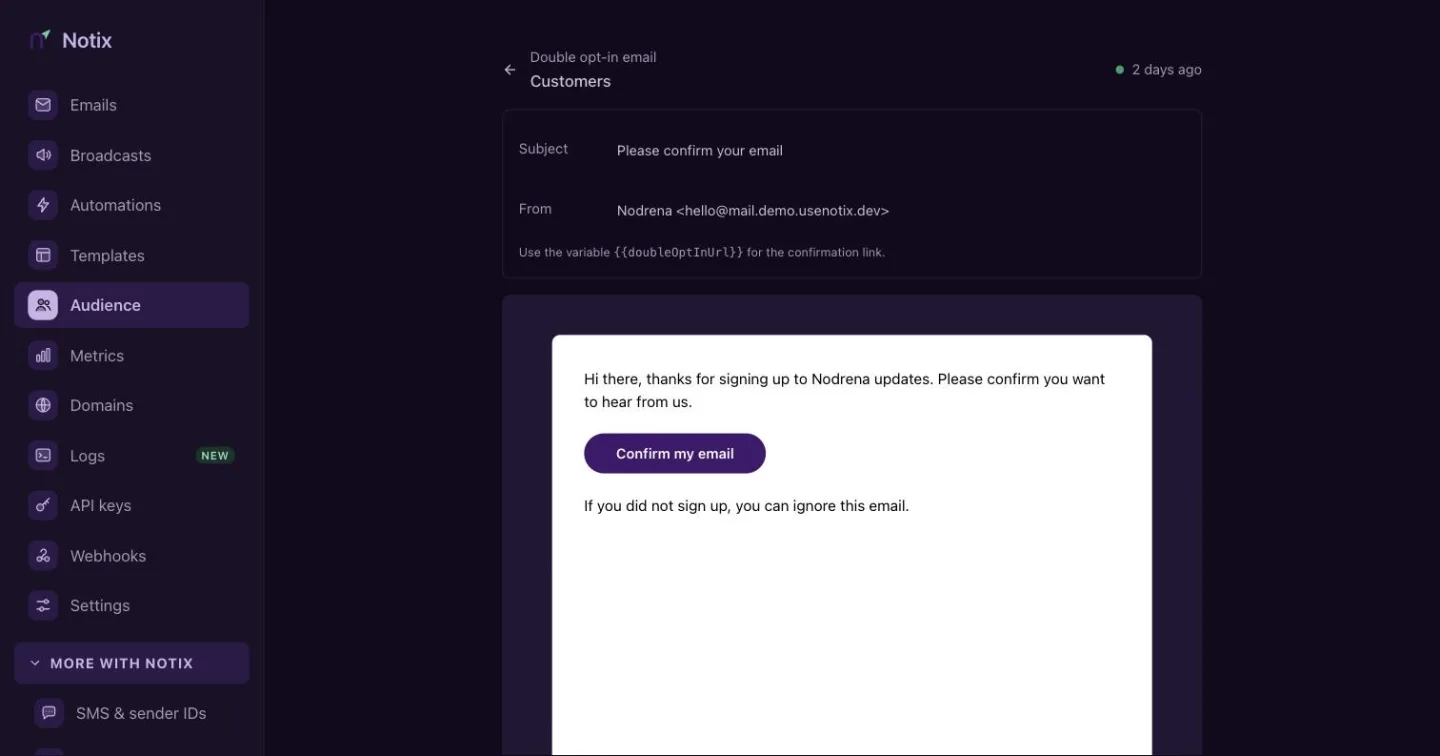
The confirmation email. The body must keep the {{doubleOptInUrl}} link.
Through the API
A contact book created through the API or the MCP tools starts with double opt-in off. To turn it on, send doubleOptInEnabled: true together with doubleOptInFrom, an address on one of your verified domains. Without a from address, or with one that is not on a verified domain, the request is refused with 422 and nothing is created.
Create a contact book with double opt-in on:
curl -X POST https://app.usenotix.dev/api/v1/contactBooks \
  -H "Authorization: Bearer $NOTIX_API_KEY" \
  -H "Content-Type: application/json" \
  -d '{
    "name": "Newsletter",
    "doubleOptInEnabled": true,
    "doubleOptInFrom": "Acme <hello@acme.com>",
    "doubleOptInSubject": "Please confirm your subscription"
  }'
import { Notix } from "notix-js";

const notix = new Notix(process.env.NOTIX_API_KEY);

await notix.contactBooks.create({
  name: "Newsletter",
  doubleOptInEnabled: true,
  doubleOptInFrom: "Acme <hello@acme.com>",
  doubleOptInSubject: "Please confirm your subscription",
});
Or turn it on for a book you already have:
curl -X PATCH https://app.usenotix.dev/api/v1/contactBooks/cb_123 \
  -H "Authorization: Bearer $NOTIX_API_KEY" \
  -H "Content-Type: application/json" \
  -d '{ "doubleOptInEnabled": true, "doubleOptInFrom": "Acme <hello@acme.com>" }'
You can leave out doubleOptInFrom here only when the book already has one.
See Create a contact book and Update a contact book for every field.
Contact statuses
With double opt-in on, a contact has one of three statuses:
| Status | What it means |
|---|---|
| Subscribed | Confirmed, and gets your emails. |
| Pending | Added, but has not confirmed yet. |
| Unsubscribed | Opted out. |
Pending contacts do not get broadcast emails. They only get the confirmation email.
Change the confirmation email
From address
Send confirmation emails from an address on one of your verified domains.
{ "doubleOptInFrom": "Acme <hello@acme.com>" }
Through the API it is required whenever double opt-in is on. For a book set up in the console without one, Notix sends from your first verified domain.
Subject line
The default subject is "Please confirm your subscription".
{ "doubleOptInSubject": "Confirm your subscription to the Acme newsletter" }
Body and variables
Edit the body in the console's email editor. You can use these variables:
| Variable | What it holds |
|---|---|
{{doubleOptInUrl}} | The confirmation link. Required. |
{{email}} | The contact's email address. |
{{firstName}} | The contact's first name. |
{{lastName}} | The contact's last name. |
The email must contain {{doubleOptInUrl}}. Notix will not save a confirmation email without it, so every confirmation email has a working link.
Resend a confirmation email
If a contact has not confirmed, open the contact book, find the pending contact and press the resend button on its row (its tooltip reads Resend confirmation email), then confirm. Each resend makes a new link, valid for another 7 days.
Good habits
| Habit | Why it helps |
|---|---|
| Verify a domain first | Confirmation emails need a verified domain before they can be sent. |
| Keep the email short | People confirm faster when the one button is easy to find. |
| Use a from address people know | Fewer confirmation emails are ignored or marked as spam. |
| Watch your pending contacts | A low confirmation rate points to a problem in your sign-up flow. |
Learn more about contact books and webhooks: contact.subscribed fires with source: "double_opt_in" when someone confirms.