Open and click tracking
Turn open and click tracking on or off for each domain.
Open and click tracking tell you who opened an email and which links they pressed. You turn each one on or off for each domain, and the setting applies to every email sent from that domain.
What each switch does
- Click tracking rewrites the links in your emails so Notix can count each click, then sends the reader on to the real page.
- Open tracking adds a tiny tracking image to every email. When the image loads, Notix counts an open. It can lower delivery, and some mail apps load images on their own, so treat opens as a rough guide.
For receipts, sign-in links and password resets, many teams turn both off. Those emails are expected, and plain links look more trustworthy.
Change tracking in the console
Open the domain
Go to Domains and press the domain.
Find the Tracking card
Scroll to Tracking, below the DNS records.
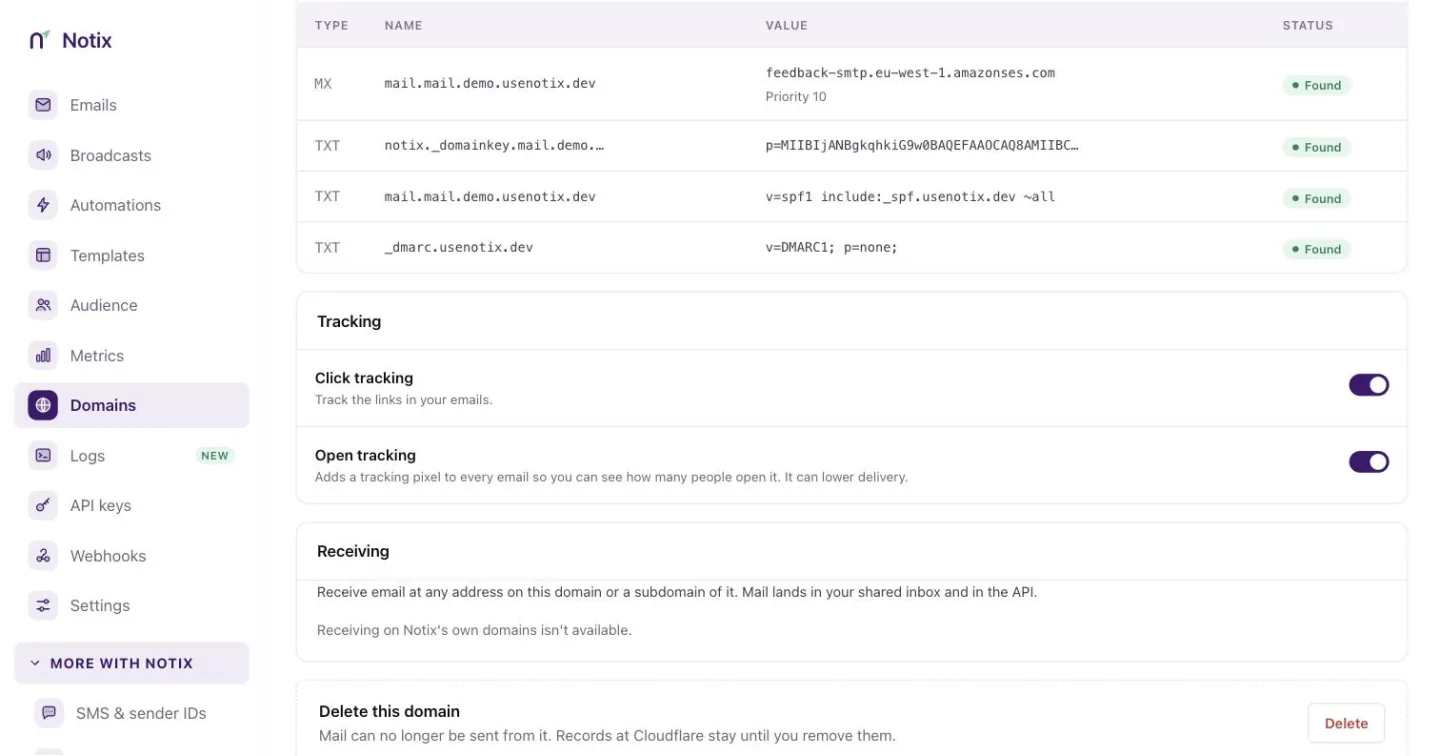
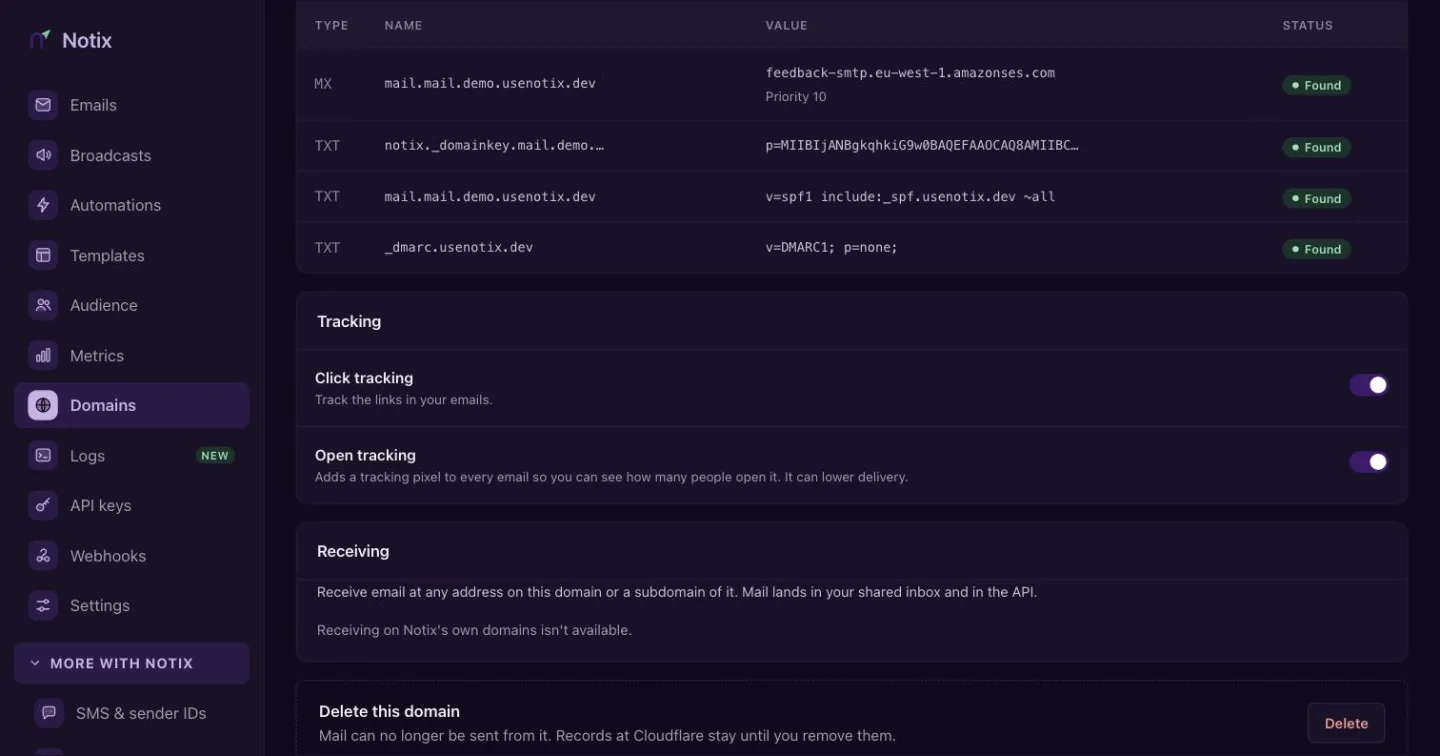
The Tracking card. Each switch saves the moment you press it. Press a switch
Press Click tracking or Open tracking. The change saves at once and a message confirms it. If it cannot be saved, the switch moves back and the message says why.
Change tracking with the API
Call Change a domain's settings with one or both settings. It needs a full access key.
curl -X PATCH https://app.usenotix.dev/api/v1/domains/42 \
  -H "Authorization: Bearer $NOTIX_API_KEY" \
  -H "Content-Type: application/json" \
  -d '{ "clickTracking": true, "openTracking": false }'
import { Notix } from "notix-js";

const notix = new Notix(process.env.NOTIX_API_KEY);

const { data, error } = await notix.domains.updateSettings(42, {
  clickTracking: true,
  openTracking: false,
});
Where the results show up
- Each email's events in Email logs include its opens and clicks.
- The
email.openedandemail.clickedwebhook events carry the time, and for a click the link that was pressed. - Broadcast reports count opens and clicks. See Broadcasts.